HP MediaSmart Server EX487 Wins Engadget Award

small_hp-mediasmart-server_ Well the voting is complete and the results are in . The HP MediaSmart Server EX487 has won the Engadget Editors Choice Award 2008 for Storage Device or Technology of the Year. Interestingly, the Readers Choice Award 2008 for Storage Device of Technology of the Year went to the Apple Time Capsule!

Anyway, well done to HP – it is certainly nice to see a Home Server winning some awards.

To see all the winners, click here.

PerfectDisk 10 for Windows Home Server Giveaway – The Winners

Last week we reviewed PerfectDisk 10 for Windows Home Server and our friends at Raxco gave us three fully licensed copies of PerfectDisk 10 for Windows Home Server to giveaway to our readers.

I am pleased to announce the winners of the giveaway are:

Brian Schmitz from Oakdale, MN, USA

Phil Bevan from Australia

Jonas Winther from Denmark

Congratulations guys, expect an email from Raxco shortly.

For all those that didn’t win this time, don’t worry, there are plenty of giveaways coming up on the site, so stay tuned.

Installing the Remote Notification Add-In to Windows Home Server on a Friday night

Background

According to the Add-In creator Alex Kuretz and his website, Remote Notification is “designed to forward the System Health Notifications from the Home Server to an email address. This can be particularly useful when configured to send to an email address that forwards an SMS (text message) to the user’s mobile phone.” This sounds really cool. I have a WHS and a cell phone. I have some extra SMS text time left on my cell phone bill at the end of each month so I am going to install the Add-In. Hopefully it will notify me any time there is a status change to my Windows Home Server. I will do the installation on my home-built WHS and my parents HP MSS. A real SA needs multiple clients, right?

Note: I already have this Add-In installed and working properly so I am going to uninstall it and go through the process again for this Friday night article.

Equipment Needed:

Remote Notification Add-In available at http://www.mediasmartserver.net/add-ins/#RemoteNotification

A cell phone and plan that allows text messages (you probably should check for text charges first)

An email account through a major service provider

One beer (optional, but you could need up to three depending on your router and ISP)

Serenity playing on Hulu (you pick the episode)

Installation of the Add-In

  1. Download the RemoteNotification.msi file to your server Add-In folder. You will probably have to unzip it and then move it to the folder.
  2. Open the WHS Console and click on settings.
  3. Click on Add-Ins on the left and select the Available Tab on the right
  4. Click on Install and wait for the WHS Console to restart

Pic1

The WHS Console will restart automatically.

Pic2

Settings for the Remote Notification Add-In in Windows Home Server

Click on the Remote Notification Add-In. For the Message Settings I am going to enter the data from an email I set up especially for my WHS. Check with your ISP. Most of the time they allow you extra email names.

I am starting with ISP information from a website that has most of the United States email providers. The website is http://snappermail.com/support/isp.cfm . Check with your ISP if it is not listed.

I have entered all of my information (not real data shown below of course) in the Add-In and sent the Test Notification.

Pic3

My silver cell phone just beeped like a little bell. I love WHS.

Pic4

That was too easy. My router is UPnP so I did not have to do any backend changes. I am not even done with my first beer. Something should have went wrong. It always does. Seriously.

Settings for the HP MediaSmart Server on a 2Wire Router

Time to remote in to my parents HP MSS. I have installed the Add-In and am waiting for the Console to reconnect. I have a few minutes. Do I open a second beer? Of course but I have to walk to the garage.

Mental Note: I should have got that damn mini fridge back.

I have entered all of my data in the Add-In settings on the HP MSS and sent the Test Notification.

Pic5

Error message and it is big one. Crap. My phone is just sitting there like a little silver turd.

Pic6

I verified that I have set up the same exact settings on my parents HP MSS as I did on my WHS and just sent the Test Notification again. Same error. Crap. Still a silver turd.

So it is really not working. What is going on? The same exact settings. Is the HP MSS WHS software different? It works on mine but not theirs. Same version of the Add-In. Crap³. Time to look around the forums and see what I did wrong.

Nothing I can find on the forums that match my error. Time for a new post and a new beer.

Sweet, I got a response from the author of the Add-In. Based on the information I provided, Alex said that I need to check that port 25 is available. I remember enabling ports on their 2Wire router when I first installed the MSS. Dumb router. I hate the 2Wire interface because it is not UPnP. Dumb. I could do a router behind the router but it seems like such a pain in the butt. Maybe for another Friday night…

Mental Note: What should I write about next Friday?

Ok, I have added port 25 to the 2Wire router, saved the new settings and clicked on Test Notification. Still a quiet turd. What is going on here? Time to check with the forum again.

Another response. Coolio. Alex said that my ISP only allows access from their customers, so they will not allow me to send email from my parents AT&T IP. Either I need to configure Remote Notification to use their AT&T mail server settings or use Gmail or some other web mail provider. I say F AT&T so Gmail here I come…

Ok, created a Gmail account for the server and the Gmail settings are entered (I am pretty sure that yourmamasWHS @ gmail was taken) and I am clicking on the Test Notification.

Pic7

Flipper. What is going on now? I knew my WHS install went too easily. Beer and posting number three I guess.

Alex just responded back again via the forum (he is never going talk to me again after this) and said that Gmail doesn’t accept connections on port 25 (I never changed it from when I switched from my ISP to Gmail) so I should try port 587. Back to stupid 2Wire.

Pic8

I get it now. The port number 587 for Gmail was also listed on the web site I referenced above but I must have missed it. I am dumb. Not as dumb as 2Wire though.

I will check all of the settings one more time.

Pic9

Here we go again with the Test Notification. Please work. Seriously.

Pic10

It worked! I hear silver bells, silver bells. It is like beeping Christmas here.

Conclusion

The Remote Notification Add-In works great and all of the issues I had were just incorrect settings on my part. This Add-In is really cool because it allows you to turn it on and off without affecting the settings. It also allows you to choose which messages you receive. I feel like an SA now with Remote Notification.

A special thank you to Alex for the Add-In and the help with the installation. Oh, and one more thank you to the 2Wire developers for making such a POS interface and router without UPnP.

See you next Friday.

Timothy Daleo

Parts of this article restate the actual issues I had back in December when I initially installed this Add-In. That original posting can be found at:  http://www.mediasmartserver.net/forums/viewtopic.php?f=5&t=2995 however the beers were consumed tonight in real-time. The email settings were changed to protect the innocent.

The Home Server Show 38 – PP2 Extravaganza!

HomeServerShow graphic Dave over at the HomeServerShow.com has released the latest edition of his podcast, The Home Server Show, number 38.

This weeks show is all about Windows Home Server Power Pack 2 and includes an interview with yours truly. Yes, I’m really getting around this week on podcasts!

Dave and I really had a blast recording the show – thanks Dave 🙂

You can get more information here, and download it from iTunes or your other favourite place.

Windows Home Server Add-In : LightsOut 0.8.0. Released

LightsOut is a Windows Home Server Add-in that is used to put your Windows Home Server into a suspended mode or hibernation and resume on user defined events.

LightsOut is one of those really useful Add-Ins that has been around for a little while now but certainly worth having. And great news for fellow WHS MVP Martin Rothschink is that Acer have licensed LightsOut for their Aspire easyStore Windows Home Server. Well done Martin!

What has changed since 0.7.7?

In particular, LightsOut has been localized into French, Spanish, Chinese and Japanese, besides the already existing English and German versions.

A brief summary of the main changes:

  • Whenever a restore operation is detected, LightsOut keeps the server running for 2 hours for each selected volume
  • The help file is now opened on the server and no longer requires a LightsOut client installation
  • The Uptime diagram shows tooltip details about computers and remote access
  • A version check has been added for SB Core service. When a fixed version is detected, a warning is no longer displayed.

Some more small changes and fixed have been added into 0.8.0.

We will have a full review and walk-through on LightsOut soon.

Until then, for more information on LightsOut, and also to download it, click here.

The Media Center Show #199 – Round Table and Windows Home Server PP2

Digital Lifestyle

Ian Dixon over at the Digital Lifestyle.com has just published this weeks Media Center Show Podcast. This week has a great round table discussion and also I am on the show talking about Windows Home Server Power Pack 2 🙂

I had a great time talking to Ian again and will be doing a round table with him very soon, not to mention I will be presenting on Windows Home Server at the UK Windows Media Center and Home Server User Group Meeting in Birmingham on the 21st April.

To download and listen to the show, click here.

Windows Home Server Power Pack 2 – Now Available

Today finally sees the announcement that Windows Home Server Power Pack 2, formally known as Snoqualmie, will be released tomorrow via Windows Update. Power Pack 2 is a minor release for Windows Home Server but it is also a “must have” update to Windows Home Server!

If you have your WHS set to download and install updates automatically then you have nothing else to do but sit back, relax, wait for the download and installation to happen, and enjoy PP2! However if you don’t want to wait you can always force the download 🙂

If you don’t have automatic updates switched on, in which case why not, now would be a good time to switch it on to make sure that you don’t miss out on any updates in the future.

This is the release of the English version, with Chinese, French, German, Japanese and Spanish currently scheduled to be available before the end of April.

If you want to read the documentation for Power Pack 2 click here.

You can check that Power Pack 2 has installed correctly by opening the Windows Home Server Console, clicking on Settings and the Resources, and confirming that the version you have installed is 6.0.2030.0 as shown below. The image on the left is the pre PP2 version numbers and the one of the right is the PP2 version.

PP1 resources resources new

All of your computers that are currently running the Windows Home Server Connector will have the connector automatically upgraded to the new version.

NEW FEATURES AND ENHANCEMENTS

There are a number of new features and enhancements that are delivered with Power Pack 2.

Remote Access Enhancements

The Remote Access settings experience has been greatly enhancement to make it even easier to setup and configure remote access to your Windows Home Server. There are some new wizards as well to help you with the initial configuration of remote access, and also to repair your existing configuration as well.

remote access remote config remote config2 remote config3 remote config5 remote repaired

The troubleshooting help has also been improved.

Home Computer Backup Enhancements

Have you ever tried to restore files and folders from a backup only to have the process stop somewhere between 79 and 81%? Well if you have then there are some fixes included in PP2 which should help eliminate this!

An Updated SDK

The Windows Home Server SDK has been updated and includes facilities to enable add-in developers to display a EULA during installation, amongst other things.

Server Storage and Shared Folder Enhancements

Improvements have been made to the amount of notification messages that WHS produces about the files that are stored in your Shared Folders. Previously the amount of messages produced could cause high CPU utilisation for any applications that might be accessing these files, such as a Zune. This update rectifies this issue.

Have you ever tried to copy large files from your Windows Vista computer to a share on your Windows Home Server and had it fail because you didn’t have enough free space on your WHS Primary Drive? For example, you only had 3Gb of free space on your primary drive but you wanted to copy a 5Gb file to your Videos folder? Well, this update changes this from needing the free disk space on your primary drive to needing the free disk space in the storage pool, which after all is what you were expecting, right?

Bug Fixes

Obviously there are some bug fixes included in Power Pack 2.

If one or more of your home computers has been running the Windows 7 beta, then you would have noticed already that prior to PP2, the Computers and Backup tab showed any Windows 7 computer you had as a Windows Vista computer. Now with PP2 installed WHS correctly identifies Windows 7 – as you can see below.

OS

Improved User Experience

Improvements have been made to the “Day 1 Experience” which basically means if you were to be installing Windows Home Server with Power Pack 2 for the first time there are now less screens that you have to go through before being able to use it.

There have also been some improvements in the Windows Home Server Connector installation experience.

New Language Support

Italian language support has been added in addition to existing Chinese, English, French, German, Japanese, and Spanish versions.

Media Sharing Enhancements

With the release of PP2 comes support for MP4 audio and video. Also, any content that is stored on your WHS and shared via WMC, including those MP4 files, will now show up in the music or video library with title, artist, composer, album and genre metadata.

music

Windows Media Center Connector

For some of you, this might be the one thing you were waiting for! This enhancement enables your Windows Media Center to connect to your WHS and access content that has been stored in your Shared Folders.

You can also use your Windows Media Center Extender to view content stored on your WHS.

How cool is that? In the past, you could hack your WHS and WMC to enable some of this functi
onality, but thankfully it is now fully supported and provided to you without the need to do anything extra. So, do you think that the future might see even more WMC integration with WHS?

If you click on the Windows Media Center icon that appears in the Settings area of the Windows Home Server Console before you have installed and configured the Windows Media Center Connector, you will see a reminder to install it first.

WHS WMC Console Settings

INSTALLING AND CONFIGURING THE WINDOWS MEDIA CENTER CONNECTOR

The required files for the Windows Media Center Connector are automatically copied to all of your Windows Media Center computers ready for you to install. To do this just follow these simple instructions:

On the Start menu, find Windows Media Center Connector and click it.

mce start menu

The UAC box will appear (assuming have haven’t switched UAC off) – click Continue.

The next screen to appear is the Windows Media Center Connector installer. Just click Next to carry on.

wmcc1

You will then be asked for your Windows Home Server password (remember this is the administrator password). Type it in and then click Next to continue.

wmcc2

The installation will only take a few seconds, then when it is complete you will need to click the Done button to restart your computer. If you don’t want to restart at this point you can check the “Do not restart now” box – just make sure you restart before you want to use the new functionality.

wmcc3

Now when you go into the Windows Home Server Console, click on Settings and then Windows Media Center you will see it is populated with information specific to your Windows Home Server.

WHS WMC Console Settings - after

You can specific access to different folders for Windows Media Center and also Windows Media Center Extenders just by clicking the relevant radio buttons – just as you are used to already with Windows Home Server. You can even stop all access with a single click of a button. Don’t worry, you can re-enable access with a single click as well!

Recorded TV folder

When you go into the Windows Home Server Console and click on the Shared Folders tab you will notice a new tab called Recorded TV.

shared folders

If you double click on the Recorded TV folder you will notice that Folder Duplication is switched off by default, so if you really want to protect your Recorded TV, now might be a good time to enable it.

recorded TV properties

Another nice feature is that every user by default gets Full access to the Recorded TV folder. So if you don’t want every user to have this, make sure you go and change it.

recorded TV properties - user access

It is important to know that Windows Media Center does not automatically copy your Recorded TV from your Media Center to the Recorded TV folder on your Windows Home Server. This is something that you still have to do manually. Why then you may ask is it there? Well, it’s for consolidating your recorded TV content, and also ensuring that it gets backed up. All very useful!

Anything copied to or stored in the Recorded TV folder appears on your Media Center under Recorded TV, just as though it was stored on the Media Center itself.

recorded tv

Conclusion

Ok, so that’s it – what are you waiting for – go get Power Pack 2 and start experiencing even more with your Windows Home Server.

Windows Home Server Finally Available on TechNet and MSDN – Really, It Is This Time!

Following last weeks post about Windows Home Server being available on both TechNet and MSDN and then the subsequent disappearance of it because Microsoft were testing, I can now announce that Windows Home Server is available on both TechNet and MSDN and will be staying there – HONEST! 🙂

This is great news and has been a very long time coming. I’m not going to get into all the details as to why it has taken so long, but what I will say is that the guys in the Windows Home Server team have been working very hard for a very long time to make this happen. Well done guys!

Building an Astaro Personal Firewall with Spare or Low End Parts – Part Three now available

0

Continuing in his series on how you can build your own Astaro Personal Firewall with either spare or low end parts, and no other cost MVP Pete Stagman had just published part three.

This week’s part is all about DMZ’s – enjoy!

To read part three, click here.

Media Center Health Monitor for Windows Home Server

My friend and fellow MVP Ian Dixon (he of the DigitalLifestyle.com), has written an add-in for Windows Home Server called Media Center Health Monitor, which as it sounds, monitors the health of the Media Center or Centers (if you have more than one), and the Media Center’s do not even have to be associated with your Windows Home Server.

The add-in is currently in beta, but you can sign up for it here. Ensure you give Ian lots of feedback.

If you are not already running the Media Center Health Monitor on your Media Center, make sure you download and install it in order for your Windows Home Server to have something to monitor!

You can install it directly from the downloads section once you have signed in to Ian’s site. Just follow all the on screen prompts!

MCHealth

Once you have signed up, been approved and have downloaded the add-in, copy it to your Windows Home Server Add-ins folder in the Software share.

ready to install

Once you have copied it to the share you will probably see the usual message about an add-in being ready to install. So, do as it says and open the Windows Home Server Console, click on Settings, then choose Add-Ins and click the Available tab. Click the Install button to start the installation.

available add-ins

Like with any other Add-in, once the installation has completed you will need to restart the Windows Home Server Console.

When you have opened the Windows Home Server Console again, you will see a new tab – called strangely enough Media Center Health Monitor.

media center health monitor icon

If you click on the Media Center Health Monitor tab, you will see a message warning you that you need to enter your Online Account details in the Settings tab – so lets go do that now, shall we?

monitor not configured

Click on Setting, and the click on Media Center Health Monitor to bring up the required screen.

media center health monitor settings

Enter the User Name and Password you used to create your account and click Save. You can also check the box for Auto Update Status and change the Update Interval if you want something other than 5 minutes.

When you go back to the Media Center Health Monitor tab now and click on My Events, you can view anything that has happened. You may need to click Refresh to get something to appear.

My events

If a health warning is received, it will also appear in Task Tray.

health warning

Overall I like this Add-in, and you can certainly do a lot more than just have Windows Home Server monitor it, you can have the application send you an email, or even have updates on Twitter (Ian does love his Twitter!).

So, why not give this Add-in a try and make sure to give Ian some feedback.

Windows Home Server Power Pack 2 – Coming Very Soon?

On Friday, Phillip Churchill over at MSWHS.com had an exclusive post that WHS Power Pack 2 would be released this coming Tuesday.

Where did Phil get this information – well Microsoft release information each month to administrators in advance of any patches and updates that will be released via Windows Update, and it was listed on there.

As of today though the information about PP2 has been removed.

So, lets see what happens next week 🙂

Backing up Windows Home Server on a Friday night

Equipment Needed:

External Hard Drive

WHS BDBB Add-In available at http://www.mediasmartserver.net/add-ins/#WHSBDBB

Advanced Admin Console Add-In or remote desktop connection

2 Beers (optional)

Home Server Show Podcast #37 playing on iTunes (you can also substitute any episode of Jericho Season One)

Background

So I love the automated backup function of WHS. We all do. In addition to the regular backup of my networked computers, I run the folder backup of the WHS server to my external USB drive. We all do. I take an additional step to secure my data. On the weekends, usually every Saturday morning while I browse the discount tech sites and the wife is still sleeping, I copy the backup database to another hard drive that I take off-site. The backup database contains all of the files WHS would use if I needed to restore any PC backed up from the network.

I do this backup each weekend for three reasons:

  1. If the server ever goes tits up I have everything I need to do a complete and easy restore
  2. I enjoy saying that I have “off-site backup” protocols
  3. Saying “off-site” is cool.

The Process

Let me start by saying that you might have a different order of doing this same process. The important thing is that you follow some sort of plan on a regular basis. Seriously. How much easier can MS make it? Keeping your data safe is the whole reason we do this, right?

Since I run the regular backup every few days all I need to do is copy the remaining backup database files to the same external hard disk. My typical WHS folder backup look likes this:

Pic0

The WHS backup database is not duplicated by this standard WHS folder backup process. For this reason, according to MS, “you may want to periodically copy the entire backup database from your home server to an external hard disk that you attach to your home server. The external hard disk should not be added to the Server Storage on your Windows Home Server.” I found this information at:

Home Computer Backup and Restore

I followed the MS directions and start by accessing the Command Prompt from within Advance Admin Console and using the directions listed in the link above.

Pic1

Mental Note: Disable the Remote Notification (if you have it installed) before you stop the backup service to avoid the extra SMS messages.


Once you have stopped the pdl and backup service, access your external hard drive from the Advanced Admin Console and create a folder on the external hard drive in which to copy the backup database as shown below:

Pic2

Give your folder a name that makes sense to you (preferably with the date) and is easy to recognize.

Pic3

The WHS backup database is stored entirely in the folder D:\folders\{00008086-058D-4C89-AB57-A7F909A47AB4}. We are just going to copy it. Use the Advanced Admin Console and navigate to that folder. Once you are in the folder, select all, and then copy those files to the new folder you created.

Pic4

This is the point where Jericho and the beers come in to play. You now have some free time. I have Netflix on the second monitor and the wife is watching her shows in the living room. I wonder if I could EMP-proof my server? A ruggedized Windows Home Server? Could I successfully build a Faraday cage in the server closet? Faraday is also the guy on Lost. Maybe he is the great great great great great grandson of Michael Faraday who developed the electromagnetic field concept in physics and the cage. I love Wiki. I love Lost. I love WHS. Seriously.

Pic5

My files took 56 minutes to copy during the manual process. There are some massive files sizes so be patient. You mileage will vary depending on the speed of your external hard drive. I keep a special USB drive in a small fire-proof safe. My safe was $100 on sale at a local retailer and the drive is a little 320GB Seagate for about $80. This ends up being cheaper than some of the dedicated fire-proof drives and lets me expand and change drives easily. An additional added benefit is that it is USB powered and does not constantly run off of AC power. Find the right combination that suits your needs and budget.

Pic8

Installation of the WHSBDBB Add-In – An Easier Way to Backup

There is an easier way to backup the backup database. I found a file during my adventures that automates this process for you. I had probably looked at this Add-In before but since the name was WHSBDBB I just kept going. It was only until I read a related article on accident that I gave it a second look.

http://www.mediasmartserver.net/downloads/WHSBDBB.zip

Once you download the file install the WHS BDBB Add-In by copying the WHSBDBB.msi file to the Software\Addins folder of your Windows Home Server. Start the Windows Home Server Console, click on Settings, then select Add-Ins. Choose WHS BDBB from the Available tab, and click “Install”. The Add-In installation is a standard install although I had to reboot twice to get the Add-In to work.

Automated Backup

Ready? Open the Add-In click on Backup and choose your drive.

Pic7

I actually perform this backup twice; once to a hard drive in my little safe and once to the off-site hard drive that I switch out. Switch out? Yeah, when I drop off the hard drive I backed up today I pick up the hard drive from last week. I rotate two drives that I got from the Western Digital outlet. Can you ever backup too much? Well maybe…

Pic6

The manual copy of 73GB took 56 minutes total while the WHS BDBB took 60 minutes. I am not sure why there was a delta (I used the same drive) but the simplicity of the Add-In offsets any extra time.

For more information about Windows Home Server Home Computer Backup and Restore, and why you should look into it, go to the Community Forums at the Microsoft Web site ( http://go.microsoft.com/fwlink/?LinkId=100263).

We are all done and backed up. Nice.

See you next Friday night.

Home Server Show Podcast 37 Out Now

HomeServerShow graphic Dave over at the HomeServerShow.com has released the latest edition of his podcast, The Home Server Show, number 37.

This weeks show includes an interview with my friend and fellow WHS MVP Terry Walsh.

There is also a mention of two of our articles – thanks Dave 🙂

You can get more information here, and download it from iTunes or your other favourite place.

Perfect Disk 10 for Windows Home Server Review

pd logo

Raxco Software have been around for quite a while now and have produced many different versions of their disk defragmentation software, including previous versions for Windows Home Server.

This review concentrates on the latest version Perfect Disk 10 for Windows Home Server, which was released earlier this year. It has won a number of awards, including PC Magazine’s Editor’s Choice award and WindowsITPro Reader’s Choice award. The review will cover why you need it, some of it’s key features, how to install it and the conclusions.

WHY DO I NEED IT?

You might ask yourself why you would want to buy disk defragmentation software. Well the answer is that you may not want to. What do I mean by that? Well, put simply it is a matter of personal preference. Disk defragmentation software is one of those topics that often gets one of two similar responses – either “I must have it” or “I don’t want or need it”.

Personally I must have it. If you don’t know why you might want it, put simply, as files are stored, moved, deleted, updated and so on, over time they can be potentially stored on different areas of the disk rather than in a single block. This is called disk fragmentation. There could be thousands of parts of files scattered all over the disks on your home server. What this means is that it takes longer to read and write those files than it would do if they were all in the same place. That annoying delay waiting for that Word document to open? Could be disk fragmentation.

This is where disk defragmentation software comes into play. The software examines the disk and all of your files, figures out where the parts of the files physically on your drives are and attempts to move them together to make things run faster and smoother. This is a good thing – just imagine having hundreds of gigabytes of files scattered all over the disk.

So, are you convinced that you might benefit from defragmentation software? If so, one thing that is very important to understand is that no matter what software you use, it MUST be Windows Home Server aware because of the way that Drive Extender works in WHS.

KEY FEATURES

So, what are some of the key features of Perfect Disk 10 for Windows Home Server I hear you ask? Well, even if you didn’t ask I am going to tell you!

SMARTPlacement is a feature that identifies the files that you use most and then organises them according to your own usage patterns. What this basically means is that the process is specific to you and how you operate. This speeds up subsequent defragmentation which also reduces any performance hits on the computer.

Single-pass defrag means that your drives are defragmented on a single pass, and not multiple passes like on previous versions.

AutoPilot Scheduling means that you can set the defragmentation up to take place at a time that is convenient for you and how you work.

There are quite a few other features – if you want to read all about them, click here.

HOW MUCH DOES IT COST?

There are two different licence options for Perfect Disk 10 for Windows Home Server.

The first is a Single Licence, which covers your Windows Home Server and a single PC. This costs $49.99 or $24.99 to upgrade if you have a previous version.

There is also a Site Licence, which also covers your Windows Home Server and up to 10 PCs, which as you may recall is the maximum number of PCs that WHS supports. This costs $99.99 or $49.99 to upgrade if you have a previous version.

TRY IT FOR FREE:

If you would like to try it for free, for 30 days, you can do so by clicking here.

INSTALLATION & CONFIGURATION

To install Perfect Disk 10 for WHS once you have obtained the program file, perform the following steps on the computer you downloaded it to (this assumes that you have the WHS Connector software installed as well) :

Double click the PD10_WHS.exe file to start the installation process.

pd1

Click Next to continue.

Choose the location to install the files – you may as well just leave the default location.

pd2

The installation will commence and when it is completed you will see the Perfect Disk menu.

pdi4

At this point you can just close the menu by clicking Exit and follow these instructions:

Right-click the WHS tray icon and click on Shared Folders.

sharedfolders

Double click the Software folder and copy the c:\Program Files\Raxco\PerfectDisk10Install\PerfectDisk10_Home_Server folder to it.

software share

The next part of the process may be new to you – you need to actually install the software on your Windows Home Server – and to do that you need to be on the actual WHS desktop itself. To do this you can either use the Remote Desktop Connection software that comes installed with Windows if your WHS is headless (for example an HP MediaSmart server) or you can just log into your WHS if you have a mouse, keyboard and monitor attached (for example if you built one yourself).

Start the Remote Desktop Connection software on your computer – it can be found at Start, Programs, Accessories, Remote Desktop Connection (if you are running Vista) or Start, Programs, Accessories, Communications, Remote Desktop Connection (if you are running XP).

RDC

Type in the name of your Windows Home Server and when prompted type in the Administrator password. This will launch the Remote Desktop Connection and you should then see your WHS desktop once you have closed Internet Explorer – remember to be very careful here!

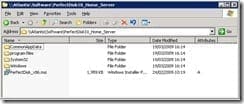
Double click on the Shared Folders on Server icon and then double click on the Software folder.

You should see the PerfectDisk10_Home_Server folder you copied earlier – double click it to open it.
shared2

Double click PerfectDisk_x86.msi to start the installation.

pdi1

Click Next to continue. You will need to read the License Agreement, click on the I accept… radio button and then click Next to continue.

pdi2

You will be prompt to chose an installation directory, you may as well leave the default choice, and also if you want to place an icon on the WHS Desktop, again, you may as well leave this. Then just click Next to continue.

pdi3

Select the Setup Type from here – you should choose Complete, then click Next to continue.

pdi4

On the Ready to Install screen, just click Install to continue.

pdi5

At this point the installation will commence – it literally only takes a moment or two so don’t go anywhere! After it completes you have the option to check for updates, this is always a good idea and is checked by default. Just click Finish.

pdi6

If there are any updates they will be downloaded for you, but it is very likely you will be told that you are running the latest version.

pdi7

All you need to do now is close down the Remote Desktop Connection – and you can do this simply by clicking the X in the top right corner of the screen.

During the installation, PerfectDisk will create a weekly schedule to defragment all the drives at 6.00pm every Sunday. Also, the Firewall will be changed to allow remote access to PerfectDisk.

Now that PerfectDisk is installed, you can go to the Windows Home Server Console to use it.

Just launch the WHS Console as usual and you will see a new tab called PerfectDisk 10. Just click it to be taken to the license screen.

liencee

From here you can either enter your License key or you can continue for a 20 day trial.

You now have to configure PerfectDisk and then click Finish when you are done. You might want to consider checking the Do not show this wizard again box otherwise you will have to go through this every time.

console3

You will now see the PerfectDisk tab in all its glory.

console4

The first tab you are in is the Defragmentation tab, and from here you can analyse your drives and start a defragmentation of those drives.

Select a drive by clicking on it and then click the Analyze button to start.

I have to say that this is one of the parts of the software that I am not very happy with. You cannot see more than the C drive without having to scroll down and you only have a single line view so it can be a little fiddly. But after a while you do get used to it! You can actually get around this by launching the Perfect Disk 10 console from the WHS Desktop, although that does involve you having to once again use the Remote Desktop Connection software or being in front of your WHS just to see more than a single line.

Depending on the size of your drive, this may take a few minutes.

analyse

When it is complete, you will be provided with a report, as shown below.

report

Once you have read through the report, if you want to go ahead and perform the suggested actions, all you have to do is click on the Start button. You can then watch the process if you want or go off and do something else.

When it is all finished you will again see a report. This was very simple and only involved me click the Start button – so basically anyone can do it, you don’t need any special understanding or skill.

defrag complete

One the tabs is Space Management, and this tab shows you each disk and how much free space you have available.

spacemanagement

As you can see from the screenshot, there must be a bug here as according to this, I have 561% free space on my D drive!

Another tab is AutoPilot Scheduling which enables you to set when you want the defragmentation to happen.

autopitlot

The final tab is the Product Resources tab. This tab shows you information on the number of files defragmented along with the amount of free space reclaimed. You can also check for updates, view the logs, change settings and more.

resources

Each of the tabs have multiple other tabs and buttons within them for very fine tunin
g and setting changes, so chances are, if there is something you want to do or change, there is a way to do it.

CONCLUSION

So, in conclusion, Perfect Disk 10 for Windows Home Server is a very easy to install and easy to use product that once you have installed you can pretty much just leave it there running in the background. You may want to make a few tweaks, such as when the defragmentation happens, but again, it is very simple to do with just a few clicks of the mouse.

Again, if you think back to the start of the article, I mentioned that there are two camps when it comes to defragmentation software. I am still convinced that defrag is a necessity on any computer. I didn’t notice any performance hit from running Perfect Disk, even when I performed the initial analysis and defragmentation. In fact, to try and stress it a little more, I even performed a backup on a machine that had never been backed up at the same time as that initial defragmentation – without any problems.

Given the fact you can try it for free for 30 days, why not give it a go and see what it can do for you? And if you want to buy it, the cost is very small and even the cheapest licence also gives you a copy for one of your PCs as well.

For more information on Perfect Disk 10 and Raxco, click here.

WOULD YOU LIKE A FREE COPY?

So, would you like a free, fully licensed copy of Perfect Disk 10 for Windows Home Server?

Our friends at Raxco have given us 3 full licences of Perfect Disk 10 for Windows Home Server to give away to you lucky readers.

To win a copy, all you need to do is send an email to giveaways @ usingwhs.com (remembering to remove the spaces) with the title Perfect Disk 10 Giveaway, and tell us your name and where you are located, and a suggestion to improve UsingWindowsHomeServer.com by Friday 27th March 2009. Winners will be picked at random and announced on the site on Saturday 28th March. Good luck!