I have completed my installation of Windows 7 and am looking forward to using the new Windows Media Center. This week I will walk through the process of enabling Internet TV from within Windows Media Center and show a quick mapping of a Windows Home Server folder to enable viewing of my existing movies.

Background
I have been waiting for Windows 7 for quite some time in hopes that the new Windows Media Center would have enhanced TV tuner capabilities. With the official Windows 7 release date confirmed, I was very excited and looking forward to October 22. After work on Thursday the 22nd I purchased a family 3-pack of Windows 7 from Costco and then went home to await the “Friday Upgrade Day” event I had planned in my head. zzzzzzz
Friday morning arrived to my wife leaving for a day out with her Mom and leaving me to upgrade three of our six PC to Windows 7 Premium. Very exciting. Good times. Seriously.
After I made a final Vista backup of my garage HTPC to Windows Home Server I was ready for my first upgrade. After two hours of DVD spinning and fan blowing my Dell Inspiron 537 was ready for prime time. Oh wait, it wasn’t. This is the second day after release and there were some updates already? Well I am almost ready for prime time. Ugh.
After some Windows Update action my 64 bit PC was now running Windows 7 and I was ready to rock the WMC. I opened WMC for the first time and I got this screen:

Where was the Internet TV I have heard so much about? Where was my additional stuff? Oh, I have to enable it? Where did it mention that? Did I miss the memo?
The Internet TV option is not available by default on the Windows 7 installation since I did not have a TV tuner connected. Now logically I thought that since Internet TV is through the Internet, why would I need a TV tuner to enable it. Anyway, maybe it is just my system issue and I should write this article to vent.
Let me walk you through the process. Ugh. Lets set the pig on fire.
UPDATE: As I was posting Eric put up a response: “Actually, you do not need a tv tuner to enable internet tv. Just go to settings>general>Automatic download options>Download now. This will add the internet tv option to the WMC start menu, then follow the same steps to activate it.” I am out of town and on my work PC so I do not have the ability it to check it out. I trust you Eric!
Equipment Needed
- Windows 7 PC with Windows Media Center
- USB TV Tuner with antenna (can be from another PC if you do not want to leave it on this PC)
- 2 Beers (optional as always)
Internet TV Enable Process – USB TV Tuner Connection
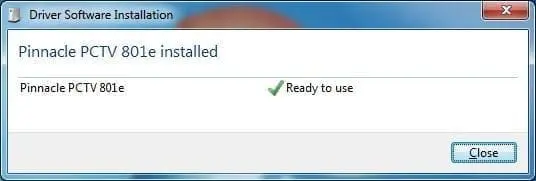
The first step is to connect a USB TV tuner (and antenna) to the PC you want to enable. I only have one tuner at this time so I will temporarily remove the USB TV tuner from my Dell Studio and put it on this PC so I can enable the Internet TV. After I connect the USB TV tuner Windows 7 does a great job of finding the right driver for the USB TV tuner and I am good to go.

Now that I have a TV tuner connected I will open WMC and use the “live tv setup” option to temporarily set up the tuner.

I have SKIPPED A FEW STEPS HERE FOR BREVITY but just follow the prompts for the Guide and Zip Code data and you will be fine.
Update PlayReady? I agree, install, whatever…lets go!

I configure the antenna for my local channels as part of the process. If you are going to disconnect the TV tuner then uncheck all but one station. I want to see how this antenna works so I will let it run through the signal process. This screen shot is with the garage door closed:

This is with the garage door open. Make sure you play with the antenna to get the best signal. I live in Azusa up near the mountains and some of the signals are crap.

Ok, now that the TV tuner is set up I should be ready for prime time. I click on Finish.

UPDATE: As I was posting Eric put up a response: “Actually, you do not need a tv tuner to enable internet tv. Just go to settings>general>Automatic download options>Download now. This will add the internet tv option to the WMC start menu, then follow the same steps to activate it.” I am out of town and on my work PC so I do not have the ability it to check it out. I trust you Eric!
Viewing Internet TV
In Window Media Center I can now see that Internet TV is ready! I can also see that the Guide and Search functions are now listed in support of the live tv option that is still connected via antenna to this PC. Lets try out some over the air TV.

This first check is for the live tv I just installed. Here is a screen shot of the first channel over antenna. Damn is that clear. I love HD. Nice menus. I love WMC. I love WHS. Seriously.

Now, lets check out the INTERNET TV! I agree, install, whatever…lets go!

Download away. I agree, install, whatever…lets go!

Look at all the wonderful channels. Oh, Netflix is there. Sweet. I will try that first.

Netflix should be cool. I agree, install, whatever…lets go!

My movies are there. I love it already. I use Roku in the living room and this will be perfect for the garage and other Windows 7 PCs in the house! Dude!

I am also checking out some of the other channels. This shot is from the CBS menu for CSI. I wonder how the picture is going to look. Lets play it!

More software to install? Adobe Flash? Something tells me this is not going to be HD. I agree, install, whatever…lets go!

This is a snap shot from the opening credits. Not too bad for Flash.

Recorded TV already stored on Windows Home Server
Are my existing TV recordings there? Of course they are since WHS keeps them safe and warm. About 108° actually.

Movies already stored on Windows Home Server
To complete this set up of Windows Media Center I want to map to the folder where I keep my movies to this WMC PC. I click on movie library.

Mental Note: How come some of these titles are in lower case? WTF?
Follow the prompts to Add folders to your library.

The folders I want to add are on my WHS.

There you are sweetheart. Show me your goodies.

I keep all my movies in one folder to make mapping easier. Find your, click on Next and you are all done.

Conclusion
Overall I am very happy with the new Windows Media Center. I do not know why you would need to connect an actual TV tuner to enable the Internet TV function but I am glad that I had one I could temporarily use. In addition, I am sure Windows 7 has some other nice improvements over Vista that I will explore over the coming months but I am really just upgrading for the new WMC experience.
I hope this article has helped some of you explore the new Windows Media Center.
See you next Friday night,
Timothy Daleo