Plextor Announce Launch of the Fastest M2S Series SSDs with SATA III 6Gb/s Interface

SSDs are becoming more popular, and Plextor have today announced the upcoming launch (due March) of the new fastest M2S Series SSDs with SATA III 6Gb/s Interface.

M2S-01M2S-05M2S-06

The M2S Series is the must-have small and portable device for tech-savvy home or business users who demand consistently high quality, unbeatable speeds, stability and a long product life through day to day use.

Key Features:

* One of the first SSDs to support SATA III 6Gb/s – read speed of up to 480MB/s

* 2.5” Internal SSD in three capacities: 64GB, 128GB and 256GB

* Features the world’s most advanced control chip for high performance

* Exclusive ‘Instant Restore Technology’ for stability

* Generous 128GB DDR3 cache to improve data transfer speeds

* Dynamic Wear Levelling system improves data allocation for longevity

* Latest Windows 7 TRIM command for data-wiping efficiency

* Bundled with Acronis True Image software for easy migration

* Unrivalled 3 year on-site warranty and service support

Pricing, Availability & Specifications:

The M2S will be launching in Europe and UK in March 2011. Further details including pricing on the M2S Series will be announced in March.

More Information Available from the Plextor Wesbite

Here is the full press release:

Plextor to launch the fastest M2S Series SSD with SATA III 6Gb/s Interface

February 7th, 2011 – Plextor are excited to reveal they will be launching their first solid state drive (SSD) in the UK next month – the world-class 2nd generation M2S Series.

Plextor has a deserved, solid reputation for high performance, high quality products, especially in the storage sector. This leap into the SSD sector in the UK and Europe is a new move for the ever-expanding manufacturer, and a demonstration of their continued position as pioneers in a market likely to grow rapidly in future years. SSDs are increasing in popularity as a complement alongside traditional HDDs and the technology may eventually replace the HDD entirely for the OS and working environment.

Available in 3 capacities (64GB, 128GB and 256GB), the perfectly engineered 2.5” internal M2S Series SSD is one of the first of its kind to support the new SATA III 6B/s interface and boasts exclusive technologies to increase speed, stability and lifespan – offering up to 10 years of performance which doesn’t degrade over time as other SSDs might. With read speeds of up to 480MB/s, write speeds of up to 330MB/s and performing significantly highly in benchmark tests, the M2S is currently the fastest SSD available on the market.

The M2S Series is the must-have device for tech-savvy home or business users who demand consistently high quality, unbeatable speeds, stability and a long product life through day to day use.

Key Features:

* One of the first SSDs to support SATA III 6Gb/s – read speed of up to 480MB/s

* 2.5” Internal SSD in three capacities: 64GB, 128GB and 256GB

* Features the world’s most advanced control chip for high performance

* Exclusive ‘Instant Restore Technology’ for stability

* Generous 128GB DDR3 cache to improve data transfer speeds

* Dynamic Wear Levelling system improves data allocation for longevity

* Latest Windows 7 TRIM command for data-wiping efficiency

* Bundled with Acronis True Image software for easy migration

* Unrivalled 3 year on-site warranty and service support

All-new SATA III 6Gb/s Interface for the fastest transfer & writing speeds possible:

With a sequential read speed of up to 480MB/s and a write speed of up to 330MB/s, the MT2 series is exceptionally fast and one of the first products in the market to feature the all-new SATA III 6Gb/s interface. This additionally supports the previous generations including SATA 3GB/s and SATA 1.5GB/s.

Featuring the world’s most advanced control chip for unrivalled performance:

The MT2 series is catapulted into leadership with the inclusion of the server-grade Marvell 88SS9174 control chip – currently the industry’s most advanced and also used in central processors. This pioneering technology gives the MS2 Series the edge, with the fastest read/write speeds, increased stability and an enhanced lifespan.

These benefits are increased further thanks to a generous 128MB DDR3 cache which serves as a temporary storage buffer. Its high speed interface reduces read/write times of the flash memory, particularly with data which is frequently modified, in order to transfer data faster and increase the SSD lifespan.

Exclusive ‘Instant Restore Technology’ for life-long high performance:

Traditionally, SSDs become ‘dirty’ after long periods of use (similar to HDDs becoming defragmented) and as such, suffer a loss in performance over time.

The unique ‘Instant Restore Technology’ developed by Plextor and integrated into the M2S Series is an intelligent solution to prevent this performance loss from occurring and provides unrivalled, long term stability.

The M2S boasts the latest Windows 7 TRIM command, providing more efficient methods of data-wiping, and a ‘Dynamic Wear Levelling’ system which writes data into blocks equally to provide a highly efficient data allocation process, reducing the number of memory wipe-outs.

Such forward-thinking design and technology enables the M2S Series to overcome the problems associated with long term use, maintaining a no-compromise level of performance throughout its use, offering a lifespan of up to 10 years.

No-fuss software to help migrate from HDD to SDD:

The M2S Series bundles Acronis True Image Software, making it quick, easy and fuss-free to migrate data from a traditional HDD to the MS2 Series SSD.

The process clones the entire partition/drive, ensuring no data is lost during the upgrade and even eliminating the need to re-install the operating system.

Exceptional warranty and service to offer complete peace of mind:

Plextor offers phone support across Europe in 11 languages with local phone numbers for users to dial, with additional email and website support.

Unlike many others of its kind, the M2S offers an added level of reassurance with the Plextor ‘Fast Warranty Service’ – a 3 year on-site warranty across the EU, Norway and Switzerland (1 year elsewhere), enabling users to arrange repairs of non-working products directly with Plextor – so users can feel secure in the knowledge that this must-have device is covered for longer, and avoid the hassle of returning goods to the retailer/third party.

Read/Write Performance

64GB  – Read up to 370MBps and Write up to 110MBps

128GB

– Read up to 420MBps and write up to 210MBps256GB

– Read up to 480MBps and write up to 330MBps

XBMC for the Apple iPad, iPhone and AppleTV2 Gets An Update

It’s only been a few weeks since XBMC (Xbox Media Center) was released for the Apple iPad, iPhone and AppleTV2, and today there is an update.

ATV2-small

Here is the update information:

As a result, we have been hard at work fixing bugs and adding missing features from the first release. So here it is, v2 of XBMC for your AppleTV2/iDevices.

Changelog:

  • GUI speedup
  • Webserver enabled
  • RTMP support
  • AC3/DTS Audio Dialogs
  • Rotating for the iPhone and iPad
  • Black and Dim screensavers working
  • Bluetooth Support
  • SMB shares with Windows Live Essentials should work.
  • Sleep timer works
  • Add-on updates now working
  • Decrypted ISO playback works
  • Thumbnail creation fixed

This question of 1080p display has come up very often, so here’s the answer: XBMC can decode 1080p video but for now the ATV2 is limited to display 720p output. Its still unknown whether this is a hardware or software restriction.

For more FAQ see this page.

Update Instructions:

AppleTV2: Connect via SSH in and run “apt-get update && apt-get install org.xbmc.xbmc-atv2′”

iOS: Upgrade through Cydia.

The XBMC developers are hard at work on non-apple related features as well, expect a post in the next day or two outline what else we’ve been doing.

And don’t forget to check out our installation walk-through for the Apple iPad and iPhone.

Windows Home Server 2011 AWIECO RemoteLauncher – Video Edition

AWIECO is the first company to release an Add-In for Windows Home Server 2011. I had a chance to install it over the weekend and it works great. This useful Add-In allows you to manage your WHS 2011 or SBS remotely by enabling more administrative functionality. Check out the short video and article to find out more!

AWIECO RemoteLauncher

The AWIECO RemoteLauncher Add-In for Windows Home Server 2011 is a great way to access applications on your server. The RemoteLauncher is a must have for anyone who manages their server.

AWIECO RemoteLauncher

AWIECO RemoteLauncher

AWIECO RemoteLauncher for Small Business Server 2011 Essentials and Windows Home Server 2011 is a great tool for accessing more applications on your server. With the RemoteLauncher Add-In you can access:

  • Explorer
  • Commandline
  • Task Manager
  • Event Viewer
  • Services
  • Control Panel
  • Computer Manager
  • Device Manager
  • Registry Editor
  • Server Manager
Download RemoteLauncher

If you need other tools and applications to run in the Dashboard, you can add them by right mouse clicking on the file.

AWIECO RemoteLauncher

As always, Add-Ins can be monitored and removed from the Add-Ins section of the Dashboard.

AWIECO RemoteLauncher

Windows Home Server 2011 AWIECO RemoteLauncher

Windows Home Server 2011 Release Candidate

You can download Windows Home Server 2011 at:

Download WHS 2011

Windows Home Server 2011

The installation of Windows Home Server 2011 has only a few basic requirements.

Windows Home Server 2011 is a 64-bit only operating system.

You can install the server software either manually or unattended.

System Requirements

  • 1.4 GHz x64 processor
  • 2 GB RAM
  • At least one 160 GB (or larger) hard drive
  • NTFS is the only supported file system

Supported networking configuration:

  1. Your server computer must be connected to a router via a network cable
  2. Windows Home Server works best with a UPnP certified device, but it is not required
  3. The router works best in the 192.168.x.x subnet, but it is not required

Try Windows Home Server 2011 and download from Connect today!

BYOB Episode 31 Out Now

2

The guys over at BYOB, including our very own Tim Daleo, have just released episode 31.

BYOB300

Here’s what they say about this weeks show:

[box style=”rounded” border=”full”]Tim and Michael discuss TN vs. IPS Monitor technology and what it means to you. Tim weighs in on an HTPC build. Mike shares his SandyBridge setbacks. Michael gives his opinion on the new nVidia GTX560 Ti[/box]

[iTunes] Subscribe to the Podcast in iTunes(MP3).
[Zune] Subscribe to the Podcast in the Zune Marketplace.

Windows Home Server 2011 Internal 3TB Hard Drive Support – Video Edition

A valuable feature of Windows Home Server 2011 is the support of 3TB hard drives. If you have one of these large format drives you can add it internally to your WHS 2011 and easily add it through the Dashboard. There are a couple of tricks, and a few changes to the drive, so read on to find out more.

Windows Home Server 2011

During our Skype call, and a with a strong push by Diehard, I finally added my 3TB drive internally to my Windows Home Server 2011. As I worked on my Windows Home Server 2011, I had John Skype in Michael Martis from the BYOB podcast and he walked us through the backup limitations of Windows Home Server 2011.

The 2040GB Backup Limit

Windows Home Server 2011 uses the same backup technology as Windows Server 2008 R2. In order to avoid folder shares beyond the backup limit, Windows Home Server 2011 is designed by default to split a 3TB drive into two partitions. Again, WHS 2011 is designed to do this.

Windows Home Server 2011

This technology is limited to backup sizes of 2040GB. Microsoft says it best as:

Windows Server Backup uses the .vhd format for writing backups. The current virtual hard disk specification limits the size of a virtual hard disk to be 2040 GB, which can fit a volume of size 2040 GB – 2 MB, (i.e., 2088958 MB). Windows Server Backup in Windows Server 2008 also limits the maximum source volume size to be 2088958 MB. In Windows Server 2008 R2, if you are not backing up a full volume and, instead, creating a backup of selected files/folders, your source volume size can be more than 2088958 MB, provided your actual data size is less than equal to 2088958 MB. If you are creating a full volume backup, the maximum source volume size limit continues to be 2088958 MB.

The full Microsoft article can be found HERE.

3TB Hard Drives

These large format drives are a great deal lately at around $170 but still not as cost effective per GB as 2TB drives. That being said, if you have a limited amount of space, or limited SATA ports, then you might want to look at 3TB drives.

The Hitachi model below is now under $200 at Newegg.

Deskstar_7K3000

Adding a 3TB to Windows Home Server 2011

Since there is no longer a “pool” of drives, any new internal drive is added through the Alert Viewer to store server folders or server backups.

Windows Home Server 2011

Formatting a hard disk in Windows Home Server 2011 is very simple…

Windows Home Server 2011

…and just a matter of a few mouse clicks.

Windows Home Server 2011

Check out the full video!

Windows Home Server 2011 Internal 3TB Hard Drive Support

Windows Home Server 2011 Release Candidate

You can download Windows Home Server 2011 at:

Download WHS 2011

Windows Home Server 2011

The installation of Windows Home Server 2011 has only a few basic requirements.

Windows Home Server 2011 is a 64-bit only operating system.

You can install the server software either manually or unattended.

System Requirements

  • 1.4 GHz x64 processor
  • 2 GB RAM
  • At least one 160 GB (or larger) hard drive
  • NTFS is the only supported file system

Supported networking configuration:

  1. Your server computer must be connected to a router via a network cable
  2. Windows Home Server works best with a UPnP certified device, but it is not required
  3. The router works best in the 192.168.x.x subnet, but it is not required

Try Windows Home Server 2011 and download from Connect today!

Acer to Release the First Windows Home Server 2011 Box?

Last Thursday Microsoft announced the public release of the Windows Home Server 2011 RC build and they announced it with a blog post. I just noticed that the post seems to have changed a bit since the announcement to now include information from Acer.

WHS 2011 Logo

Here is what the “updated” blog post now includes:

[box style=”rounded” border=”full”]We are also excited to announce Acer is in the final testing phase of Microsoft Windows Home Server 2011. Irene Chan, Senior Business Manager from Acer America Corp. stated this morning “We’re excited to offer this new and improved, easy-to-use OS on our Aspire easyStore Home Server this Spring. Designed for households and small businesses with multiple PCs, Aspire easyStore offers a simple way to network computers, centralize, share and protect digital data as well as access it remotely from anywhere in the world.” stated [/box]

So, Acer are the first to announce something for Windows Home Server 2011. I wonder who will be next?

Here was the original posting:

Here is what Microsoft have posted on their blog today about the release:

Today we are pleased to announce the availability of the Release Candidate for Microsoft Windows Home Server 2011 (formerly Windows Home Server Code Name “Vail”). Affordable and easy-to-use, Microsoft Windows Home Server 2011 (WHS) is the ideal solution to help families keep their important digital files and PC’s automatically backed up, organized, and accessible.

The Release Candidate (RC) signifies our last mile efforts for releasing this product to our customers, and prepares our network of software and hardware partners for its release.

This WHS RC is the first public release to include changes in the storage features, so let’s look at some of the changes you can expect. All existing technologies such as server and client backup, health monitoring, remote web access, streaming media, and simplified dashboard management are still included.

A new Move Folder Wizard makes it easy for you to move data from one drive to another. As Hard Drives are added to the Home Server, your health alerts will notify you that a new Hard Drive is available. From here, you can automatically format and configure the new drive for additional storage.

Once configured, you can easily use the Move Folder Wizard to move your data to the new drive as needed.

To see this in action, please watch our Windows Home Server Move Folder Wizard Learning Bite.

Data protection also includes daily Server and PC backup, Previous Versions via Shadow copy which lets you return prior versions of existing files (without needing to restore from backup), and a protection feature for pre-defined folders (such as Recorded TV, Videos, Photos) in case these are accidently deleted.

Thank you for helping us test this product, and please provide any feedback through WHS Connect, or our official Windows Home Server Support forums.

Now here is what is there now:

Today we are pleased to announce the availability of the Release Candidate for Microsoft Windows Home Server 2011 (formerly Windows Home Server Code Name “Vail”). Affordable and easy-to-use, Microsoft Windows Home Server 2011 (WHS) is the ideal solution to help families keep their important digital files and PC’s automatically backed up, organized, and accessible.

The Release Candidate (RC) signifies our last mile efforts for releasing this product to our customers, and prepares our network of software and hardware partners for its release.  Along with the RC, we have also released an update to the Windows Server Solutions SDK which provides tools and information to develop add-ins and extend the functionality of Windows Home Server 2011.

This WHS RC is the first public release to include changes in the storage features, so let’s look at some of the changes you can expect. All existing technologies such as server and client backup, health monitoring, remote web access, streaming media, and simplified dashboard management are still included.

A new Move Folder Wizard makes it easy for you to move data from one drive to another. As Hard Drives are added to the Home Server, your health alerts will notify you that a new Hard Drive is available. From here, you can automatically format and configure the new drive for additional storage.

Once configured, you can easily use the Move Folder Wizard to move your data to the new drive as needed.

To see this in action, please watch our Windows Home Server Move Folder Wizard Learning Bite.

Data protection also includes daily Server and PC backup, Previous Versions via Shadow copy which lets you return prior versions of existing files (without needing to restore from backup), and a protection feature for pre-defined folders (such as Recorded TV, Videos, Photos) in case these are accidently deleted.

We are also excited to announce Acer is in the final testing phase of Microsoft Windows Home Server 2011.  Irene Chan, Senior Business Manager from Acer America Corp. stated this morning  “We’re excited to offer this new and improved, easy-to-use OS on our Aspire easyStore Home Server this Spring.  Designed for households and small businesses with multiple PCs, Aspire easyStore offers a simple way to network computers, centralize, share and protect digital data as well as access it remotely from anywhere in the world.” stated

As you can see the last sentence doesn’t even finish! So who knows, maybe we should check back periodically to that post to see if Microsoft make any other changes to it!

So why not give Windows Home Server 2011 a try, it’s available now on Microsoft Connect to download.

Download Windows Home Server 2011 from Microsoft Connect

And don’t forget to check out our every increasing number of Windows Home Server 2011 videos.

Using Windows Home Server : Windows Home Server 2011 Videos

Windows Home Server 2011 Backup Strategy and Resource Demonstration – Video Edition

If you are concerned about your Windows Home Server 2011 backup strategy and how it will affect your server performance then you are not alone. We decided to make a video of the scheduled backup in progess and show the CPU and network loads during the backups. Check out the video and see how you can monitor the same stats on your Windows Home Server 2011.

Windows Home Server 2011

Windows Home Sever 2011 Backups

With the removal of some features from previous Vail builds, many users are left unsure of the security of their data. I am here to tell you now that there are built-in solutions in WHS 2011 that will keep your data secure and even protect your server operating system.

Remember that WHS v1, with folder duplication turned on, copied data in the background with the migrator service. You had no control over that resource. The WHS 2011 backup feature allows you to not only copy data WHEN you want to copy it, but also determine which folders are backed up. For example, if you watch Blu-Ray rips from your server between 8-10 pm each night then schedule your backups before or after that time.

Mental Note: WHS 2011 allows you to determine where to put your folder shares. For example, keep Videos on your 7,200 drives and Documents on your 5,400 drives. This is a great feature!

WHS 2011 Backup Drive

Windows Home Sever 2011 Backup Strategy

The backup strategy I offer is this:

  1. Set your server backup to run every 30 minutes during “normal” hours.
  2. Do not perform backups during client backup times (12:00 AM to 3:00AM etc.)
  3. Decide on a folder schema that makes sense such as Blu-Rays rips in one folder, DVDs in another, home videos in another, etc. If a folder starts to fill the drive make a new folder such as DVD-2 or “His DVDs” and “Her DVDs”.
  4. Set your backup to protect the folders you need.
  5. Occasionally check your folder sizes to determine if changes need to be made.

WHS 2011 Backup Drive

Backup Resource Monitoring

We did this video with two backup samples. In the first test we did a 10.3GB set of files that were added between backups. The files consisted of 14 different video files similar to the one shown in the graphic below. The second sample was a “no change” backup with no activity since the last backup.

Video Sample

This video is not a benchmark. It is a real world example of what performance to expect when scheduling and performing a server backup in Windows Home Server 2011. Based on your server hardware specs, your results will vary of course.

WHS 2011 Backup Drive

Watch the video and see how the little the resources were affected.

Windows Home Server 2011 Backup Resource Demonstration

Windows Home Server 2011 Release Candidate

You can download Windows Home Server 2011 at:

Download WHS 2011

Windows Home Server 2011

The installation of Windows Home Server 2011 has only a few basic requirements.

Windows Home Server 2011 is a 64-bit only operating system.

You can install the server software either manually or unattended.

System Requirements

  • 1.4 GHz x64 processor
  • 2 GB RAM
  • At least one 160 GB (or larger) hard drive
  • NTFS is the only supported file system

Supported networking configuration:

  1. Your server computer must be connected to a router via a network cable
  2. Windows Home Server works best with a UPnP certified device, but it is not required
  3. The router works best in the 192.168.x.x subnet, but it is not required

Try Windows Home Server 2011 and download from Connect today!

Windows Home Server 2011 Folder Share Restore Video Edition

Windows Home Server 2011 allows you to safely restore files from your scheduled backup files. The restore process is different from WHS v1 and has a new interface. In addition, the automated backup can include your system disk so you can restore your OS. Check out this four minute video on the Restore for Windows Home Server 2011.

WHS-2011-Front1-540x210

Windows Home Server 2011 Folder Share Restore

With WHS 2011, the automated server backup feature will become the cornerstone of your backup strategy. With this backup strategy, running a backup every 30 minutes not only protects your data, it also protects your operating system by giving you points in time to restore your system.

Should you ever NEED to perform a folder restore it is a simple and easy process.

Check out the short video to see how easy the process is.

Windows Home Server 2011 Folder Share Restore

Windows Home Server 2011 Release Candidate

You can download Windows Home Server 2011 at:

Download WHS 2011

Windows Home Server 2011

The installation of Windows Home Server 2011 has only a few basic requirements.

Windows Home Server 2011 is a 64-bit only operating system.

You can install the server software either manually or unattended.

System Requirements

  • 1.4 GHz x64 processor
  • 2 GB RAM
  • At least one 160 GB (or larger) hard drive
  • NTFS is the only supported file system

Supported networking configuration:

  1. Your server computer must be connected to a router via a network cable
  2. Windows Home Server works best with a UPnP certified device, but it is not required
  3. The router works best in the 192.168.x.x subnet, but it is not required

Try Windows Home Server 2011 and download from Connect today!

Updating the Aleratec 1:1 HDD Cruiser with Updated Secure Erasure Functionality : Video Edition

Back in May 2010, we did a hands-on review of the Aleratec 1:1 HDD Cruiser which enabled you to duplicate a hard drive or securely erase one without the need for a computer. There is an updated firmware available that delivers additional secure erasure functionality.

What is the Aleratec 1:1 HDD Cruiser?

According to Aleratec:

The Aleratec 1:1 HDD Cruiser duplicates hard disk drives without a computer: an essential tool for installing new or upgrading multiple computer systems. It can also decommission computer systems by reliably wiping all the data from up to 2 hard drives at a time with Secure Erase, a powerful and efficient NIST 800-88 accepted form of sanitization that is up to 90% faster than traditional overwrite methods. As a backup, the unit continues to offer a choice of three comprehensive overwrite algorithms: a one-pass wipe, a three-pass wipe with verify, or a powerful seven-pass wipe as recommended by the Department of Defense 5220.22-M specification. Proper hard disk drive sanitization eliminates the risk of sensitive data falling into the wrong hands and is an essential part of compliance for FACTA, GLB, HIPAA, Sarbanes-Oxley and other federal and state regulations.
The 1:1 HDD Cruiser’s drive bays are equipped with quick and easy loading doors. Simply open the drive bay door to load or unload a drive. Slide the drive in the drive bay and close the drive bay door and high integrity electrical and data connections are made automatically. Each drive bay has Non Scratch SATA connectors designed for greater than 50,000 swap cycles to prevent any damage to your hard disk drives. The unit is compatible with 3.5” internal SATA I/II hard disk drives and can accommodate 2.5” internal SATA I/II hard disk drives with optional adapters (P/N 350106), sold separately.

As an added bonus, the 1:1 HDD Cruiser has a USB 2.0 port so any hard drives loaded in the machine can be accessed by a PC.

IMG_2445IMG_2446

IMG_2447IMG_2448

My HDD Cruiser was still running the A.26H firmware so it was time to upgrade to the A.28H firmware in order to take advantage of the updated Secure Erasure functionality.

Visit the Aleratec Website

Preparing the Firmware Update

In order to update the firmware, you need to use a hard drive and the updated firmware. You need to create an 8MB FAT partition on the drive.

01-02-2011 14-24-4501-02-2011 14-25-0701-02-2011 14-25-1601-02-2011 14-25-2401-02-2011 14-26-28

Once you have done that, just copy the firmware file to the drive and then remove the drive from your computer.

01-02-2011 14-26-55

Insert the HDD into the source bay.

Press and hold the ESC key for 3 seconds until you see Adv.Setup.

If the screen just reads Adv.Setup, then press ENT, otherwise skip to the next step.

Use the arrow keys to scroll through the Adv.Setup menu to the Update Firmware option.

Press the ENT key, then press a second time to confirm the update.

Once the update is complete, restart the duplicator. (Note: Do not power down the duplicator during the update process.)

To verify the firmware has been updated, do the following:

Scroll to the Setup option and press ENT.

Scroll to the System Info option and press ENT.

Verify the updated firmware version.

Power down the duplicator and remove the source HDD.

And that is it – so would you like to see that in action?

The Video Walkthrough of Updating the Firmware

Here is a video walkthrough of the firmware updating process to show you just how simple it is.

Updating the Firmware on the Aleratec 1:1 HDD Cruiser

The whole process only takes a few moments.

Performing a Secure Erasure

Ok, so now the firmware is updated, why not perform a secure erasure? I figured I would just use the hard drive I had used for the firmware update as it was already in the drive bay.

The drive is a 200GB drive, in case you were wondering.

The video isn’t very exciting, but I wanted to show that a 200GB drive can be securely erased in a little over an hour.

Performing a Secure Erasure on the Aleratec 1:1 HDD Cruiser

Windows Home Server 2011 Folder Share Mapping – Video Edition

You just installed Windows Home Server 2011 and are ready to start copying data? Did you know you can easily map to your Windows Home Server 2011 without the connector? Why move data over USB when you can copy files directly from one machine to Windows Home Server 2011 over your network?

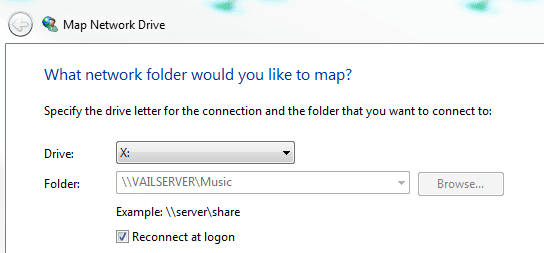
Windows Home Server 2011 Folder Share Mapping

Mapped drives are a great way to transfer files between servers or between other networked devices.

Folder Share Mapping

Once you have mapped a drive you can move files quickly and easily!Folder Share Mapping

Check out our short video that shows you how to map a drive!

Windows Home Server 2011 Folder Share Mapping

Windows XP Drive Mapping

http://www.microsoft.com/windowsxp/using/networking/maintain/mapdrive.mspx

Windows Home Server 2011 Release Candidate

You can download Windows Home Server 2011 at:

Download WHS 2011

Windows Home Server 2011

The installation of Windows Home Server 2011 has only a few basic requirements.

Windows Home Server 2011 is a 64-bit only operating system.

You can install the server software either manually or unattended.

System Requirements

  • 1.4 GHz x64 processor
  • 2 GB RAM
  • At least one 160 GB (or larger) hard drive
  • NTFS is the only supported file system

Supported networking configuration:

  1. Your server computer must be connected to a router via a network cable
  2. Windows Home Server works best with a UPnP certified device, but it is not required
  3. The router works best in the 192.168.x.x subnet, but it is not required

Try Windows Home Server 2011 and download from Connect today!

Windows Home Server 2011 Installation Overview – Video Edition

Want to install WHS 2011 but not sure what to expect? Although the actual complete installation takes 45 minutes, I have sped up the video through the loads and restarts so you can see just the user input screens in four minutes. Check it out!

You can download Windows Home Server 2011 at:

DOWNLOAD WHS 2011

Windows Home Server 2011

The installation of Windows Home Server 2011 has only a few basic requirements.

Windows Home Server 2011 is a 64-bit only operating system.

You can install the server software either manually or unattended.

System Requirements

  • 1.4 GHz x64 processor
  • 2 GB RAM
  • At least one 160 GB (or larger) hard drive
  • NTFS is the only supported file system

Supported networking configuration:

  1. Your server computer must be connected to a router via a network cable
  2. Windows Home Server works best with a UPnP certified device, but it is not required
  3. The router works best in the 192.168.x.x subnet, but it is not required
Windows Home Server 2011 Installation Overview

Try Windows Home Server 2011 and download from Connect today!

Fractal Launch New Core 3000 Case

1

Today Fractal Design have launched another new case, this time the Core 3000 which is all about the cooling!

fractal_white_text

We had the pleasure of spending some time with Fractal Design at CES last month, and they told us a lot about their plans and new products for this year, and now one of those products, the Core 3000 case has been released.

Who Are Fractal Design?

This is how Fractal Design describe themselves:

The concept – Design

The concept of Fractal Design is to provide products with an extraordinary design level, without compromising the important factors of quality, functionality and pricing. The computer of today has come to play a central role in most people’s home, creating a demand for appealing design of the computer itself and its accessories.
Our main product areas are computer enclosures, power supplies, cooling, and Media Center-products, such as Home Theatre-enclosures, keyboards and remote controls.

Designed and engineered in Sweden

All Fractal Design products have been thoroughly designed, tested and specified in our Swedish head quarter. The well known ideas of scandinavian design can be found through all of our products; a minimalistic but yet striking design – less is more.

Visions and goals

Our vision is to have a constant, healthy growth together with our partners worldwide. Our goal is to be widely recognized for our designed products and to have them available in all major market regions within EU and US. We should be a good alternative to the already established retail brands of today. It’s of great importance for us that our partners understand the values of Fractal Design, therefore we are putting great effort into choosing the right partners from the start. We will work actively to maintain sales territories and profitable business for our partners.

The way to reach our goals

In the competitive market of today, it’s not enough to just provide excellent products. Regular and well planned marketing activities in close cooperation with the channel and the available media, are keypoints to succeed. We are well experienced in marketing brands in the IT business, and we will use this to create efficient marketing tools – to gain a bigger market share and good earning possibilities for our channel.

The Core 3000 Case

FD-CA-CORE-3000-BL_1FD-CA-CORE-3000-BL_3

FD-CA-CORE-3000-BL_2FD-CA-CORE-3000-BL_4

Features and Specifications

The new Fractal Design Core Series offers a unique combination of design, features, cooling performance and value.

Key features

  • Simple yet elegant front panel with mesh and filter
  • Optimized for performance with multiple cooling options
  • A total of 7(!) fan slots (1x 120mm + 1x 140mm in front, 2x 120/140mm in top, 1x 120mm in bottom, 1x 120mm in rear,
    1x 120/140mm in side panel)
  • Three fans included (1x 140mm in front, 1x 120mm in rear and 1x 140mm in top)
  • Support for dual 120mm radiator in top, even thicker radiators up to 60mm in thickness
  • 6x white painted HDD trays, with silicone mounting
  • Upper HDD cage is removable and rotatable
  • Easily removable front panel with clip on fan slots

The Core 3000 has plenty of cooling options, up to 7 fans of various sizes can be installed. The front panel is easily removable and pre-fitted with fan filters to ensure a dust free interior. The sleek black interior is matched and contrasted with white expansion slots and HDD trays. Similar to the Define Series, all the HDD trays are fitted with anti-vibration silicon grommets. The upper HDD cage is removable and rotatable, which enables support for even the longest graphic cards.

Cooling system

  • Fan controller for 3 fans included
  • 1 front mounted Fractal Design 140mm fan @ 1000rpm included
  • 1 rear mounted Fractal Design 120mm fan @ 1200rpm included
  • 1 top mounted Fractal Design 140mm fan @ 1000rpm included
  • Additional 4 fan slots available for optional fans; one 120mm in front, one 120mm in bottom,
    one 120/140mm in top and one 120/140mm in side panel

Specifications

  • 6x 3,5 inch HDD trays, compatible with SSD!
  • 2x 5,25 inch bays, with 1x 5,25>3,5 inch converter included
  • 4x USB 2.0 and Audio I/O – mounted on top of front panel
  • Removable filter below PSU (PSU not included)
  • M/B compatibility: Mini ITX, Micro ATX and ATX
  • 7 expansion slots with sleek white painted brackets
  • Supports graphic card lengths up to 270mm when removable HDD-Bay is in place
  • Supports graphic card lengths up to 420mm without removable HDD-Bay
  • Supports CPU coolers with height of 160mm
  • Supports PSU’s with a depth of maximum circa 160mm, when using bottom 120mm fan location.
    When not using the bottom 120mm fan location, the case supports also longer PSU’s, typically
    250mm
  • Case size (WxHxD): 200x430x480mm with front and top bezel in place
  • Net weight: 7,1kg
Visit the Fractal Design website

This looks very “cool” if you pardon the pun!

The Home Sever Show Podcast 122 Windows Home Server 2011

Dave and the guys over that the Home Server Show have released episode 122 – and yes, you’ve guessed it, its all about Windows Home Server 2011!

home_server_show_small

Here’s what Dave has to say:

We are back for show 122 and it’s a big one.  Windows Home Server 2011 RC was both announced and released as a download to public.  We get in-depth as possible with it as well as covering the latest news.  We go over a future Synology review, the Boxee Box review and a whole lot more.  It’s a long show but there is always time at the end to make fun of Jim right?

Here are the subscription links for both iTunes and Zune:

[iTunes] Subscribe to the Podcast in iTunes(MP3).
[Zune] Subscribe to the Podcast in the Zune Marketplace.

Windows Small Business Server 2011 Essentials Release Candidate Available

Yesterday Microsoft pushed out the Windows Home Server 2011 RC for testers, they also pushed out the RC for Windows Small Business Server 2011 Essentials 2011 (formally Aurora).

SBS 2011 logo

Here is what Microsoft said:

Today we are pleased to announce the availability of the Release Candidate for Windows Small Business Server 2011 Essentials. Ideal as a first server for small businesses with up to 25 users, Windows Small Business Server 2011 Essentials provides a cost-effective and easy-to-use solution to help protect data, organize and access business information from virtually anywhere, support the applications needed to run a business, and quickly connect to online services for e-mail, collaboration and CRM.

The Release Candidate (RC) signifies our last mile efforts for releasing this product to our customers, and prepares our large network of software and solution partners for its release.

To fast track your learning, we have also launched our new SBS 2011 Essentials Learning Bites – fifteen 3-5 minute videos focusing on core features and functionality. Further videos, plus many other resources can be found on the official SBS website.

Thank you for helping us test this product, and please provide any feedback through SBS Connect, or our official SBS 2011 Essentials Support forum.

Download the Windows Small Business Server 2011 Essentials RC from Microsoft Connect

And don’t forget to pre-order our Working with Windows Small Business Server 2011 Essentials book from Microsoft Press.