
HP announced the launch of their new MediaSmart Server LX195 Windows Home Server a couple of weeks ago, and it is now available to buy in the US.
You can order from a number of sources, including Amazon.
So what are you waiting for?
HP announced the launch of their new MediaSmart Server LX195 Windows Home Server a couple of weeks ago, and it is now available to buy in the US.
You can order from a number of sources, including Amazon.
So what are you waiting for?
Terry over at We Got Served has published a press release from HP announcing that HP have now changed their minds and will release the MediaSmart Server 2.5 Update for all those owners of the EX470 and EX475 despite saying they wouldn’t. This is great news. It won’t be available as a download, you will need to order the DVDs through HP Support later this year. I assume that is to stop people who DONT want it from accidently getting it.
Also HP have announced that the EX485, EX487 and the newly launched LX195 will be launched in Europe, also later this year. Again, great news for all of us who live outside of the US – thanks HP 🙂
More specific dates will be published when we know them.
The complete press release is below:
HP Announces Software Upgrades and European Availability for MediaSmart Servers
We have two updates to share with our MediaSmart Server communities.
We have listened to the customer feedback on wegotserved.co.uk, mediasmartserver.net, mediasmarthome.com and other popular Windows Home Server blogs related to our recent software update availability. Based on this feedback, we are working to provide a supported path to allow customers to update all generations of their EX Series and LX Series MediaSmart Server products to the current software version.
Due to the generational differences of our platform architectures, we will not be providing the updated software as traditional downloads. Instead, we will provide complete server image DVD’s through HP support in the same manner as replacement DVD’s are provided today. We expect that there will be certain hardware limitations and/or trade-offs for the various platforms that will be detailed once the new server DVD’s are available.
Timing is tentatively scheduled in Fall 2009. We understand customers would like these updates sooner, but this timing is necessary to adequately develop and test these new software images. As we get further along in our development, we will provide an updated timetable.
We have also read the inquiries regarding European availability of the MediaSmart Server products. We are pleased to announce that our European customers can expect to see our LX and EX series products for sale in Europe. Targeted availability is Fall 2009.
We thank everyone for their continued support of the MediaSmart Server products and appreciate the continued feedback.
Microsoft announced recently that on the 5th May 2009 they would make the Windows 7 Release Candidate available to the public for download. Well, today is the 5th and it is out there and ready for download. Those of you who have MSDN and TechNet have had a few extra days as it was made available last week.

Microsoft have made available both the 32bit and 64bit editions of Windows 7 Ultimate for you to play with, but if you were looking for a different version you won’t be able to get it.
I love Windows 7, it is so much better than previous versions of Windows 🙂
Anyway, if you want to download Windows 7 and try it for yourself, click here.
The Windows Home Server Connector software must be installed on any computer that you want to use to connect to Windows Home Server either to manage your WHS or to have WHS backup that computer.
The Windows Home Server Connector performs the following functions:
• Connects your computer to your Windows Home Server
• Automatically backs up your home computer on a daily basis
• Monitors the health of your home computer
• Enables you to manage your Windows Home Server from your computer
You can install the Windows Home Server Connector on any of the following Windows operating
systems and their variants:
Windows Vista Operating System (minimum requirements)
• Windows Vista Home Basic
• Windows Vista Home Premium
• Windows Vista Business
• Windows Vista Enterprise
• Windows Vista Ultimate
Windows XP Operating System (minimum requirements)
• Windows XP Home with Service Pack 2 (SP2)
• Windows XP Professional with SP2
• Windows XP Media Center Edition 2005 with SP2 and Rollup 2
• Windows XP Media Center Edition 2005 with SP2
• Windows XP Media Center Edition 2004 with SP2
• Windows XP Tablet Edition with SP2
The Windows Home Server Connector will also work on the beta of Windows 7.
Also, if you are running Windows Home Server Power Pack 1 or higher then you can also install the Windows Home Server Connector software on a 64bit version of either Windows Vista or Windows 7, but not Windows XP.
Installing the Windows Home Server Connector
This section shows you how to install the Windows Home Server Connector on each computer.
If you have the Windows Home Server Connector CD available, start
at Step 1 and then skip to Step 9. If you don’t have the Windows Home Server Connector CD
available, you can connect to the Software share on your Windows Home Server, because a
copy of the Windows Home Server Connector software is placed there automatically during
the installation of Windows Home Server. Start at Step 2 to connect to the Software share on
your Windows Home Server and run the Setup program.
It is important to note that there may be a later version of the Windows Home Server Connector software residing on your Windows Home Server, so whenever possible use this rather than any CD you might have.
For this walk-through I am using the Windows Home Server Connector software that was updated as part of the HP MediaSmart Server 2.5 Update, but the steps are the same, or very similar for any version. When installing the Connector software from HP, the MediaSmart Console is also installed.
1. Insert the Windows Home Server Connector CD into the drive. In the AutoPlay dialog
box, shown in Figure 4-1, click the Run setup.exe option. (If you do not see this dialog
box, then locate the CD drive folder manually and double-click Setup.exe.) You may
then also be asked to confirm your permission to run the program, in which case click
Continue. Next, skip to Step 9.

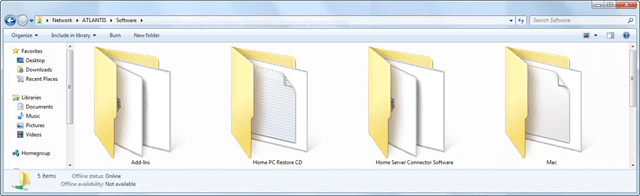
2. Click the Start button and then click Network to view all of the available computers
and devices on your home network, as shown below.

3. Double-click the computer that represents your Windows Home Server (ATLANTIS in
the example shown above).
4. Enter the username and password to access your Windows Home Server (if you have already set up a user account and password that matches the one you are using on the current machine you won’t be asked for this), and then click OK to continue.
Don’t forget that the username is “administrator” and the password is the one you created during
the Windows Home Server post-configuration steps.
5. You are presented with all the shared folders that are available on your Windows Home
Server, including Music, Photos, and Videos. Double-click the Software shared folder to continue.

6. You are presented with the contents of the Software shared folder. Double-click the Home Server Connector Software folder to continue.
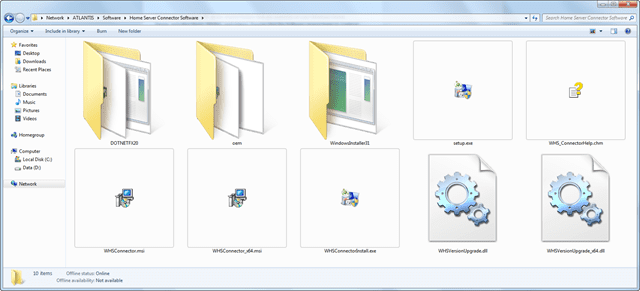
7. You are presented with the contents of the Home Server Connector Software folder. Double-click the Setup icon to start the installation process.
8. You may be presented with an Open File – Security Warning dialog box. This dialog box advises you that a file is attempting to run and asks you to confirm that you want to run it. Click the Run button to continue.
9. When you see the Welcome to the Windows Home Server Connector screen click Next to continue.

10. Read the End-User License Agreement and click the I Accept the Terms of the License Agreement radio button and then click Next to continue. Of course, if you don’t accept the terms, you can’t continue the installation, so what choice do you really have?

11. The installation commences and you can monitor the progress.

This completes this part of the installation phase of the Windows Home Server Connector. You next
need to configure it, as described in the following section.
Configuring the Windows Home Server Connector
After the Windows Home Server Connector installation has completed, you will see the Welcome Screen. Click Next to continue.

The wizard automatically tries to locate your Windows Home Server. This process can be
quick or it can take a few minutes—it all depends on your home network.

If for some reason the wizard cannot find your Windows Home Server, you will be given the option of searching again or finding your home server manually.

It is always a good option to try and search again, if it still cannot find it, check that you have all the network cables correctly plugged in and your Windows Home Server is switched on. If you want to try searching manually you can just type in the name of your Windows Home Server.
If you still cannot find it, then consult the troubleshooting documentation or go to the Windows Home Server Forum’s on TechNet for more help.
Assuming the wizard locates your Windows Home Server, you will be asked to enter the password for the administrator account and then click Next. If you have forgotten the password, and you entered a useful hint during installation and configuration of your Windows Home Server, you can click the Password Hint button for a gentle reminder.

You will then be asked if you want to automatically wake up the computer to back it up if it is in either sleep mode or hibernation mode, or only back it up when it is switched on. Make your choice and click Next to continue.

The wizard will then join your computer to the Windows Home Server, which means that it is added to the list of computers being monitored and automatically configure a backup for you, which you can of course change later on. Just click Next to continue when this has completed.

And that is it – the connector configuration is now complete. Just click Finish and you are done.

You can now launch the Windows Home Server Console and do whatever you need to do.
Removing the Windows Home Server Connector
You may decide that you no longer want to use the Windows Home Server Connector software
on a particular computer.
Removing the Windows Home Server Connector software from your computer doesn’t remove that computer from the list of computers shown in the Console, but you wont be able to backup that computer again, or at least until you reinstall the Windows Home Server Connector again.
You can easily remove the Windows Home Server Connector from a computer by following these simple steps:
1. On the computer you want to remove the Windows Home Server Connector from, click
the Start button and open the Control Panel.

2. Select Uninstall a Program from the Programs group.
3. Highlight the Windows Home Server Connector in the list of programs and click Uninstall.

4. When prompted, just click Yes to start the uninstall process. You may be asked to confirm your choice again. Just say yes.

And that is it, the Windows Home Server Connector software is now removed from your computer.
So this is a new “feature” – rather than post each and every time something happens that isn’t necessarily big news, or someone posts an interesting article on another site, I thought I would just do a weekly round up post, that way if it’s interesting you can go off and read it, and if you are not interested, it’s easy to skip. Anything really big or interesting will continue to get posted straight away.

Obviously the biggest WHS news this week is the announcement that HP are releasing a new HP MediaSmart Server next week called the LX195. The LX195 is a single drive model that comes with an Intel Atom processor and retails in the US for $399. To read the review and in-depth walkthrough we wrote, click here.
Do you have an Apple Mac? Would you like to run the Windows Home Server Console on it? Well the Windows Home Server Team Blog has posted an article on how you can do it. To read the article click here.
Donavon over at HomeServerHacks posted one of his usual excellent articles on how to upgrade your MediaSmart Server – this time how to upgrade the memory on the new HP MediaSmart LX195. Whilst it really is not that difficult, and is nowhere near as fiddly as the previous versions, it nice to have a simple walkthrough with lots of pretty pictures to guide you if you are not sure. To read the article and look at the pictures, click here.
My good friend David over at the HomeServerShow posted an interesting article on how to use Google Analytics with your Windows Home Server so that you can tell who is viewing your WHS Front End. To read the article click here. And whilst you are there, drop David a congratulations email on the arrival of his new son 🙂
And finally, if you are upset that HP haven’t released the HP MediaSmart Server 2.5 Update for the EX470 or EX475 then you can go read how to hack the update and your MSS on MediaSmartServer.net and get it running. To read the article click here. A big word of caution here though folks – this is completely unsupported, may in fact break your MSS, and could also mean that any legitimate updates, such as the forthcoming update to deliver Apple Time Machine and also Amazon S3 support to the EX470 and EX475, may not work. You have been warned! Just ask yourself the simple question – do I really need those add-ins, and if I do, can I get something similar without risking my box?

I do not have a lot of time to write tonight so I am going to talk briefly about something cool that Disk Management Add-In can do. I want to show you how you can add a WHS disk and make the Wireframe modification through the Disk Management Add-In. Usually with Windows Home Server you must use the Server Storage tab to add new drives. Read on to find out how you can use the Disk Management Add-In as an alternative to the Server Storage tab.
Adding new drives never gets old to me. I love to back up my Windows Home Server. Seriously.
External Hard Drive
One Beer (optional)
One episode of IT Crowd v3

Windows Home Server Disk Management Add-In was created by Sam Wood at Tentacle software. The Tentacle website is at:
http://www.tentaclesoftware.com/
According to the website it features:
You probably already have the Add-In but a full description of the download, installation and my first Disk Management article can be found at:
I have an external drive from a previous life that I want to attach to my WHS. I have drives from every stage of my life actually. One of my favorites is a Caviar 1365 from WD that I have from 1995. 365.3 MB in a 3.5” form factor. The cheap video card I just bought has more memory. Boy how things have changed. Anyway I have this drive, a WD 320GB USB drive, and I want to use it for off-site backups. I mention backing up every few articles because I feel it is so important. With WHS backup and the BDBB you can store your WHS backup AND all of your PC images on an external drive and then take that drive away from your network. I rotate two drive to my parents house. Every time I go and see them I take my latest drive and change it with what ever drive I had last left with them. Seriously, for like $120 for both drives I am totally covered with backups.
I digress. Back to adding the drive…
Once I attached the drive it showed up immediately with “Attention Required” in the Disk Management Add-In. WTF? I select the drive anyway and click on the “Add” button near the top left.

You get the choice to add it to the pool or keep it as a backup disk. I choose backup. Come on baby…

I click on Next but I get an error message. The error says that the selected disk is not mounted or has no valid partition. Crap. I forgot to initialize the drive and format it before I connected it to the WHS.
When I store a drive from a “previous life” I always write ones and zeros to the drive to prevent data from ever being recovered. The drawback to this process is that it requires initialization prior to being used again. My bad. Sorry WHS and Disk Management.

I have two choices at this point for initialization and formatting. I can use the Advanced Admin Console or I can just disconnect the drive and do a quick format on my desktop PC. I will choose the desktop option and be right back.
Ok, I am back. Drive quick formatted. It was actually faster to use my PC then to use the WHS.
I now see the drive under “Unmanaged Disks”. Very cool. You can see red in the picture below since I disconnected the other drive. I select the new drive and click on “Add”. Let the games begin.

I have a choice of adding the drive to the pool or as a backup again. I choose backup.

I will have WHS format the drive. Why could it have not done it for me?

I get to choose a name now. I like names with the drive location, manufacturer and drive size but feel free to name your drive something easy to remember like “ShietBox500”, “SlowAss”, “HotMamaPics” or even “MyLilGBMoFo”.

Confirm that only you are responsible for what is about to happen.

You drive is now ready after seeing a quick progress bar. Speaking of a bar it is time for another beer. My beer to screen shot ratio is improving. Is that something to be proud of?

Now that your drive is added to WHS it is time to update your Wireframe. Once you click on the icon in the upper right that says “Open Settings dialog” the Wireframe Diagram box opens. This is basically the same as clicking on Settings and scrolling down, by the way. If you have a current Wireframe then click on “Edit Current Wireframe”. If you do not have a current Wireframe, then, well, I guess you are done.

You should see your current Wireframe. Click on “Add a new drive bay” then check the Advanced Mode check box and click on the little arrow to the right.

Mental note: Did you click on the OK button and have to start over? It is “OK” cause I do it all the time!
The next step is to choose the drive bay type, then click on “External drive bay” and finally click on the arrow again. I hope in future versions of this Add-In that they would change the arrows to “Next” or “Back”.

The next step is to choose the drive closest to where you want the new drive. Choose the “Drive bay position” and then use the Movement arrows to move your drive to the right orientation. Speaking of Orientation, did you all see Lost on Wednesday? Is Faraday really dead? If so, will he talk to Miles to save the Losties?

Now here is the cool part of the Wireframe. When you click on the drive path you should see the actual path to your drive with the name. I love this part. I am easily impressed. Seriously.
Click the right arrow. Stop trying to click “OK” already.

We are almost done. Do not quit on me now. Only four more screen shots.
You should now see a new green drive and need to name it again. Not sure why you need to use the “Name/text” but if a field is blank I always try and fill it in. I am programmed and have issues I guess. Need a few more beers before I bring those issues up. Click on the right arrow. Stop trying to click “OK” already. Seriously.

You should now see your new drive in the Wireframe diagram. Congratulations you are the proud owner of a brand new baby Wireframe.

Now you can finally click “OK” to complete the process. I can see the new drive right where I wanted it.

I will now click on the Server Storage tab to verify everything is correct. Of course it will be correct but I am programmed to check everything.

Looks marvellous Lucy.
I like using the Disk Management Add-In to add drives because it helps me remember to update my Wireframe while I am actually in the Add-In. I have had wonderful time using it and it requires very little resources. This is a great Add-In and I hope if you do not have it already that you go and get it. Go get it now. Seriously.
See you next Friday night.
Timothy Daleo

Last week, I reviewed Diskeeper 2009 HomeServer Edition for Windows Home Server. At the end of the review I said I would giveaway 5 full licences of Diskeeper 2009 HomeServer Edition to our readers, and all you had to do was send me an email with a suggestion.
As usual with our giveaways, we had lots of responses, so thank you 🙂
This time, the lucky winners are:
Robert Hegglov from Sweden
Joseph Nell
Kelly Atkinson from New Zealand
Steve Buffone from OH, USA
G. Bujold from Canada
Congratulations! Your licences will be winging their way to you over the next few days, so check your inboxes.
For those who didn’t win this time, don’t worry, I have plenty of things to giveaway over the coming weeks, so stay tuned to UsingWindowsHomeServer.com for your chance to win!
Introduction
Tonight I was greeted by my Home Server announcing that it had a critical update that just *had* to be installed. I wasn’t happy with clicking the Install Updates button in the Home Network Health dialog so I logged into my Home Server via Remote Desktop and had a look for the Windows Update icon to see what it so urgently needed to install.

Turns out it was Internet Explorer 8, not exactly a critical update in my opinion after all I don’t use the internet from my Home Server. Still I can understand why they’d want to force the update onto users, that way installations of IE6 and IE7 would be lowered and critical updates that people haven’t installed would most likely get installed as part of IE8.
Still I’m not exactly happy to install an internet browser on a server appliance, it’s just not something you do from servers. Here’s hoping that the next version of Windows Home Server is like the Core Version of Windows 2008 Server….
Installation
Installation was painless with just a couple of questions (no I don’t want to participate in the gathering of installation ‘metrics’ and yes you SHOULD install updates) and about three minutes later installation is complete and I find that a reboot is required. And I mean required, Windows will prompt you to reboot after the update installs and will continue to do so until you do.
Reboot and then all is well, Network Health upgraded from the Red Critical that not having installed the update gives and all is well once more. I can safety NOT browse the internet from my Home Server, safe in the knowledge that Internet Explorer 8 is installed and protecting me from all the things on the internet that my Home Server NEVER sees…. sarcasm in that last line, NEVER!
Conclusion
I can understand the forcing of the installation but it still doesn’t mean I like being forced to upgrade a component on a server that I believe shouldn’t exist in the first place. But enough of my bitching, then again I’m not the only one. Check out the following links for more information on this update, should you so wish, but remember to install it there *ARE* security updates to core components of your Home Server that will, hopefully, prevent you being exploited and ‘zombified’ in the future:
|
Microsoft to require opt-in for installing IE8 |
||
|
Is IE8 worth installing |
Yes |
http://www.pcworld.com/article/163902/ie_8_its_security_is_worth_the_download.html |
|
No |
http://blogs.computerworld.com/why_you_should_not_install_internet_explorer_8 |
|
|
How to keep IE8 off of your computer |
http://blogs.msdn.com/ie/archive/2009/01/06/ie8-blocker-toolkit-available-today.aspx |
|
Update:
As reported by several people as well as the authors own investigation it is correct that this “Critical Update” indeed does break the Advanced Admin Console add-in. Until this issue is resolved it is recommended that you either remove the Advanced Admin Console add-in or do not install the update until this issue is resolved.
If you do choose not to install the update Using Windows Home Server cannot be held responsible for any issues arising from not having the update installed.
There have been rumours floating around for the last few weeks about a new HP MediaSmart Server, known as the LX195. Well, these rumours are true. HP today announced the impending release of their next HP MediaSmart Server, and yes, it’s called the LX195, which is a departure from the EX series that are currently available.
The specification of the LX195 is a little different to that of any of the EX series. For a start, you will notice that it is visibly smaller. This is partly because it only contains a single hard drive, and doesn’t have the capability to add additional internal hard drives, but also because there is an external power supply, compared to the built-in power supply on the EX series.

Also, you will notice that is doesn’t have the sleek shiny black surface that the EX series had, but instead it has a series of ridges which help with the cooling, and the box itself is a dark gray. Below is a picture of the 3 different HP MediaSmart Servers – from left to right, the EX475, the EX487 and now the LX195.


SPECIFICATION
The actual specification of the LX195 is as follows:
| PROCESSOR | Intel Atom 1.6 GHz Processor 230 |
| MEMORY | 1GB of DDR2 DRAM |
| NETWORK SUPPORT | Built in 10/100/1000 RJ45 Ethernet |
| INTERFACES | 4 USB 2.0 ports (on the back) |
| INTERNAL HARD DRIVES | 1 SATA 7200 RPM 640 GB drive |
So HP have decided for this smaller variant to go with the Intel Atom processor. And yes, there is only room for a single built-in hard drive in the chassis, which is a definite departure from the EX series. However there are 4 USB 2.0 ports on the back of the LX195 which you can use to connect external hard drives to (make sure that the minimum size drive you connect is 100 GB though as anything less is not supported).

Those of you reading this who know Windows Home Server will immediately realise that with just a single drive you cannot have Folder Duplication enabled. So, the first thing you will want to do is get yourself a decent external hard drive if you want your shared files protected.
UNPACKING AND CONNECTING
The box itself is quite small with everything coming very well packaged inside.


The contents of the box include the LX195 itself, the power cable and power supply (a change to the previous models), an Ethernet cable, some software CDs, a warranty book and the setup poster.

Plugging it in all shouldn’t take more than a few moments, now it’s time to switch it on and get it working.
INSTALLING AND CONFIGURING
There is not manual as such with the LX195, but when you run the installation CD you are given some online instructions, and you also have the now familiar HP MediaSmart Server Setup Poster to help guide you through what needs to be done.

The first thing that needs to be done after you have connected up the LX195 to both the power and your home network, and switched it on, is to install the Client software on one of your computers. This performs two functions, the first of which is install the Windows Home Server Connector software on your computer but also to enable you to configure your new Windows Home Server, with details such as the server name and admin password (but more on that in a moment).
After you pop the Software Installation CD in the drive, you then follow the usual steps to install the Windows Home Server Connector software. I won’t walk through all those steps again in this article, but I have included the screenshots for those of you who might be interested. Note the LX195 image on the installer.


So once you have go to this stage, then its time to configure the Windows Home Server itself. You have to do it via this method because there is no facilities available on the LX195 for you to plug in a mouse, monitor and keyboard.
Again, I won’t bother with going through each and every step, although again I have included the screenshots, but the one interesting thing to point out though which is a change from HP’s other models is that the server name is already entered as HPSERVERLX instead of the usual HPSERVER. You can of course change this if you so wish.


Once you have completed these steps then you can log in to the Windows Home Server Console as normal.


Before you can access the Console though, you are prompted to perform a check to see if there are any HP MediaSmart software updates available.


At the time of writing, the version of the software that comes preinstalled, 2.1.1.25860 is the latest version to work on the LX195, so before anyone asks, the 2.5 Update for the EX485 and EX487 is not found and installed for you.

USING THE LX195
One thing you will notice, or rather you won’t notice is the noise. The LX195 is extremely quiet, in fact it is so quiet you will barely hear it, which cannot really be said about the EX series, although to be fair, the EX series had more hard drives and different power requirements. And the EX series wasn’t really that loud either!
Having a look around the LX195 version of the Windows Home Server Console, you will see the MediaSmart Server tab, with specific additions provided by HP, including an update Welcome screen.

By clicking on the Server Summary button you can see at a glance the status of your server.

Those of you familiar with the HP MediaSmart Servers will know that they come with additional software, and the LX195 is no exception.
You basically get the same software you did with the pre 2.5 Updated EX485 and EX487 series, so that is:
HP Photo Publisher which enables you to publish your photos to various online photo sharing sites.

HP Media Collector which automatically copies and organises media files from any of your computers.

Features for Mac, which basically includes support to use Apple’s Time Machine to backup files on your Apple Mac to your Windows Home Server and also to access shared folders from your Windows Home Server on your Mac.

Server for iTunes which enables you to store and publish your iTunes library and playlists on your network.

HP MediaSmart Server Online Backup which enables you to use an Amazon S3 account to backup your data outside of your home or office. But for this you do need an Amazon S3 account, so it is not free.

TwonkyMedia is used to stream your digital media on your home network to devices such as an Xbox 360 and also to provide remote streaming.

All of these additional features can be enabled or disabled depending on your own needs.
Having a look at the Shared Folders tab and the Server Storage tab reminds you that you only have one hard drive out of the box, which means no Folder Duplication, so maybe now is a good time to plug in that external drive you have available?


There are also the usual settings tabs for various HP specific options.


The LX195 also comes preinstalled with two add-ins – the TwonkyMedia add-in as mentioned earlier, and also the HP MediaSmart Online Backup add-in, again, as mentioned earlier.

There is also an add-in available to install that is not installed by default – the McAfee Total Protection Service. So if you want to be protected by Antivirus you can easily install this add-in or use one of your own choosing.

As the LX195 comes preinstalled with Windows Home Server Power Pack 1, you will need to update to Power Pack 2 before doing much else.

Just go to the Settings tab, and click on Update Now to retrieve that, and any other updates that are available.

CONCLUSION
It is very interesting to see a single drive Windows Home Server, mainly because you don’t have the ability to enable Folder Duplication out of the box. However it is very easy to add a USB drive to enable this. I think that more and more people want a cheap, simple solution just to back up their computers and may not want to share their content, in which case a single drive Windows Home Server is just fine.
The price point for the LX195 is $399 which is very good, and obviously is the cheapest of the HP MediaSmart Server series. The next current model up, the EX485 retails at $599 before rebates and other discounts, although you can get it at least $50 less at the time of writing from the HP Store, and possibly cheaper if you search around online. So the question is really is it worth paying that little bit more to get a more internally expandable server, and also one with the new 2.5 Update software for video conversion and support for iPhones? Well that is a question that only you can answer. Do you need those additions, or do you want a cheap and cheerful Windows Home Server?
I have to say I really like the LX195, it’s small, quiet and cheap. It does everything I need to do within the confines of it’s hardware. If I want to do more, then I have the option of buying a bigger Windows Home Server. The only thing I would add though is that I think HP should have shipped it with 2GB of RAM instead of 1GB, but that is easily resolved!
The other point to note is that Acer are currently launching their Acer Aspire easyStore Windows Home Server, that will also retail for $399, but includes double the amount of storage, with the ability to add more internal storage as well. So which will do better? Frankly I think it is a great thing that the price of Windows Home Server’s are coming down and that the choice of hardware is increasing, well done!
The HP MediaSmart Server LX195 Windows Home Server will be released next week (1st week of May) in the US for $399. Once again, no word on a European release so watch this space.
A few weeks ago I posted an article on the then forthcoming HP MediaSmart Server 2.5 Update. Well the update was released last week for all HP MediaSmart Server EX485 and EX487 owners and so I thought it was time to do a more in-depth look at this new update.
Again, unfortunately this update is not available for owners of the HP MediaSmart Server EX470 or EX475 as HP state the hardware requirements for this update are greater than that of the those machines, even if you have updated the memory and processor yourself.
Before we getting into the in-depth look, let’s just have a quick reminder what this update actually includes:
The 2.5 Update brings remote video streaming and automatic video conversion to unprotected content. What this means is that your EX485 or EX487 will be able to automatically convert videos and unprotected DVDs into two different resolutions. These include a high resolution file that you can steam to PCs, Macs and even your Xbox 360 or PS3. The other resolution is aimed at mobile devices, such as the iPhone and iPod Touch. The supported video types are AVI (DivX, Xvid, MJPEG), MOV (MJEG), DVR-MS (MPEG2), MP4 (MPEG4), WMV and unprotected DVD VOB. Unprotected DVD VOB files are automatically stitched together resulting in a smooth stream.
There are also some updates to the mobile streaming user experience, updates to the HP Media Collector, improved configuration for Apple Time Machine and the ability to create public and private albums in the photo viewer.
DOWNLOAD AND INSTALLATION
By the time you read this article it’s a good chance that you have already got the update installed, but in case you haven’t, or you have only just got your EX485 or EX487, here is what you have to do.
First, launch the Windows Home Server Console, click on Settings and then click on HP MediaSmart Server. Then click the HP Update tab. Here you will see the version installed, in this case 2.1.7.24261 which means I don’t currently have the 2.5 update installed.

Click the Check for updates link and your Windows Home Server will go and check to see if there are any updates available.

If there is an update available, in this case the MediaSmart Server Update 2.5, ensure it is selected and click Next.

The update will the be downloaded – be patient though it is over 200MB in size, although if you have a fast connection it will be quicker 🙂

When the update has finished downloading, it will be launched automatically. 
The installation process will also start automatically.

Click Next to continue.

Click Install to continue.

The installation will take place and won’t take very long, when prompted click Finish. It it also a good idea this point to reboot your Windows Home Server.

When your click on the MediaSmart tab, you will be presented with the new 2.5 screen, as shown below. We will look at the new features in a moment.

There is also an update Windows Home Server Connector, which you need to install. Unfortunately this process is not automatic like that of the Windows Home Server Power Pack 2 update, so you will have to perform this on every home computer you have.
Open up the Windows Home Server Software Shared Folder, and then open the Home Server Connector Software folder. Double-click on the Setup.exe file to launch the installation file.

If you already have a previous version of the Windows Home Server Connector software installed you will be warned that the setup process will uninstall the current version and then reinstall the new version – so click Yes to do start this.

You will see the installation Wizard appear – click Next to continue.

Read the licence agreement, click on the I accept…. radio button and then click Next to continue.

The installation will now take place as usual.

Remember to do this on each and every one of your client computers.
If you double-click on the HP MediaSmart Server icon on your desktop, you will also see an updated Control Console.

THE NEW FEATURES AND IMPROVEMENTS
There are a few new features and some improvements delivered with the 2.5 Update. So let’s take a look at them.
HP VIDEO CONVERTER
The video converter monitors selected shared folders and attempts to perform video conversion (also known as transcoding) on files with common video file formats. The video converter also supports DVD file system conversion, for DVD files that are commonly used in camcorders.
The results of the video converter tool are of a single file format: an MPEG-4 video file using an H.264 video codec and AAC stereo audio codec. Currently, devices supporting this format include
The Video Converter will not transcode copy protected DVDs or electronic videos with Digital Rights Management Technology built into digital media, such as music and movies.
By default, the HP Video Convertor is switched off. To switch it on, just launch the Windows Home Server Console, click on Settings, then click on HP Video Convertor. Then all you have to do is check the box marked Enable Video Convertor.

Once you have enabled the HP Video Collector, you can easily select which of the Shared Folders you want to have video files converted from.

By default, only the Videos folder is selected and also both the Full and Mobile options are selected for you. You can of course easily change this by checking the relevant boxes.
When selecting a shared folder to perform video conversion on, there are two options for the output of the video converter: Full resolution and Mobile resolution.
Full resolution keeps the source video’s screen resolution, and basically just creates an output file with the new format for the provided input. Video and audio quality should be very similar to the source material for Full resolution videos. You may notice some differences between the original and Full resolution output, but these differences are minimal in most situations.
One benefit of using the Full resolution output settings is that older video formats like MPEG-2 videos are often much larger in size than the format used by the video converter. The output of a Full resolution video conversion can be approximately 25% the file size of an original DVD (MPEG-2). This significant reduction in size can make streaming via 802.11G less problematic (although many factors impact streaming videos wirelessly, results may vary widely).
The Mobile resolution creates a video that is suitable for mobile devices and remote video streaming (the video will be no larger than QVGA: 320w x 240h). This is to make support of mobile devices easier, and to provide videos suitable for remote media streaming.
Once you have chosen your folders, if you click on the HP Video Converter button on the MediaSmart Server tab, you will be able to see the status of the conversion process.
As you can see from the screenshot below, I have one active, one cancelled and a number of videos pending. Note that each video you want converted will have an MQ (Mobile Quality version) and a HQ (High Quality version) assuming you selected both versions.

It is important to note that depending on how many videos you want converted, the quality of those videos selected, and the length of the videos, this conversion process can take some time. My advice would be if you are planning on converting a lot of videos, have them running overnight.
You can also see when they are all complete.

You will also notice a new folder called Converted Videos, this is where all the converted videos are stored – obvious really!

One last thing on this subject, in order for the streaming to work, and this goes equally for the Photos and Music, as well as the Videos, you must ensure that you have enabled Media Sharing from the Settings area of your Windows Home Server Console.

HP PHOTO PUBLISHER
The big addition here is the ability to now have both public and private photos albums, meaning that you now have photo albums that only those who you deem worthy can see.

Whilst this is certainly a useful feature, I am a firm believer in not publishing anything to the Internet that you don’t want people to see in the first place. If you have private photos that you only want a selected few to see, why not give them access to a shared photo folder on your Windows Home Server itself instead of publishing them for all to “possibly” see?
FEATURES FOR MAC
There are a number of improvements to the Mac Backup feature, including the ability to resize the backup disk.

You need to update the Windows Home Server software on your Mac. To do this, perform the following steps (this assumes you have already got a previous version of the software running – if you don’t just skip the Uninstall step):
Click on your WHS as listed within the Shared area.

Open the Software folder.

Then open the Mac folder and launch the HP MSS Client.dwg file.

As mentioned earlier, if you already have the software installed, you need to uninstall it first, so click on Uninstall HP MediaSmart Server Software.

Follow the prompts to remove the software until you see the Uninstall Succeeded message and then click Close.


Now you have to reinstall the software so click on Install HP MediaSmart Server Software.pkg and follow the prompts to perform the installation.


At the end of the installation the Preferences screen will open and you will need to type in the Server Name and Server Password to reconnection to your Windows Home Server.

And that is it, the software is now up to date.
You will also notice a new Control Center which enables you to perform certain functions.

You can also launch this Control Center by clicking on the MediaSmart icon.

The main new Mac feature as mentioned is the ability to change the size of the Backup Disk.
To do this, click on Preferences in the Control Center, then click on the Backup tab.

You will need to click Stop in order to Stop the Backup Disk before you change the size, depending on what is happening at the time, this make take a few moments.
Type in the new Backup Disk Size, in GB and then click the resize button and then click Resize to continue.

You will be warned that you cannot cancel or undo the resizing operation, and so remember that all previously stored backup data will be lost. If you are happy, just click Continue.

And that is it – the Backup Disk size will be changed and then restarted for you.

REMOTE MEDIA STREAMING
When you want to access your media content remotely, you will be presented with a number of options. It is important to note here that you need to have Adobe Flash installed to see the options, but don’t worry if you don’t have it installed, you are given the option to install it.

If you select the Media Streamer icon you will be taken to the Music area where you can stream your music and search for songs by album, artist, etc. You will also see any cover art and information displayed here as well.


The Photos button will take you to all of your shared photos, and again you can search for whatever you are looking for by date or in folders.


Lastly you have Videos. You will be presented with a list of available videos.

You can look in folders and even choose to only display Converted Mobile videos.


If you click the Status button you can see what is currently being converted, or in my case as I am not converting anything at the time of writing, what has been converted. You can even click on a specific file to find out about the conversion.

iSTREAM
One of the other new features is called iStream and it is an application that works on your iPhone or iPod Touch in order to stream your digital content to those devices. It is not part of the 2.5 Update, but it does require the 2.5 Update to work. For more information on iStream, including a walk-through, click here.

OTHER FIXES
The following defect fixes and enhancements are included in this update:
Fixed a number of TwonkyMedia server issues, including the case where songs would not play all the way through.

Improved the HP Media Streamer interface, including adding support for streaming video files, column sort functionality, and new album art views.
Improved Media Collector by displaying progress details, status information, and client connectivity to shared folders.
Improved the HP MediaSmart Server dashboard functionality.
The User’s Guide was updated to match HP MediaSmart Server software changes.
CONCLUSION
This was a very long article on the new update, so if you are still reading, thank you and well done!
Is the update worth having? Yes, very much so, and considering it is free and gives you a lot of additional functionality you really cannot go wrong. Its very simple to set-up, just a few clicks to choose what you want to use and then it just works. In terms of streaming, as long as you have the available bandwidth it works great and it’s certainly nice to see that HP have put a lot of effort into make digital media content even more accessible.
It is very unfortunate that owners of the first generate HP MediaSmart Servers cannot take advantage of this update, but as HP have stated, this is because of the hardware requirements on the update, even though there are a lot of owners who have upgraded both the ram and the processors themselves. Bottom line guys I don’t think that HP will release the software no matter how loud we shout and I think we have to accept that if we want this functionality on our EX470s and EX475s then we will have to look to third parties to release add-ins that could do something similar.