Windows Home Server Webcast Next Week

Back in March, I posted that my friend and fellow MVP Kevin Royalty would be doing a webcast on Friday 5th June entitled Windows Home Server – the Next Version.

Subsequently, Microsoft have updated the event title to 5W/50 Series – Business Opportunities with Windows Home Server – Updated with Power Pack 2 Content.

The description of the webcast is as follows:

Windows Small Business Server 2008 will not ship with any client backup software, so how will you make sure the top employees at each of your customers sites are backed up (Imaged) everyday? This webcast will cover what you can use Windows Home Server for in small businesses that may not be a good fit for Small Business Server, as well as businesses that may need to use Windows Home Server as a complement to Small Business Server.  You will learn the key points you need to know to add this to your arsenal of solutions for your customers. A demo will explain all the details and give you the information you needed to get Home Server up and running at your customer site. This presentation is updated with Power Pack 2 content and more.

Spaces are limited for this so make sure if you are interested in attending that you register now as the webcast is next week.

You need to be registered as a Microsoft Partner to register for and attend the webcast event, but it only takes a few minutes to register if you are not one already, and can be done from the link below.

To register for the webcast (and also to become a Microsoft Partner), click here.

The Home Server Show Number 44 Out Now

HomeServerShow graphic Dave over at the HomeServerShow.com has released the latest edition of his podcast, The Home Server Show, number 44.

This weeks show is all about adding Google Analytics to your Windows Home Server, and is worth a listen – as usual.

You can get more information here, and download it from iTunes or your other favourite place.

Windows Home Server for the Gamer

Why would gamers find Windows Home Server a great solution?  Let me identify a few cases that make it a great addition to your gaming “rig”.

1.  Backup

As gamers, we tend to install add-on’s, accessories, and other utilities to tweak our systems for max performance and efficient gaming sessions.  These tend to make a system unstable, often to the point of unusable.  Windows Home Server’s ability to restore a system to a point in time allows us to undo changes that might have brought our gaming rig to it’s knees.

Beyond the nightly backup process, WHS also provides file shares for storing common utilities, installers, and other files necessary for a reinstall or the dreaded “rebuild”.

2.  Media Storage

Often at a LAN party I see someone playing a game while watching a movie or even more often, listening to their music.  Media storage on WHS provides essential functionality to the gamer in the form of offline/near line storage for the huge collection of video and music files we develop.  While many gamers will recommend that this be stored on the gaming rig for immediate access, however there are a situations where storing the files on your WHS is a better solution, such as:

  • When combined with a gaming console (Xbox 360/PS3)
  • When disk space is at a premium on the gaming rig (always?!?)
  • When you’ve set up your WHS to stream your media

Each of these can be a help to the avid gamer, especially when they have lost everything to a worm at their buddie’s LAN party, or more likely, after power problems when someone decides to make another pot of coffee once everyone has plugged into that one convenient outlet.

3.  Console Integration

How many times have you wanted to watch that movie on your big screen TV, only to have to dig for the disc?  As indicated above, with WHS and your console, this is not a problem.  Both the Xbox 360 and PS3 support streaming music and movies from WHS.  This experience would be improved with Media Center integrated into the WHS on the Xbox side, however this functionality is not required to access the media on our Windows Home Server.  Both systems provide interfaces to connect to the WHS and access the media stored there.  The catch, you need to encode your media in a format your console supports.  Wikipedia has entries for both systems identifying the currently supported media formats.  (The PS3 information is on a sub page found under the heading “Graphical user interface”, strangely enough.)

4.  LAN Party Server

Many times I’ve hosted a LAN party or been at one only to find I needed to set up a file share on my rig, or find some other way to make sure everyone has the right maps and patches for their systems.  With WHS, this file serving is already available, and turned on by default.  Even more, if your system has enough horse power, it can be used to host dedicated servers on your network.  Not every WHS system has the horsepower to host a game of Counter-Strike, or Day of Defeat, so you’ll need to check your specifications and figure out the requirements for the server you want to host.  There are some other useful things you can host on WHS even with a low powered system, such as the open source voice server Murmur or a small Ventrilo server for you and your buddies.

5.  Gaming Clan/Website

There are many companies that will host a clan website for you, however if you’re like me, you prefer to roll your own.  If you’re the kind of person who has the interest and knowledge, this can be very rewarding.  (warning:  this approach is not for the meek!)  Windows Home Server is essentially Windows Server 2003 with some business functionality removed.  The most important part of the website (IIS) is already installed, and enabled by default.  In fact, WHS will set up your router/gateway with port forwarding for you using UPnP (assuming your device supports it) so that you have a web presence even if you have no knowledge of web servers.  In addition, WHS allows you to register a website at homeserver.com such as josephnell.homeserver.com allowing easy access to your home server when on the road.

These are just a few features that make Windows Home Server a great choice for gamers.  There are even more once you start looking under the hood.  If you’ve got a spare PC hanging around that meet the spec’s, why not try out WHS with the free trial available from Microsoft?

HP EX470/475 Amazon S3 & Apple Time Machine Downloads Now Available for Windows Home Server

As previously announced, owners of the EX470/475 MediaSmart Servers can now download two new applications for their Servers. The online backup application allows customers to designate specific shared folders on their Server for secure upload to the Amazon S3 service. Doing so provides an additional layer of data protection for the most important photos, documents and other files on your Windows Home Server.

In addition, customers in mixed PC/Mac households can download an application allowing their EX470/475 MediaSmart Servers to backup their Macs running Time Machine.

The most reliable way to get one or both of these updates for EX470/475 owners is as follows:

1) Go to http://www.hp.com <http://www.hp.com>

2) On the hp.com home page go to the bottom right hand corner where it says “Software & Driver Downloads” and click the link

3) In the text box enter in either EX470 or EX475 and then press the “Enter” key on the keyboard

4) Choose “Server 2003” to locate both packages -customers have the option to download one or both applications

download online backup addin download page

5) Installation instructions are available for both applications by clicking the “view directions” link

Please note that both of these applications are already included on the current generation MediaSmart Server products (LX195, EX485, EX487) and do not need to be downloaded.

To Install the Mac Backup Client Software

Note: 1.3 revision 1 must be installed on your HP MediaSmart Server. You can verify the version from a a Windows computer by double-clicking the Windows Home Server icon in the system tray and logging on. Click Settings in the upper right corner of the Console. Click HP MediaSmart Server in the left menu of the Settings dialog. Select the Support tab and verify the Software Version is 1.3.8.25155.

Note: You must have administrative privileges on your Mac computer to install the software. Click System Preferences, Accounts, and check Allow user to administer this computer.

1. Create a Mac share on the server. On a Windows computer, double-click the Windows Home Server icon in the system tray and log on. Click Shared Folders and add a share called “Mac”.
2. Download the MacBackupClient.exe package and place it on your Windows desktop.

download backup client

3. Double-click the MacBackupClient.exe. The HP MSS Client.dmg file is extracted to the same location as the downloaded executable file.
4. Copy the HP MSS Client.dmg to your Mac.

Picture 2

5. Double-click HP MSS Client.dmg.

Picture 3

6. Double-click the Install HP MediaSmart Server Software.pkg and follow the instructions on your screen.

Picture 5 Picture 6 Picture 7 Picture 8 Picture 9 Picture 10

7. The Settings dialog opens after the installation is complete. Type the server name and the server’s administrator password so that the Mac software can access your Server.

Picture 12

8. Once your credentials have been authenticated, click Apply to save the server name and password.
9. Click BackUp to set your backup preferences or click Show All to go to the Control Center.

Picture 13

10. You will need to manually create a Mac shared folder on your Windows Home Server, from the WHS Console.

For more information on backing up your Mac with Time Machine, click here.

To Install the HP Online Backup Add-in

1. Download the HPOnlineBackupAddin.exe and place it on your desktop.

download online backup addin 2

2. Double-click the HPOnlineBackupAddin.exe. The HP MediaSmart Server Online Backup.msi file is extracted to the same location as the downloaded executable file.
3. Save the HP MediaSmart Server Online Backup.msi add-in to the \\Server\Software\Add-Ins folder on your home server.
4. Double-click the Windows Home Server icon in the system tray and log on.
5. Click Settings in the upper right corner of the Console.
6. Click Add-ins in the left menu of the Settings dialog.
7. Click the Available tab.
8. Click Install to install the HP MediaSmart Server Online Backup add-in.

Online Backup Addin - Available

9. Click OK on the Installation succeeded dialog box to restart the console.

You will see a new tab called HP Online Backup.

Online Backup Tab

Zune HD Coming Soon

05-26ZuneHD_lg

Microsoft just announced the evolution of Zune, the company’s end-to-end music and entertainment service, to a new platform and new markets. Zune will extend its video service to Xbox LIVE internationally this fall. This marks an important development in the Zune strategy and brings the Zune brand to more than 17 million international Xbox LIVE subscribers. In addition, Microsoft confirmed the next generation of the Zune portable media player, Zune HD. Available in the U.S. this fall, Zune HD is the first portable media player that combines a built-in HD Radio receiver, high-definition (HD) video output capabilities, organic light-emitting diode (OLED) touch screen, Wi-Fi and an Internet browser.

Zune Service Expands to New Platform

Zune will be a premium partner in the Xbox LIVE Video Marketplace, bringing an exciting catalog of TV and film to the platform. Zune will occupy the first slot within the Xbox user interface in the Xbox LIVE Video Marketplace, exposing the Zune brand experience to millions of new consumers for the first time. At the Electronic Entertainment Expo (E3) next week, attendees will see firsthand how Zune integrates into Xbox LIVE to create a game-changing entertainment experience.

Introducing Zune HD

Zune HD is the next iteration of the Zune device family and brings a new level of listening and viewing experiences to the portable media player category.

Zune HD comes with a built-in HD Radio receiver so users can listen to higher-quality sound than traditional radio on the go. Users also will have access to the additional song and artist data broadcast by HD Radio stations as well as additional channels from their favourite stations multicasting in HD. If you don’t like the song playing on your station’s HD channel, switch to its HD2 or HD3 channels for additional programming.

The bright OLED touch screen interface allows users to flip through music, movies and other content with ease, and the 16:9 widescreen format display (480×272 resolution) offers a premium viewing experience on the go.

The HD-compatible output lets Zune HD customers playback supported HD video files from the device through a premium high-definition multimedia interface (HDMI) audiovisual docking station (sold separately) direct to an HD TV in 720p.

Zune HD will include a full-screen Internet browser optimized for multitouch functionality.

Zune HD is Wi-Fi enabled, allowing for instant streaming to the device from the more than 5 million-track Zune music store.

Thoughts

Well this Zune certainly looks interesting. I have the current Zune and to be honest, while it’s ok, I’m not overly impressed with it, compared to my iPod or iPhone. I will say though that it is mainly because of the fact that the Zune is still not for sale outside of the US, even after all this time, where as I can go into my local supermarket and buy an iPod!

It is interesting to see what Microsoft will do with Xbox LIVE, but again, until they release the Zune outside of the US then I don’t see how Microsoft can even hope to compete with Apple!

And yes, I will probably get one, because it does look pretty cool!

Add-In Review – KeepVault v3.0 for Windows Home Server

KeepVault from Proxure is an online backup solution add-in for your important files that your store on your Windows Home Server. The latest version, version 3 has just been released.

What features does version 3 contain?
• Backup to local drive for an extra layer of protection
• Status via SMS, Email, Twitter
• Faster File Uploads (up to 30% faster than version 2)
• Schedulable backups for any time of the day
• Maximum file size 20GB
• Real Time File Monitoring
• Compression for faster uploads
• Bandwidth limiter
• 128-bit encryption for your protection
• Backup any file, not just shares
• Manage online backups
• Single-file restore
• All-file restore
• Real time status indicators
• Local Event log for easy software diagnosis
• Free Support

INSTALLATION

What are the system requirements for KeepVault WHS?

Minimum:
– Windows Home Server Power Pack 2
– 1.0 GHz Intel Pentium 3 (or equivalent) processor
– 512 MB RAM
– 80 GB internal hard drive as primary drive
– 100 Mbit/s wired Ethernet

Recommended:
– Windows Home Server Power Pack 2
– 1.6 GHz Intel Pentium 3 (or equivalent) processor
– 1.0 GB RAM
– 80 GB internal hard drive as primary drive
– 100 Mbit/s wired Ethernet
– External USB/Firewire/eSata HDD for local protection

When you have downloaded the KeepVaultWHS.exe file to your desktop, double-click it and the EULA is displayed. Read through this and click Agree to continue.

EULA

You then need to specify the path of your WHS Add-Ins folder (don’t worry this should already be there for you), so just click Next.

Installation file location

Click the Launch Console button to complete the installation process.

Completing installation

You will also need to click on the Finish button.

Log in to the Windows Home Server Console as normal.

You will then need to install the add-in as normal – so click on Settings, Add-Ins, Available, and then click Install on the KeepVault for Windows Home Server entry.

Installting the addin

The add-in will now be installed and your Windows Home Server Console will restart – this is normal.

CONFIGURING KEEPVAULT

When you log back into the Windows Home Server Console, you will notice a new tab called KeepVault Backup v3.0.

new WHS Console tab

If you click on the new tab you will be asked to enter your e-mail address and serial number. If you don’t have one there is even a button to buy KeepVault at a special price (nice marketing move on the part of Proxure).

Configuring keep vault

Enter your details and also choose whether or not you want to generate your own encryption key or use one that KeepVault will generate for you. KeepVault uses 128-bit AES encryption and encrypts your files before they leave your PC to ensure maximum protection. If you create your own encryption key just make sure you don’t forget it otherwise your files will be useless.

Click on the “I agree…” box and then click Login.

My Online Backup Job

Decide which of the folders you want to protect, for example I really want to protect everything in my Photos share, so just right click the share and select Enable Protection (if you decide later to stop protecting it, just do the same thing only this time you just select Disable Protection).

enabling protection of a folder

KeepVault will now start uploading your files in order to keep them protected. It is important to note here that depending on how many and how big the files are, plus your available bandwidth and speed, this process may take a considerable amount of time, so you may want to start this off before going to bed if you have a lot to protect.

If bandwidth is an issue for you, you can choose to limit the amount of bandwidth that KeepVault will use by checking the Limit Bandwidth box and using the slider. This will result in the upload process taking longer, but it will mean that you can continue to use your bandwidth as you need.

You also have the option to switch off both encryption and compression, but to be honest I would leave these on! Yes it adds to the time, but it gives you greater protection and better use of your storage space.

You can watch the progress of the uploading as well.

Protecting Protecting 2

You can stop the upload at any time by clicking Disable Protection. You can always go back it it later!

Once the upload is complete your files are protected and whenever you add files to the watched folders they will automatically be uploaded for you, so as long as KeepVault is watching the folder for you, your files are protected and you don’t have to do anything else. By default this protection is in real time (now why is the 24 tick toc going off in in my head 🙂 ) but you can change that to be between a specific time, such as over night when you bandwidth is not being used as much.

You can add and remove folders that you want to protect with a couple of clicks of the mouse.

Adding a folder

You may ask why you would want to remove protection? Well, by default, all of your shared folders are listed, but as Not protected. Lets say for arguments sake I never wanted to protect my Recorded TV folder? After all, this folder might be many many gigabytes of data and do I really want that? So rather than leave it sitting in the list permanently saying Not protected I can click on it and click Remove. This keeps the things neat and tidy and I can easily see what I am protecting, although some people might find it equally as useful to know what they are not protecting.

USING KEEPVAULT

It is also very easy to delete something from the backup. Just click Manage Protected Files and click through the files you want to delete, check the relevant boxes and click Delete.

delete from the backup

The files will now be deleted from your backup – remember they are still on your Windows Home Server though.
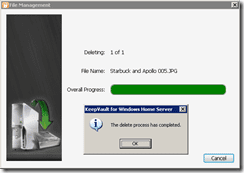
deleted

You can see a list of all of your protected files by clicking on View Protection History.

protection history

So lets say that the worst has happened and you have somehow lost your files. It is very easy to recover them from your KeepVault. Just click Recover files and choose which recovery option you want to use, for this example I am choosing Selective Recovery which gives me the option to choose which file I want and also to overwrite an existing file.

Recovery options

I have selected which file I want to recover and then I just click Recover.

selecting recovery

Just remember, the amount of time this recovery takes is dependant on the same factors mentioned earlier – number of files, size of files and available bandwidth!

recovering

Another useful feature is the inclusion of an event log, so that you can get more information in case something goes wrong.

I decided to cancel my restore and I got a warning, so I clicked on View Event Log and got some more information.

Event logs

There is also a tab called My Local Backup Job. What this is designed to do is enable you to backup your chosen files to an external drive in the same way as the Online backup worked.

My Local Backup Job

I tried to get this to work several times, but every time I plugged in an external drive and tried to select it from the drop down list, the Windows Home Server Console crashed. This is not necessarily caused by KeepVault but I can add the same drive to WHS as a backup drive without problems.

There are also some specific settings that can be made from the Settings area of WHS. These settings are all to do with communication options, specifically you can have notifications emailed to your, or texted to your phone, or even sent to you via Twitter if you so wish.

KeepVault Settings

CONCLUSION

KeepVault 3.0 is simple to set up and get running with. All you need to do is select which files you want to protect and ensure you have a decent Internet connection.

The price for KeepVault 3.0 varies depending on how much storage you want. It starts at $48 a year for 40GB ranging all the way up to $4460 a year for 5000GB, yes you read that right, 5000GB!

Remember these prices are per year and also come with a 30 day risk free money back offer.

So if you want ensure you are protected against the loss of your important data you need to consider an offsite backup solution, and this is certainly worth considering, and as Proxure state on their website, they are cheaper than Amazon S3.

My only problem with whilst doing the review was the WHS Console crashing every time I tried to select an external backup device, although I cannot be certain it was KeepVault that was at fault and I couldn’t find any mention of the problem on their support site, so I am going to assume it conflicting with something on either my PC or my WHS.

UPDATE: Proxure looked into the problem I was having with the crashing console and in less than 24 hours had provided me with a updated version of the add-in to try, and I can report that it works perfectly. This update will be included in later versions of their software for those small amount of users that had the problem.

For more information on Proxure and KeepVault 3.0 for Windows Home Server, click here.

Oh, and watch out next week for a KeepVault giveaway here on Using Windows Home Server.

New Windows Home Server Update

I noticed this morning that a new update for Windows Home Server sneaked out yesterday.

Don’t worry, its not a major bug fix and unfortunately it’s not any new functionality!

It is an update to resolve a WHS Console screen resolution problem.

The update number and KB article is KB963032.

SYMPTOMS

When you open the Windows Home Server Console on a home computer that has a screen resolution that is lower than 1024 × 768, the Windows Home Server console may be displayed incorrectly.

RESOLUTION

An update is available to resolve this issue. This update enables the Windows Home Server console to support low-resolution displays. The lowest resolution that is supported after you apply this update is 1024 x 600.

If you have automatic updates enable you will get it shortly, or you can force an update by going to Settings and clicking Update Now.

KB963032

This update does require a reboot of your Windows Home Server.

mControl for Windows Home Server Giveaway – Week 1 – The Results

Recently, Tim Daleo posted the first in a series of articles on using mControl for Windows Home Server to do all sorts of things within his house.

mControl is software for your Digital Home. mControl allows you to control all aspects of your home from your Media Center PC, locally or remotely via Internet Explorer browser or from your Windows Mobile device.

mControl_VMC_ViewZone_HomeTheater_Lights%20(250px)

For more information on mControl and Embedded Automation, click here.

And so, in true Using Windows Home Server style we had a giveaway. Well to be more precise, the first in a series of mControl licence giveaways.

So without further ado, this weeks winner of a full licence for mControl is……

Sam Pennington. Well done Sam, expect an email with your licence details soon.

Stay tuned to Using Windows Home Server for more giveaways, and keep an eye out for Tim’s next mControl article which will signify another mControl giveaway.

Add-In Review – Digital ArcHound Windows Home Server Edition

Digital ArcHound – Windows Home Server Edition is a multi-user software solution that has been designed for individuals, families and small businesses to quickly and easily move toward a truly paperless environment by allowing them to store, retrieve, archive and manage their electronic documents in a new and innovative way.

Using the Digital ArcHound client software, each computer connected to the WHS server can independently archive, search, recall, email and combine archives from a centrally located archive vault on the WHS server.

Users are reporting that when they need to recall or email a bill, insurance statement, report cards, contract, receipt or other important piece of information, Digital ArcHound is the easiest way to find it.

Digital ArcHound – Windows Home Server Edition has a main installer that assists in the installation of the following components:

  • WHS Server Console:
    • Digital ArcHound Tab Installation for the Windows Home Server
  • Client Connector (32 and 64 bit):
    • Installation for Windows XP, Vista Home Premium, Vista (32-Bit and 64-Bit)
  • PDF Digitizer Printer:
    • Web link download version for Windows XP and Vista (32-bit) only.
    • Vista (64-bit) is not yet supported

INSTALLING DIGITAL ARCHOUND

Installing Digital ArcHound is very simple and installs exactly the same as most add-ins. For a walk-through on installing add-ins, click here.

Ready to installAdd In Available to Install

The only real difference is that during the installation process you are asked to select a Shared Folder for the Digital ArcHound Archives. You are provided with a list of existing folders to choose from. Don’t worry though you can soon change this later, so for now just pick one and click OK to continue.

Select a shared folder for archives

You will then get a message telling you what to do next. This is actually quite refreshing to see as usually the add-in just installs, and WHS Console closes and that’s it. So, nice work guys!

Installation - Whats Next

You also need to install the Digital ArcHound client on each computer you want to use. The client works on either Windows Vista or Windows XP. Also you need to ensure that Adobe Read version 7 or higher is installed on each computer, prior to installing the client.

The setup file for the client is located in the Digital ArcHound folder on your Windows Home Server in whatever Shared Folder you selected during the WHS part of the installation.

Just double-click on the SetupClient.msi file to begin the client installation process and work through the steps.

Client Install 1 Client Install 2 Client Install 3 Client Install 4 Client Install 5 Client Install 6

If you launch the newly installed Digital ArcHound Client, the first thing you will be asked is the name of your Windows Home Server.

Find WHS

Type the name of your WHS and click Connect.

Found WHS

Just click Save to complete this step.

USING DIGITAL ARCHOUND

When you launch the client, you will see the following screen – which is called the Digital ArcHound Workspace.

DA Client windows

To start, all you have to do is drag and drop a PDF onto the left hand window (where the picture of the doggie is).

Your PDF will then appear, as mine has done and you will need to enter document information in the right hand window. Remember, the more information you put in here, the easier and better the searching will be. I know it will take some time to do this with all your documents but it will be so worth it later on when you are searching for one thing!

PDF added

You can use one of the existing categories, or you can create your own.

Add new category

In my case, I created a category called Windows Home Server.

When you have entered all the information, click one of the Save buttons (depending on what you want to do next). The PDF will now be processed and added to your archive. Depending on the size of your PDF, this make take a few moments.

archive complete

You can also scan documents directly into the archive as long as you have a supported scanner.

A nice feature is when you create a new PDF or copy a PDF, Digital ArcHound automatically picks up on this and asks you if you want the new one processed.

processing PDF

You can then decide to copy to the workspace, move to the workspace, ignore or even delete the PDF.

It is very easy to search – all you need to do is click on the Search by Keyword button.

search

Then just type in some search criteria and click the yellow search box. The results are then displayed for you. In this example, I did a search for the word Windows in my archive.

search results - windows

This is the reason why you need to spend time when you add your PDFs to your archives to ensure that you fill in all the relevant data. The more information you put in when you add the PDFs, the better the searching becomes and the greater the chances of you finding what you are actually looking for.

If you want to see information about your archive, including the amount of disk space used and the number of documents in each category, just click on the Manage Archives button.

Manage Archives

Now, if we go back to the Windows Home Server Console add-in you can see that there are items in your archive.

WHS Console

There are a number of options available to you from the WHS Console:

Backup Archives – backup to another device, drive or folder
Restore Archives – restore a previously saved backup
Relocate Archives – move your vault to another drive location
Archive Cleanup – remove temporary files left from a power failure
Licensing – setup one time on the WHS when you initially install
View all Digital ArcHound Statistics – including Information about services,  Database Size,  Drive Space Used and what is Available, Application and Database Version numbers, Archive Statistics; number of archives based on categories and Active Users currently logged on and using Digital ArcHound.

It is very important to backup your archive, you may want to store that backup offsite.

To backup your archive, just click the Backup Archives button and enter all the relevant details as asked (a backup description and also the backup destination) – then click on the Back Up NOW button.

backup archives

Depending on how big your archive is, this could take a few moments.

backup completed

Now in the event of a problem you can easily recover your archive.

CONCLUSION

I really like this add-in, a lot! Apart from having a lot of PDFs with technical information on, I also run my own business which means I have a LOT of paperwork I need to keep, and sometimes it can be a real pain looking for a document. Digital ArcHound makes it very simple for me to find what I am looking for, as long as I take the time to enter all the relevant information in, which I can tell you know I absolutely intend to do!

If you have a lot of documents you want to store and be able to easily search, or you run your own business, then I highly recommend this product.

The price for the Digital ArcHound Windows Home Server edition is currently $79.95.

If you would like to try out Digital ArcHound for yourself, there is a free 15 trial edition which you can download by clicking here.

My Movies and Tranquil PC Competition

My Movies and Tranquil PC gives its customers and users the chance to win a Tranquil AVA RS5 “Special Edition” Media Server. The Tranquil AVA RS5 is a full featured Windows Home Server, that can contain 5 hard drives, and can be optionally be extended with an additional 5 drives using the SQA-Ex extension.

RS5-Big

The AVA RS5 contains an internal CD/DVD drive for disc copying, and ships with the AVA Media Software; an extended version of My Movies for Windows Home Server, allowing you to simply insert a CD or a DVD*, and automatically get it copied to the server, and embedded with high quality meta-data in one go.  There is also an optional Blu Ray version.

My Movies 2.54 and My Movies for Windows Home Server 1.05 Build 4 have just been released, and added is a new feature for Movie Backdrops. My Movies for Windows Home Server 1.05 Build 4 is also available in an enhanced version from Tranquil PC, under the name AVA Media.

Movie Backdrops (also referred to as Fan Art) is a full screen artwork used in movie frontends, to create a mood of the movie as an addition to the movie cover. The backdrops can be either an artwork created by material from the movie, such as press images, graphics and others, or it can be as simple as a screen cap or part of a screen cap in a place where it is able to create this mood of the movie.

Using a My Movies user account, users can contribute movie backdrops or movie posters to our service and for each contributed backdrop or movie poster get a chance to win the AVA RS5. The competition will run from Monday, May 25’th to Thursday, June 25’th, both days included.

Please see http://www.mymovies.dk/ for details on the competition and how to enter it. Visit http://www.ava-media.com/p/863250/rs5-media-server—black.html for details on the AVA RS5 and Tranquil’s other products.

* The AVA Rs5 copies only unprotected discs. Users in countries that allow circumventing disc copy protections when backing up their discs can install SlySoft AnyDVD or AnyDVD HD to remove these copy protections. You are yourself responsible for complying with local law when using disc copy functions.

Details about the competition and the AVA RS5 price are available here:

http://www.mymovies.dk/CompetitionJune2009.aspx