Add-In Review : Task Viewer

Introduction

Have you ever heard the cooling fans on your Home Server kick into noisy mode and not known why or is the performance of your Home Server not as snappy as you expect it should be? Well here is an Add in that might be able to help you resolve those issues without having to Remote Desktop in or connect a keyboard/mouse/display to your Home Server.

WHS Tasks Viewer presents the running processes in a simple two pane view within the Home Server Console along with some spiffy little graphs showing various metrics over time.

Installation

Installation is as simple as simple can be, at least in computing, copy the Tasks Viewer MSI into the Software\Add-ins folder on your Windows Home Server then, using the Home Server Console install it as you normally would an add in.

Installation takes a couple of seconds and then the Home Server Console will restart and voila a new Tasks Viewer tab to play with.

Impressions

Tasks Viewer isn’t the most beautiful of applications but it is functional. The left 70% of the Tasks Viewer tab displays a list of running “Tasks” on your Windows Home Server with six columns of data showing the ID, Process Name, Session ID, Private Memory Usage, Virtual Memory usage and a nice little graphical view of how much of the CPU time each “Task” is using.

SS1 - Tasks Viewer Main Window

The remaining 30% of the Tasks Viewer tab shows up to five graphs, arranged vertically, showing CPU Usage, Free Physical Memory, Free Virtual Memory, Disk Activity and Network Activity over time. These are pretty basic views with no legend or markers on them so it can be at times a little taxing to read them.

At the top of the screen, below the Windows Home Server tabs, is a single toolbar that contains a Kill button, a list of the total number of running processes, a refresh button (if the refresh isn’t fast enough for you as is you can click this) as well as some very basic information on your Windows Home Server (Number of CPU Cores and Total Physical and Virtual Memory).

Configuring Tasks Viewer

Clicking on the Settings button followed by the Tasks Viewer button will display some configuration options that allow you to specify how often the Process List and Graphs update as well as enabling/disabling the various graphs and altering their colours and a couple of other properties.

SS2 - Tasks Viewer Configuration Window

Usage

Tasks Viewer is a very simple application to use, look at the Process List and find the process using the most CPU Time or Memory and then determine what you’re going to do about it.

For a non-technical user this is the problem with this add in, showing the information is one thing but knowing what to do with it is another. The Kill button is a very dangerous word to have here and even Microsoft use “End Process” instead in Task Manager, pressing this button will ask for confirmation that you want to end the selected process but in doing so it may damage your computer and there is no additional verification by the add in or Windows Home Server that what you’re doing is not going to be dangerous.

I did discover an issue with the Kill button, when the kill confirmation dialog appeared I selected No to killing the process and got myself into an infinite loop where I had to quit the Console in order to get out of the loop, nil points for Tasks Viewer there.

Turning off the graphs is something I did straight off the bat, they’re a little crude for me and actually don’t tell me much of anything without points of reference, a legend or even scale lines. Doing this was simple but I discovered that the 30% space that the graphs occupied remained a big white space afterwards, the add in did not reclaim the space and use it to present the Tasks list in a wider space. A disappointing User Interface design there but one I can appreciate as many times I’ve forgotten or had trouble writing the resize code for applications myself 🙂

SS1 - Tasks Viewer Main Window No Graphs

The default Tasks Viewer columns for each process is very basic and it would be nice to remove some of columns or add other ones in their place, unfortunately there is no way to customize this that I have found or change the default behaviour of the CPU Usage column to be a number instead of the progress indicator.

One thing that has bugged me majorly is the mixed usage of Process and Tasks, personally it is not tasks but processes that run on a computer and in a few places Process is used but the name of the application is Tasks and it can be a little confusing, hopefully we’ll see this addressed in later releases where a single term will be used consistently in the add in.

You’re sounding rather biased and negative

This review does sound like I’m really not enjoying this Add in and I’m “doing a job” on it but that’s not what I’m intending. Feedback is an important thing in ANY development and this is my feedback, in all honesty I actually have found a use for this add in and when I do use it I’ve enjoyed the simplicity and presentation of it.

It has saved me on three occasions just today using Remote Desktop, checking the Tasks list I was able to see that my Anti-Virus solution was using a little too much CPU time and slowing my WHS down, a quick kill of the A/V process and all was good again.

The User Interface is simply and functional, I’ve said that and that is a good thing. I can find information quickly and without any hassle, updates from the WHS occur quickly and the add in is just “snappy” which I really like. I think the developer has built functional and in later releases they will address issues that are raised.

I can see a use for this in my WHS toolkit and I hope that the developer does take what I’ve written as feedback and continue developing it.

Conclusion

Tasks Viewer is could be a very useful tool for the WHS Administrator’s Toolkit, what it presents isn’t new but it does so in a way that would save time in having to connect via Remote Desktop or finding a Keyboard/Mouse/Display to plug into your WHS.

There are issues with the add in as I’ve stated but it is functional and works very well. If you’re an intermediate/advanced knowledge of computers then this add in could be very useful for you to have available.

You can download the Task Viewer Add-in from here.

Installing the Disk Management Add-In on Windows Home Server on a Friday night

Welcome back to another article in the Friday night series. This is how it works: I do “stuff” to my Windows Home Server, writing as I go and hopefully you learn a little something from my experience. Well maybe a laugh…

Pic1 

Background

Over the last few weeks I have been seeing a lot of super big crazy large uber-servers on some of the WHS sites. Some of these systems have dozens of drives and multiple cases. Most of these users post a very cool “Wireframe” screen shot of these mega-behemoth WHS systems that are on shelves across the world. Jealous much? Now, while I am humbled by their size and cost (24 drives x $100 average 1.5TB drive = $2,400?) I am never going to have the need, or the courage to convince my wife, for that much storage. What I do find the need for is a way to get more performance information from my drives and to make one of those cool Wireframe skyscraper looking things for my WHS.

Equipment Needed:

Windows Home Server Disk Management Add-In

2 Beers (optional as always, but recommended)

The IT Crowd – Season One playing on Netflix

Add-In Description

Windows Home Server Disk Management Add-In was created by Sam Wood at Tentacle software. If you have a few minutes you might want to read over the blog before you start. Since the only thing I have ever developed was some film a long-ass time ago at Costco (even then I messed up the envelope) I found it interesting to see how the Add-In was developed and grew. The Tentacle website is at:

http://www.tentaclesoftware.com/

Pic2

According to the website it features:

  • Detailed information for each disk in your Windows Home Server
  • Real-time temperature and activity monitoring
  • Capacity indicators for individual disks
  • Customizable disk names
  • Customizable 3D wireframe representation of your server

This sounds cool. I want to be able to view my WHS as a multicolored monolithic tribute to the MS gods instead of the dusty cable-laden heater box humming inside the closet.

Lets set this pig on fire.

Download and Installation

The version I am installing is 1.0.9.8. This is the latest version and can be found at:

http://www.tentaclesoftware.com/whsdiskmanagement/

Before you just download the file and get started make sure you scroll down and see if your system is one of the Pre-configured Server Wireframes they have available. I have a feeling this could save us some time later during installation. Since my Dell PowerEdge is not listed I am out of luck. I am going to get the HPMSS EX47X template for my parents while I am here and then create theirs using the import.

Pic3 

Also, I see some references to PP1 so check your system resources to make sure your WHS is compatible. The Tentacle website has a great FAQ section on the same page if you need additional information.

Follow the standard WHS Add-In instructions by downloading the file to your Add-Ins folder on your WHS.

Pic4 

I have also saved the XML file for the HP MSS to a folder so I can copy it along with the Add-In to my parents via remote after I do the installation on the Dell.

Pic5 

Install through Settings>Add-Ins in the WHS Console.

Pic6 

Configuration and Setup

I installed the Add-In and the WHS Console has restarted. I now have a new Disk Management “gear” icon at the top. I also see all of my drives listed very neatly underneath. Sweet.

This layout is cool since the regular Server Storage view only shows you the total of all of your disks and does not break them out by name. I really like the temperature and activity columns. Nice touch. It would be a nice addition to this Add-In to have the total hours on each drive on a future release. Well, now that I can see all of my drives, lets make one of those cool diagrams of the server!

On the right side it says “Click here to begin wireframe setup” so lets try that.

Pic7 

It takes me back to Settings. Um ok.

Pic8

I see the Create New Wireframe button and I see an Import / Export Wireframe option. I want to make my own anyway so I probably would not have used this option even if my PowerEdge was on the list. Time to create a new Wireframe! The wife is getting ready for bed so I had better do this fast.

Follow the steps below by working through the Create New Wireframe program:

  1. Add, Edit or Remove a drive bay – Click on “Add new drive bay” click the arrow and NOT OK.
  2. Drive Bay Type – Click on the bay type LOV (List of Values), make your selection and click on the right arrow
  3. Drive Bay Position – Click on “New” and click on the right arrow
  4. Drive Bay Contents – Click on the LOV and I see all of my drive paths here. I am going to pick the system drive first and then add the rest of the drives in order later. I like the way it adds the disk information once you select the drive path. Right arrow again.
  5. Confirmation – I guess I can add a drive name but it says it is only available in the wizard. I wonder why. Anyway, all of my drives are Seagate. I just named the first one SG1. That is so flippin cool. Right arrow again.

Pic13 

Done with the first one. I have a little blue drive on the screen now. Sweet.

Pic14 

I will repeat the process for all of the additional drives and also include the DVD and CD drives. Do not worry about ways to rotate or move your drives. We will come back to that!

Pic15 

Time to get that second beer.

Pic16 

You can always walk away or stop and start by using the “Edit Current Wireframe” button.

Pic17 

As I have been adding the remaining external drives I have to keep remembering to check the “external drive bay” box. It would be nice to have “External” in the list of values and dump the check box. Also, to have another option for 2.5” drives that are connected would be cool. Overall the creation of the Wireframe is straight forward. Once your Wireframe is complete just use the Wireframe Orientation rotation axis boxes to adjust the view. You can also right click. I used 45, 45 and 45.  My system looks like this so far:

 Pic18  

Hey, what the flip? Where is my fourth external drive? There are supposed to be four external bays to the right of the server. Let me investigate this…ok back. So this is a little harder to understand and explain, and hard to see, but the first drive to the right is darker than the rest. I think I doubled up on the first drive.

Pic19 

I clicked on the darker drive and removed it and then it became light again. I did not realize I could add more drives to the same space. Is it supposed to do that? Interesting.

Pic20 

I guess I need to be more careful when I add drives. There is only one drive path for each framed box so be careful. Here is the new layout with the fourth drive added.

Pic21 

I have finally figured it all out and got used to how this Add-In works. Had to open another beer though.

Pic22 

Once I click on OK it takes me back to the Disk Management interface and updates the Wireframe. Very nice! You can see my PowerEdge two drive system and the external drives to the right.

Pic23 

Now, once you have got all of your drives in the right order you can go back and use the Advanced Mode to change the rotation and position of each of your drives. You could also use the Advanced Mode during the initial creation of your Wireframe but I would suggest waiting until after you complete the basic setup. I select the CD drive as shown below and click on Advanced Mode:

Pic24 

Now I will use the Movement buttons to move the CD drive up as shown below:

 Pic25 

I have also moved the DVD drive up and am now rotating the Seagate Free Agent Pro drives to match their actual orientation. If you set your system up correctly then each box you click on should already match the drive path and disk name. I hear the wife coughing. Is that a hint?

Pic26 

I have finished all of the changes and my system is looking like it does in the closet. Well, without the dust and cables. I really have to work on that.

Pic27 

The Advanced Mode takes some getting used to but once you get oriented it is quite easy. Here is my final final version:

Pic28

Sweet.

Importing the Wireframe XML file

Now that I am a “pro” with this Add-In it is time to upload it to my parents HP MSS. They are so lucky to have a son that cares so much. Seriously.

Pic29 

To import the Wireframe I downloaded at the start of this article I use the Import button and find the file:

Pic30 

Since their HP MSS is stock I do not need to make any changes to the Wireframe. Here is the result:

Pic31 

That was easy. I am finished with their HP MSS so I click on OK and get back to the Disk Management Add-In.

Pic32

Cool red. It makes me want to add a couple of more drives. Maybe on another Friday night.

Conclusion

I am very happy with this Add-In. It has some good information about the drives and a cool Wireframe creation tool. You cannot tell from the amount of screen shots I had to take but the Wireframe is pretty easy to set up. I would like to see future revisions offer some different options for the external drives we all use and maybe even some additional name labels. Again though, overall this is a good Add-In and I am glad that I installed it in my Windows Home Server.

See you next Friday night

Timothy Daleo

Welcome New Writer

0

I just wanted to welcome a new writer to Using Windows Home Server. His name is Phil Bevan and he comes from Australia. Welcome Phil!

Phil first article will be posted today – so take a look, and give him some good feedback.

Here is a short bio on Phil :

An Englishman by birth Phil Bevan has since moved to Australia where he works as an IT Consultant. He’s never been lucky enough to work for such high-tech companies as Andrew but he once saw Steve Balmer in Sydney and met PC Pro columnist Jon Honeyball in 1999 so he considers things have worked out alright.


He has no qualifications instead preferring to actually do work instead of reading books but this time has to be shared with his love of Computer Gaming which has lead him into the murky world of eSports where he spends his time as a Shoutcaster and Community Liaison trying to be the eSports equivalent of John Mottson.

Since discovering Windows Home Server he’s setup and runs a network based on the device that even “‘er indoors” can use and loves the simplicity, power and flexibility provided.

This is also a good time to remind you that if anyone out there wants to write for us, on any subject, be it a review of your favourite add-in, hints and tips, etc, then drop us an email to andrew @ usingwhs.com (removing the spaces) and introduce yourself.

Adding a Drive to your Windows Home Server

There seems to be a lot of people who are still a little unsure about adding or removing drives on their Windows Home Servers, so I figured some simple walk-throughs would help here.

In this next walk-through, I will discuss adding a hard drive to the storage pool.

ADDING A DRIVE TO THE STORAGE POOL

You can easily add a new hard drive to your server storage pool by literally just plugging it in and making a few clicks with your mouse.

Make sure that you have enough spare ports on your Windows Home Server for the new hard

drives. For example, if you want to add a new internal hard drive, you will need a spare power cable and the relevant cable for attaching to the motherboard, along with a spare port on the motherboard to connect the cable. If you want to connect an external hard drive, you will need spare USB or FireWire ports.

Here’s the procedure for adding a hard drive:

1. Connect the new hard drive to your Windows Home Server. If you are connecting an internal hard drive, you will need to first power off your Windows Home Server.

2. When the Windows Home Server has been powered back on, using one of your home computers, launch the Windows Home Server Console.

3. Click the Server Storage icon to display your available server storage.

clip_image002

Your new drive will be listed in the Non Storage Hard Drives area, with a status of Not Added. As you can see, I have installed a drive with the details ST315003 41AS internal ATA drive with a capacity of 1.3 TB. For those of you who are interested, it’s a 1.5 TB Seagate drive.

There might be situations, such as an application or Windows Home Server add-in needing its own hard drive, where you don’t want to add the new hard drive to the server storage pool. In these instances, you can just leave the new hard drive in the Non Storage Hard Drives area. This just means that the hard drive is not used as part of the Windows Home Server storage pool, even though it can be used for “other” storage outside the storage pool.

You can also use it to backup files from your Windows Home Server, but that is the subject of another walk-through, so for now, let’s just assume you want to add the drive to the storage pool.

4. Click the newly added hard drive, and then click the Add button above the list, or right-click the hard drive and select Add from the context menu.

clip_image004

This will start the Add a Hard Drive Wizard.

clip_image006

5. Click Next to start the Add a Hard Drive wizard. You will be offered the choice to add the hard drive to the storage pool to increase the storage capacity of your home server or you can use it to back up files that are stored on your home server. For this walk-through, leave the default selection and click Next to continue.

clip_image008

The next screen in the wizard warns you that if you click Finish, the hard drive will be formatted, and any files stored on that drive will be deleted. You can also see information about the drive on this screen so that you can be sure you have selected the correct drive.

clip_image010

If this newly added drive contains any data that you want to keep, stop the process now!

Remove the drive from the Windows Home Server, connect it to one of your other home computers, and copy the data off before starting the process again.

6. If you are sure that you want to format the drive, and that you have copied any data you want to keep to another storage location, click Finish. The hard drive will be formatted, and then it will be added to the storage pool.

Depending on the size of the hard drive you are adding, the formatting process may take a few minutes, so be patient.

clip_image012

adding drive to pool

When those two things have taken place, you will see the screen that tells you that the new hard drive was successfully added.

clip_image014

7. Click Done to finish. Your new hard drive has become part of your available storage pool.

clip_image016

You will now be able to see the new drive, along with any other drives you already had as part of your storage pool. As you can the status of my new drive is healthy, and my server storage pool total is 2.73 TB.

You will notice that the total server storage size may not be a rounded-off number. This is because you can add all different size drives to your server storage pool. You can add any drives you have lying around at home to increase your server storage—and believe me, you will soon want to do this!

The procedure for adding a USB or FireWire hard drive is the same as just described. I also added a USB hard drive to the pool.

usb drive in pool

You will notice that the icon of the USB drive is slightly different, in that it shows a cable attached to the drive to indicate it is an external drive. You can also see that the Location column indicates that it is External (USB).

You should consider using only USB 2.0 or FireWire external drives. Do not use USB 1.1 external drives, as they are slow and will cause your Windows Home Server to perform slowly, which you really don’t want to happen.

After you’ve added the new hard drive to your Windows Home Server, it becomes part of the total amount of shared server storage. Under no circumstances should you just disconnect it and use it for something else, as this will cause major problems to your storage.

If you want to know how to safely remove a hard drive from your storage pool, click here to read the walk-through.

Windows Home Server Book Giveaway Winners

Last week I said that I would giveaway 2 copies of my book – the Windows Home Server User’s Guide and all you needed to do to win it was send me an email with a suggestion for an article.

Well, I got lot of really good suggestions, so much so that I have decided to give away 4 copies instead of the 2 🙂

So, without further ado, the winners are:

Robert Hegglov from Sweden

Craig McFarlin from the US

Joseph Ozdemir from Australia

George Bellis from the UK

Congratulations guys, I will be emailing you shortly. For everyone else, don’t worry, there are a lot of giveaways coming up over the next few weeks, including a few very special ones. So stay tuned to Using Windows Home Server and if you haven’t subscribed yet via RSS, just click the RSS Posts link at the top of the page to have posts sent directly to your favourite RSS reader.

Removing a Drive from your Windows Home Server

There seems to be a lot of people who are still a little unsure about adding or removing drives on their Windows Home Servers, so I figured some simple walk-throughs would help here.

In this first walk-through, I will discuss removing a hard drive from the storage pool.

REMOVING A DRIVE FROM THE STORAGE POOL

A time may come when you want to remove a hard drive from your Windows Home Server,
either because you suspect that there might be a problem with it or because you want to
replace it with a larger and possibly faster hard drive.

You cannot remove the primary hard drive, which is the one with the Windows Home Server program files stored on it. If you want to replace the primary hard drive, you will need to reinstall Windows Home Server.

To remove a hard drive, just perform the following simple steps:

1. In the Windows Home Server Console, click the Server Storage tab.

WHS Console - Storage Tab

2. Click the hard drive that you want to remove, and then click the Remove button above
the list, or right-click the hard drive and select Remove from the context menu.

Selecting a drive to remove

This will launch the Remove a Hard Drive Wizard.

The Remove a Hard Drive Wizard

Beware, because the removal process moves the files that are stored on that hard drive to another
hard drive, you must ensure that you have sufficient space available in the storage pool before continuing. Otherwise, you may lose files or some shared folder duplication may stop.

3. Click Next. The wizard will check that there is enough storage available to move the
files to before continuing.

Estimating Available Space

Depending on how many hard drives you have in your server storage pool and how much data is stored within the pool, the process of calculating the available space could take a few minutes. As usual, be patient!

4. Once the calculation has completed, you will be presented with a Hard Drive
Removal Consequences page. Review this information as it could be very important.
There are two major areas of possible consequence, plus a reminder if you’re removing
an external drive.

• Files and Folders is where you will be informed if files that are stored in duplicated
folders will continue to be duplicated.

• Computer Backups is where you will be informed if any computer backups will
be lost.

• Do Not Disconnect will appear if the drive being removed is an external hard drive.
The wizard is reminding you that this drive must be connected and powered on
until the wizard has completed.

Removal Consequences

It is also possible that you won’t have any consequences (wouldn’t that be nice), in which case you will will just be told you can remove the drive.

Hard Drive can be removed

If you have only two hard drives in your Windows Home Server and decide to remove
one of them, the biggest consequence is that shared folder replication cannot continue, because a minimum of two hard drives are required for replication. You will be warned of this on the Hard Drive Removal Consequences screen.

More consequences

5. Click Finish. The hard drive is removed from the server storage pool, and the data is
moved to other hard drives within the pool. You can monitor the progress while this is
taking place.

Watching removal progress

Depending on how much data needs to be moved from the hard drive, the removal process can
take a long time. The wizard even advises that this process could take several hours to complete. Do I need to say that you should be patient?

6. Once the removal process has completed, you will be presented with a Hard Drive
Successfully Removed screen. Click Done to complete the removal process.

Successfully removed

If the hard drive is an external hard drive, you can now safely unplug it from the
Windows Home Server. If the hard drive is an internal hard drive, you will need to power
off your Windows Home Server and remove the hard drive before restarting the Windows
Home Server.

Black Hat Europe Over For Another Year

bh-thumb

This week saw the Black Hat conference once again return to Amsterdam for 2 days of intense, and informative, security briefings covering topics such as newly announced vulnerabilities.

There were over 400 attendees over the two days, and 6 new vulnerabilities announced. Lord Erroll, a member of the UK House of Lords delivered a very interesting keynote speech on Privacy.

If you are interested in learning about new security vulnerabilities, and what you can do to protect yourself, you should consider going along.

For more information on the next set of briefings, click here.

And if all that information wasn’t enough, there were donuts!

Donuts

UK Windows Media Center and Home Server User Group Meeting only a few days away!

This is just a reminder to anyone who is interested in attending the 1st UK Windows Media Center and Home Server User Group meeting which is going to be held in Birmingham next Tuesday evening (the 21st April).

Sessions include Windows Home Server (presented by me – so come along and heckle if you like), Windows Media Center Addons, Windows Media Development, Windows 7 preview and even a live roundtable discussion. And believe me, the roundtable discussions are usually a great deal of fun!

To register for the event, click here.

HP Publish iStream User’s Guide for HP MediaSmart Server 2.5 Update

Earlier this week we told you that HP had announced an update for the HP MediaSmart EX485 and EX487 servers, known as the 2.5 Update.

This update included something that HP are calling iStream, which is the application that sites on your iPhone or iPod Touch and allows you to access your media content stored on your HP MediaSmart Windows Home Server.

Phil Churchill, the ever eagle-eyed guardian of MSWHS.com reported that HP have now published the User Guide for iStream, which can be downloaded here.

This User’s Guide contains everything you will need to know in order to set up and use the iStream application – all you need now is the software!

As reported earlier in the week, the 2.5 Update should be out by the end of this month and the iStream application will be available via the Apple App Store.

D-Link Now Shipping Next-Generation Powerline Kit – DHP-303

0

D-Link today introduced its next-generation PowerLine adapter kit, an ideal solution for connecting computers, high-definition (HD) media players, game consoles, network attached storage (NAS), and Internet content throughout the home.

D-Link DHP-303

With the new D-Link PowerLine HD Ethernet Adapter Starter Kit (DHP-303) anyone can take advantage of existing home electrical wiring to create or extend a network. The kit includes two PowerLine wall plugs/ adapters. The DHP-303 turns every power outlet in the home into a wall-to-wall network for connecting when connected to a switch or wireless access point.

With simple plug-and-play installation, the DHP-303 is ideal for connecting an Ethernet-enabled digital media device such as TiVo or Slingbox to the home network and the Internet. It also allows users to connect gaming consoles like the Xbox 360, Playstation 3 or Nintendo Wii to the Internet. The device will automatically be displayed in Microsoft Windows Vista’s Network Map. Users also can check the DHP-303’s performance via a built-in LED.

The PowerLine Adapter, with simple push-button activation, implements Triple Data Encryption Standard (3DES) for securing connections and keeping data safe from intruders. To create a secure connection the user simply pushes a button on one adapter, then goes to another room and pushes a button on the other adapter. It also offers Quality of Service (QoS) support to help prioritize data and enable smooth video streaming and lag-free gaming.

Key Features and Benefits

· Uses home’s existing electrical wiring

· Streams HD media across the network

· Up to 200Mbps throughput

· Connects computers, game consoles and multimedia

devices to the Internet

· Plugs into existing power outlets

· QoS support helps prioritize Internet traffic

· Extends wireless LAN by connecting an access point

to achieve stronger wireless signals in remote areas

· Supports enhanced network security

· Simple plug-and-play installation

· Power-saving mode

· Simple push-button security

· LED for easy monitoring

· Microsoft Windows Vista “network map” locator 


The DHP-303 is available now and retails for $139.99 in the US and £120.00 in the UK.

New HP MediaSmart Server EX485 and EX487 Software Update

HP MediaSmart Server_Server Console_Welcome screen after update

Today HP announced the forthcoming release of a software update for the HP MediaSmart EX485 and EX487 Servers, known as the 2.5 Update.

The 2.5 Update brings remote video streaming and automatic video conversion to unprotected content. What this means is that your EX485 or EX487 will be able to automatically convert videos and unprotected DVDs into two different resolutions.

HP MediaSmart Server_Server Console_Video converter setting page    HP MediaSmart Server_Server Console_Video converter status page

These include a high resolution file that you can steam to PCs, Macs and even your Xbox 360 or PS3. The other resolution is aimed at mobile devices, such as the iPhone and iPod Touch.

HP MediaSmart Server_Media Streamer_Photo tab     HP MediaSmart Server_Media Streamer_Video Tab

For those who are interested, the conversions will be MPEG-4 (H.264).

The supported video types are AVI (DivX, Xvid, MJPEG), MOV (MJEG), DVR-MS (MPEG2), MP4 (MPEG4), WMV and unprotected DVD VOB.

Unprotected DVD VOB files are automatically stitched together resulting in a smooth stream.

All of your original files are left intact, so you don’t have to worry about anything happening to them during the conversion process.

There is also an HP MediaSmart Server iStream application for the iPhone which enables iPhone owners to easily access their digital content that is stored and streamed from their MediaSmart Server. This application will be available from the Apple App Store soon and will put a little MediaSmart icon on your iPhone.

HP MediaSmart Server_iPhone Landing Page image     HP MediaSmart Server_iPhone Music viewer      HP MediaSmart Server_iPhone photo viewer image 1  HP MediaSmart Server_iPhone video viewer

But wait, that’s not all! There are also some updates to the mobile streaming user experience, updates to the HP Media Collector, improved configuration for Apple Time Machine and the ability to create public and private albums in the photo viewer.

So, excited? I think this update is very cool, and will probably generate a lot more interest than the recent Windows Home Server Power Pack 2 launch, which saw most people a little disappointed. The release date is later this month so keep checking your MediaSmart to see if you have the update.

Unfortunately for those who have the EX470 or EX475, this update will not work 🙁

HP say this is because of the hardware and processing power that is required to run the new software. And currently there is no news about any future updates for the EX470 and EX475.

Look out for a full in-depth review of the new features soon.

Logitech WiLife Video Security System Review

Logitech Cameras

Do you have a need for a low cost, simple to setup security system for your home or office? Do you want, or need to monitor a particular area for a reason?

If the answer to any of those questions is yes, or you have another need for a security system, then Logitech may have the solution for you.

Logitech, who most people probably associate with keyboards and mice and even webcams, have a series of devices that are designed to provide a low cost security system for the home and office. These devices are network based, provide high quality images, are easy to install and use and are reasonably priced.

There are three main products – the Indoor Digital Video Security System, the Outdoor System and also the spy camera designed to look like a digital clock. Logitech refer to these products as the WiLife Video Security System, and they can be used individually or combined to provide a more complete security system.

So let’s take a look at the Spy Camera first shall we?

The Clock Add On Security Camera from Logitech is the first networked spy camera that delivers professional-grade video monitoring in a single affordable system. What I will stress here is that whilst Logitech state “professional-grade” there are a number of factors that actually affect the picture quality, for example light, other traffic on your network, your electrical supply (because the camera itself talks to your computer via your electrical supply – more on that in a moment).

The spy camera itself is disguised as a digital clock in order to hide it, although the clock itself is quite big and so may look a little out of place in some homes, but don’t let that put you off, but it certainly wouldn’t look out of place in an office.

The clock can be small because you use your PC to actually record the video from the camera, which does obviously mean that the PC needs to be switched on and the USB receiver connected to both the PC and the electrical supply. What this means is that the clock can be placed anywhere there is an electrical outlet, and if anyone were to look at the clock, it would look just like a clock, and not something with “extra” wires coming out of it.

And as for the recording, you are only limited to the amount of available hard drive space on your computer – but again, don’t worry as you can set a maximum amount of space that the camera, or cameras can record to.

The camera itself provides a full colour image (VGA or QVGA) and the lens itself contains a glare shield to ensure clearer images and it also adjusts to changes in various light conditions, which is a very nice feature. The is also built-in video compression which basically means that you can store more video in less space. Windows Media Encoder 9 is used to perform the video encoding, and works very well. If you don’t already have Windows Media Encoder 9 installed, don’t worry as this is all taken care of for you.

You can also even view the camera remotely via the Internet and even receive SMS text alerts on your mobile phone.

So, to the camera….

Logitech Spy Camera Box

The components you get in the box are:

· the clock camera

· a power cable

· USB receiver

· USB cable

· the software

Logitech Spy Camera Contents

so as you can see, there isn’t a lot to connect and configure, which means that the average person should be able to get it going without issues.

It is very simple to setup and use – and in fact, barring any problems, you should be able to have it up and running in no time at all.

INSTALLING THE SOFTWARE

Before you start there is two very important things to note – the software that comes in the box currently only supports 32 bit operating systems. If you, like me, are running a 64 bit operating system, then you will need to download the 64 bit software instead of using the software on the CD. The 64 bit software can be found here along with the latest version of the 32 bit software.

The other is that you must make sure that you plug in both the clock and the USB Receiver directly into an electrical outlet and not into a UPS or surge protector as it won’t work correctly. I tried plugging them into a power strip and it couldn’t locate the camera.

System Requirements

§ Recommended CPU speed:
1.4 GHz (1 camera)

§ Recommended PC memory:
384 MB(1 camera)

§ PC Video card memory:
32 MB (1-2 cameras)
Recommended DirectX 9 compatible

§ Display resolution: 1024 x 768 pixels or higher, 32-bit colour

§ Hard drive: 100 MB for program and a minimum of 500+ MB for video storage

§ Operating system: Microsoft® Windows Vista, Microsoft Windows XP Home Edition, XP Professional or XP Media Center Edition

§ Internet access required

§ Logitech Master System required

So, either put the CD in the drive of the computer you want to use as the recorder, or run the software you downloaded. Either way, you will be presented with the following screen.

Logitech Software Installation

Click on the Install Command Center button to begin.

The Command Center software is used to not only control the camera or cameras and view a live feed, but also to play back any stored videos using a time line approach, or you can just open up the folder on your computer to view the individual media files. But however you want to play back the videos, the Command Center software is needed to configure and control the camera.

Choose the Language you want to use and then click Next.

Logitech Software Installation

What follows are the usual screens when installing any piece of software, the Welcome screen, the Licence, the destination location of the software, etc. Just work your way through those screens as normal.

You are also asked if you want the Command Center to run automatically when Windows starts.

Logitech Software Installation

Now this is completely up to you – each has its merits. If you don’t want to miss any recording, have it run automatically. If you only intend to record occasionally then it’s probably worth starting the software manually as and when you need it. You can of course change this setting later anyway. After that it’s just a case of rebooting the computer.

CONFIGURING THE SOFTWARE AND CONNECTING THE CAMERA

The next stage is actually configuring the Command Center software and connecting up the camera.

Logitech Software Installation

The first thing you need to do is decide how much storage you want to allocate for the recordings and where that location is.

Logitech Video Storage Setup

It’s very easy to change – you can either use the slide bar (less or more) or enter a number in the allocation box.

You are then asked if you want to setup a Remote Viewing Account. This is for allowing access to the live feed from outside the home. You can also set this up later, which is what I chose to do – more on that in a bit.
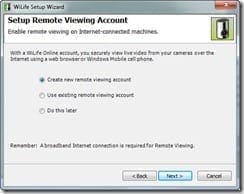
Logitech Remote Setup

The next bit is all about how many cameras you are connecting and the connection method. As this is the first and only camera I am connecting at this stage, I accepted the defaults (note here the USB Powerline Adaptor).

Logitech Tell Us About Your System

The next step involves you plugging in the USB Receiver (or USB Powerline Adaptor as was just referred to) into a wall socket and the connecting it up to your computer, as shown on the pretty diagram provided.

Plug in your powerline adaptor

If the drivers don’t install correctly or the USB device is not recognised, you will see an error.

USB not found error

In my case, the error was because I was trying to use the 32 bit drivers on my 64 bit machine – remember the warning I gave earlier!

The next bit sees you connecting the camera to its power supply and then plugging it into an electrical outlet.

Plug in your camera

Then follows a series of configurations and tests to make sure everything is working and can talk to each other.

Configure and test your camera

If that all passes, all that is left to do is name your camera – unless of course you like the name Camera 1.

Name your camera

And that is it – you will then be shown confirmation of your settings.

Setup completed

Just click Finish and you are done!

You may be advised that the camera’s firmware is out of date and needs updating. At the time of writing, version 2.72 was available and the camera came with 2.62.

Firmware update

Updating the firmware is simple, and only takes a few moments – just click Update Cameras.

USING THE COMMAND CENTER SOFTWARE

Ok, so the software is installed, the camera is plugged in, and everything is working. The next step is to configure any settings you might want to change.

By default, the settings for recording are quite low, to ensure maximum recording time.

Recording settings

You can change the resolution, the frame rate and also the bit rate. Just remember the high the quality recording, the more disk space you use.

You can also have a look at information for each camera – including its IP address and statistics.

Camera Information

You can also choose whether to start recording whenever there is movement anywhere in the camera field of vision, or you can actually set a motion zone.

Settings

This is a very cool setting that enables you to drag a box around part of the image and set the system to only record when there is movement in that zone. For example, movement through a door, or when a till drawer opens and closes.

You can even schedule in events and enable continuous recording.
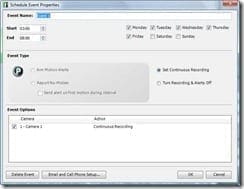
Settings

By default, the camera doesn’t record continuously – it waits until there is some movement which then starts of the recording on the PC. When the movement ends the recording stops a few seconds later (it’s about 5 seconds to be precise). This also ensures that you can get the maximum amount of recording available depending on your disk space. After all, you don’t want to record 8 hours of nothing, and just when something happens that you want to record your hard drive space is all used up!

You can even set up alerts that can enable you to receive email messages cell phone messages whenever something happens. For example, you get a message telling you a recording has started and you know that no one is in the house, so you could call the police (this is also where remote viewing comes in very handy – more on that in a moment).

Settings

It is also very easy to check how much disk space has been used and how many files you have made. You can even change the video path if you want.

Settings

One of the very nice features is the ability to remotely view your camera or cameras. In order to do this you need to first create a WiLife Online Account.

Remote Settings

Just follow through the steps to do this – it’s very simple.

Remote Settings

Remote Settings

One VERY important to thing to note here, make sure the password you set here is not easily guessable – if someone can guess it then they can access your cameras remotely, and the last thing you want is someone else having access!

Remote Settings

And that is it – your account is created.

Remote Settings

The software will even test your router for you, and if its UPnP enabled it can configure it for you. You also have the option to change the ports it uses from here as well.

Remote Settings

When you want to access your account, or view any of your cameras online, you just open a browser and go to http://online.wilife.com, enter your email address and password and click Log In.

Online Access

You can then choose which of your cameras (if you have more than one) you want to view.

Online Access

And hey presto, you are viewing your camera live!

Online Access Live Playback

When you want to play back any files you have a couple of choices available to you. You can either choose a recording from the Camera timeline (the green boxes indicate a recording) or you can just open the folder that you chose as your recording destination and just open a file in Media Player.

Playback timeline

There are simply lots of other features and settings available to tweak and play with – far too many to go into in this review, but have a look at each of them, they are very interesting.

ADDING OTHER CAMERAS

Well, that is the hard bit over, and yes, it wasn’t really that hard was it?

If you want to add another camera it is very simple and just involves you adding a camera from within the Command Center software are performing the camera connection steps again as before.

You can add another spy camera, or you can add either an internal or external camera. You can actually add up to an additional five cameras, which should satisfy most requirements.

The Indoor Camera is packaged very similar to that of the spy camera.

Indoor Camera box

Obviously this one actually looks like a camera! It even comes with little window suckers so that you can mount the camera on a window facing out. And unlike the spy camera, you can tell when it is operational as there is a light on the front panel.

Indoor Camera

Just to show the sizes of these cameras, here is the Internal camera sitting next to the Spy Clock camera.

Logitech Cameras

PLATINUM SERVICE

You can upgrade the software and service that you get “out of the box” with something Logitech are calling the Platinum Service. Platinum gives you more control and flexibility to protect your property, family, and employees, while providing you the ultimate in video security – more notification options, powerful alert options, and increased accessibility to your cameras and recorded video files from a remote location anywhere in the world, at any time. Being better informed about what is happening at home or your business is your new reality.

Upgrade to the Platinum service and enjoy the features that increase the monitoring power of your WiLife System Command Center at a specific site.

· Scheduled Alerts

· No-Motion Detected Alerts

· Desktop Notifications

· Password System Lock

· Digital Pan-Tilt-Zoom

· Online Connection Monitoring

· Online Video Storage for your select important video

· Online Camera Management

· Online Search and Playback

· Online Video Sharing

The cost of the Platinum Service is £49.00 per year. I didn’t try it out as part of this review, but if the features sound appealing to you, then it could be well worth the £49.00 each year.

COSTS

Released in August 2008, the current UK price for the Spy Clock Camera is £229 and the US price is $249.99 and is currently available from Amazon. The Indoor Camera is £230 in the UK and the US price is $230. As you can see, once again, we in the UK are subjected to significantly higher prices!

IN CONCLUSION

So, to conclude, I have to say that these cameras are very easy to setup and configure and performed really well. That coupled with the possibilities provided by the remote access, and if you need a low cost PC based security system then you are on to a winner.

Windows Home Server Book Giveaway

WHSBook

To coincide with the new look of the Using Windows Home Server website, I have decided to give away 2 copies of my book, The Windows Home Server User’s Guide published by Apress.

The book has been out now since October 2007 and to read more about it click here.

If you want to win a copy, all you have to do is send an email to giveaways @ usingwhs.com (remembering to remove the spaces) with the title WHS Book Giveaway, your name and where you are in the world, and also a suggestion for an article you would like to see on the site.

The closing date for this giveaway is midnight on Saturday 18th April 2009, and I will announce the winners on the site on Sunday 19th April. Good luck!

Apologies for the Strange Site Behaviour

0

I just wanted to apologise for any strange behaviour on the site today, with themes changing and other strange goings on.

Rest assured this is being worked on as we speak and normal service should resume shortly.