WHS currently controls all of my files, photos and videos. In addition, WHS also controls my other computers, backs itself up, monitors it own power source, could shut itself down if needed and even send text messages to me when it needs attention. What else could it possibly do? Well I have decided that I am going to take the next step with Windows Home Server and give it control over my home.
mControl uses WHS as a platform to connect with modules that you attach to existing equipment in your house. For example, I currently have a timer attached to a light in the spare bedroom. This timer turns off and on based on where I put little plastic pins. Once mControl is added to WHS I can replace that timer with a Module that will allow WHS to control the light. How cool is that?

In addition to the WHS interface, mControl has multiple user interfaces such as Internet Explorer, Windows Media Center and Media Center Extenders, touch screens and Windows Mobile Clients.
mControl supports Vista, works with Insteon and Z-Wave devices and can also interface with your security system, cameras, thermostats and can even be programmed for voice controls.
They offer a free trial for mControl so there is no cost to check it out.
More information about mControl can be found at:
http://www.embeddedautomation.com/

Honestly, this is a semi-complex job and I would not suggest trying this if you are not comfortable making changes to your WHS via Remote Desktop or prone to getting pissed off easily.
In theory this is how it works:
- Add mControl to your WHS
- Connect your WHS to the electrical wiring in your home (with a PowerLinc USB modem)
- Create a zone for the room in mControl
- Tell mControl the address of the Module (each Module has a mini-MAC address like 0A.B6.13)
- Unplug a light, put the Module into the wall where the light was plugged in, and then connect the light to the Module
- Set up a schedule (macro) to turn the light on and off
Sounds easy enough. Lets set this pig on fire!
Equipment Needed:
mControl for Windows Home Server (download trial version)
Insteon PowerLinc Modem #2412U, USB ($80)
Insteon Plug-In Dimmer Module #2856D3B ($27 for bedroom light)
Insteon Appliance Module #2856S3B ($27 for living room light)
3 Beers (optional as always)
iTunes playing your favorite radio station

Notes:
I bought my equipment from http://www.smarthome.com . They have a whole crap-load of different equipment so I would suggest getting an idea of what you want to control in your home first before making the purchase. Start easy with a few lights and then work your way up to HVAC controls, intercoms, etc. There is a link on the side that says Beginner (Installs 10 minutes) that can give you some products that connect easily to your mControl system. The PowerLinc modem connects your WHS via USB to your house electrical system. You must have one (or similar) of these but you usually only need one. Each regular Module controls one outlet so you would need one for each light. Start small. I am starting with just two lights for this article. I also bought a light switch to control the office light and a sprinkler controller that I will add later.
Add-In Installation
Installing mControl as an Add-In is relatively straight forward. Open beer number one.
Download the file from http://www.embeddedautomation.com/EAHAmControlDownload.htm
Unzip the file, open the folder and find the Windows Home Server folder that contains the mControlWHS_Setup msi file.
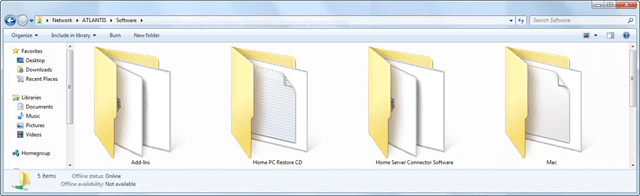
Copy the msi file to the WHS Add-Ins folder on your server and open then WHS Console.

Click on Install and let the magic happen.

Your magic lasted on a few seconds? Mine too. If only everything had a “Time remaining” counter.
Ok, the Add-In is installed. So now what?
mControl Customization
Ok, there are FOUR CHANGES we need to do to mControl and WHS before we can start adding turning on and off the lights. In fact, I bet if you already have mControl working on your WHS you probably had to find out on your own how to make at least some of these changes.
DISCLAIMER: In no way am I telling you to not read the manual and follow their instructions, however, following the manual along with these steps may keep you from throwing a Module through a window!
The four changes are:
- Change IIS access to WHS (optional but recommended)
- Add mControl to the Firewall
- Install USB link and modem drivers to WHS
- Change the COM port in mControl to match WHS
Let us walk through each one…
CHANGE ONE (Optional but recommended)
By default, mControl is available to ALL external users. The interface to the mControl is on the main WHS page in your browser. If you want to restrict access to mControl then you must follow the directions below. If you are ok with everyone having access to mControl then you can skip this step. I allow a friend to access some folders on my WHS so I need to restrict access. If I did not, when he logs on to the server via the web, he could access mControl and start turning the lights on and off in my house from the other side of the world!
Remote Desktop to your WHS or use the Advanced Admin Console and go to “Administrative Tools” and access “Internet Information Services” (IIS)

Using the navigation tree locate mControl under “Default Web Site”. Right-click and select “Properties”

Select the “Directory Security” tab and click the “Edit…” button in the “Authentication and access control” section

Uncheck “Enable anonymous access” and select a “Authenticated access” method that works for you. For my situation I enabled “Integrated Windows authentication” so it recognizes me but blocks others from access.

When finished click on “OK” and OK/Apply out of the IIS windows making sure to save your changes.
Now we can test the access via the browser connection so open WHS via the web and you will see mControl on the right.

If you are “inside” your network you may get an authentication box immediately. Just enter your log in information again.

If you are outside your network the authentication should already be in place. Click on “mControl for WHS”

You should now see the mControl web interface but do not get too excited.

We still have more work to do so just close the browser window before you start messing with it.
CHANGE TWO
We now need to tell WHS that mControl needs to have access through the Windows Firewall.
Remote Desktop to your WHS or use the Advanced Admin Console, open your Firewall and select the “Exceptions” tab.

Click on the “Add Program…” button and browse to mServer.exe. On your WHS mServer.exe is located in the C:\Inetpub\wwwroot\mControl\server directory.

Click on “OK” and OK yourself out of the Windows Firewall.

Additional information about adding firewall exceptions to other client machines can be found at:
http://www.embeddedautomation.com/forum/showthread.php?t=1393
CHANGE THREE
So now I have to download the drivers for the module that connects the WHS to the PowerLinc modem. I ordered the 2412U from SmartHome so the driver support is at:
http://www.smarthome.com/files/2412udrivers.zip
There is a whole list of stuff to do so be patient. This is from their Quick-Start Guide at:
http://www.smarthome.com/manuals/2412uqs.pdf
- Be sure your PowerLinc Modem is not connected to your PC
- Open a web browser, type in http://www.smarthome.com/files/2412udrivers.zip and hit enter – File Download dialog box will appear
- Click “Save” and select a convenient location (like your desktop) and click “Save”
- Locate the 2412udrivers.zip file on your PC, right click on it, and then click “Extract All…” (Note: Unzip process may vary, depending on your default unzip utility) – Extraction Wizard dialog box will appear
- Click, “Next,” “Next,” and then “Finish.” – A folder containing “USB Drivers” will open
- Double click on the folder “USB Drivers” and note the path of your drivers. It will be needed for steps 10 and 13
- Plug PowerLinc Modem into an AC outlet, plug square end of included USB cable into PowerLinc Modem’s USB jack and rectangular end of USB cable into an available port on your PC. – Found New Hardware Wizard will appear
- Select “Install from a list or specific location (Advanced)” and click “Next”
- Select “Search for the best driver in these locations” be sure the box “Include this location in the search:” is checked and then click “Browse”
- Locate the folder “USB Drivers” from step 6, select it in the dialog box and then click “Ok” – Windows will search for the proper driver, then wizard will display Completing the Found New Hardware Wizard
- Click “Finish” – Another Found New Hardware Wizard will appear
- Select “Install from a list or specific location (Advanced)” and click “Next”
- Select “Search for the best driver in these locations” be sure the box “Include this location in the search:” is checked and then click “Browse”
- Locate the folder “USB Drivers” from step 6, select it in the dialog box and then click “Ok” – Windows will search for the proper driver, then wizard will display Completing the Found New Hardware Wizard
- Click “Finish”
- Congratulations! Your INSTEON PowerLinc Modem is ready to be used with your home automation software.
What about MY reality. Let us see how this goes.
I download the drivers and placed them in a folder on the server.

I then use the Advanced Admin Console to copy the drivers to the C: drive. Remember this location. You will need to find the folder in a few minutes.

Now, this is where I got screwed at first. I was in the Console and plugged the PowerLinc into the WHS. I should have been connected via the Remote Desktop Connection. Just like Dorothy, I missed the Wizard.
Disconnect from the Console and Remote Desktop to your WHS. Once you are on the WHS Desktop you are ready to go!
Plug the PowerLinc Modem into an AC outlet, plug the square end of the USB cable into PowerLinc Modem USB jack and the USB cable into your WHS.
From the SmartHome instructions:
The USB cable cannot be any longer than 10’ (6’ or less is recommended)
Do not plug PowerLinc Modem into a power strip or AC line filter
I plugged the PowerLinc Modem into the wall on the other side of my UPS.
Once you are in Remote Desktop and you connect the USB Modem the Add Hardware Wizard should come up. Click on the balloon, if necessary.

The firsts time I did this I was in the Console and did not see the New Hardware process. You can see below that I, again just like Dorothy, had to go back to the Wizard.

Choose to install from a specific location and click “Next”.

Find the location of the driver folder and let the Wizard complete the process.

Once the Wizard is completed you should get a screen that says “Click Finish to close the wizard”.
You should see a USB Serial Converter icon. Click “Finish”

You are not really finished though…
CHANGE FOUR
Now that you have connected your WHS directly to your house we need to verify the COM port and make sure that mControl has the same COM port information.
For those of you that are playing at home, the mControl manual says on Page 17 that “for the Power Line Modem 2412U (USB), you will need to load the associated driver, as provided by SmartHome. After loading the driver, the Power Line Modem 2412U will be available as a COM port.” You just did that but we need to verify the COM port number and make sure the WHS and mControl are synchronized to each other.
Remote Desktop to your WHS or use the Advanced Admin Console, open Administrative Tools and click on Device Manager.
On the right hand side in Device Manager find the “Ports (COM and LPT)” icon and expand it by clicking on the plus sign. Once it has expanded you should see the USB Serial Port (COM XX) where XX is the COM port you need to sync with the mControl in WHS. As you can see below my COM port is 3. Write this number down or carve it into your desk.
Close the Computer Management window.

Now you can finally click on the mControl Manager icon you have been seeing in your WHS Console. See it? Find the name of the Modem you are using (for me it is the INSTEON PowerLinc Controller) and double click on it. Once the “Edit Adapter Parameters” box opens you need to make sure that it says “SERIAL” in the “Connect Using” box and change the COM Port number to match the one from the Device Manager. This is the number on your desk or paper in front of you.

Once you have changed (or verified) the COM port settings Restart the mControl Manager by clicking on the light blue “Restart” just above the App Settings tab in the Console.

Once you have Restarted mControl is should show “mControl Service Running” in the lower left corner as shown in the picture above.
Further instructions on this process can be found at:
http://www.embeddedautomation.com/forum/showthread.php?t=1358
We are almost done. The last step is to Restart your WHS for good measure. Open beer number two.
Creating Zones
Before you start plugging things in a driving your wife, husband or pets crazy with mControl we need to create zones.
From the Settings Menu you choose “Manage Zones”

You can add Zones at any time as you need them but I would suggest adding every room of your house first. I am adding the Living Room below. You can change the Zone Image to one of many preset pictures.

I am going to add most of the rooms now.

Creating Devices
Once you have created a Zone you add a device to that Zone. Each device is controlled by a Module. Each Module communicates through your home electrical wiring with your WHS.
Find the room you want to add a Module to and click on “Add Device”.

I am adding a simple On/Off Switch Module. Follow the manual that came with your Module plug in the Module and Light/Appliance/Etc.
Mental note: Make sure you get the address from the back of the device before you plug it in!
You enter the following data:
- Name
- Adapter Type
- Module Type
- Image
- INSTEON Address (like a mini-MAC address)

When you have finished adding a device to a zone click on “Save”.
When you navigate back to Zone View you should now see your Module with your device on the right as shown below.

Now that you have connected a Module you should now be able to control the device. I have my wife stand in the Living Room looking at the light while I mouse click on and off. It turns on and off with each click.
“It works” I scream. She thinks I am nuts. She is probably right. I wonder if this is how Tesla felt.
Open beer number three and click on the light control a few more times just to make sure it is working properly!
Next weekend I will be back and walk you through adding another Module and adding macros to control multiple Modules.
See you next Friday night!
Timothy Daleo