UK Windows Media Center and Windows Home Server Usergroup Event

April 21st 2009 will see the first UK Windows Media Center and Windows Home Server Usergroup Event taking place at the Aston Science Park in Birmingham.

Ian Dixon of the Digital Lifestyle.com has organised this event and it should be a great day.

I am presenting a session on Windows Home Server, so why not come along and support me / heckle me (delete as appropriate). I’m still not sure how Ian roped me into doing it, but I think it may have been something to do with the Digital Lifestyle.com t-shirt he gave me at CES 🙂

More details on the event will be available in the next few days, but for now go and register for the user group by clicking here.

Upgrading Windows Home Server to a gigabit network on a Friday night

Equipment required:

Gigabit capable Windows Home Server and at least one other gigabit capable computer

Gigabit router and switches

Cat 6 Cables of various lengths

4 Beers (2 of which are optional)

Windows Media Center playing your favorite party mix

7,246 zip ties

Background

In my home office for the last six years I have been growing a 100 Mbps network. I water half an inch twice a week in partial shade for best results . The current network is comprised of a cable modem connected to a WRT54G Linksys wireless router with two Netgear 100 Mbps switches. I have four Dell laptops on docking stations, two Dell desktops, a fax, multiple NAS devices, a HP3600 printer, one beer (as shown in the picture) and WHS running on a Dell SC440 PowerEdge. One office, two people, seven computers and nine LCD screens. The ratio sounds about right.

DSC_0023_stitch

I would like to say thank you to my wife for always letting me go free range and another thank you to Microsoft and the Image Composite Editor for creating the above panoramic.

http://research.microsoft.com/en-us/um/redmond/groups/ivm/ICE/

Mental Note: That little girl on the MS commercial totally smoked me on the quality of the panoramic picture of her fort. Loser.

Why am I upgrading to Gigabit?

In the last few months I have expanded my network out of the office to the living room with a HP Media Connect and Netflix Roku. In addition, five of the seven Dells have underutilized gigabit controllers and my Roku and HP are just screaming to get off of wireless G. Now, while I only get 10 Mbps from Charter out of the modem, I am constantly battling slow speeds inside the house during file transfer, streaming and backup. I like HD content through Miro downloads and WMC and have been waiting for 1000 Mbps to come down in price. Apparently, this week was the price point for which I have been waiting. Sorry wife, this might hurt a little. Remember prom?

My shopping list was the following:

  • D-link DGS-2205 5-Port Switch for $24.99 after rebate
  • D-link DGS-2208 8-Port Switch for $34.99 after rebate
  • D-link DIR-655 Wireless-N Router for $92.99
  • 15 Cat 6 patch cables ranging from 1-50 feet for $58.00
  • 12 pack of Taurino from Fresh and Easy for $6.99

Total for this upgrade is $217.96 plus tax.

100_2561

I have always been a Linksys man but the latest performance statistics for a new gigabit network led me down a different path. You should choose your own equipment based on need, price point and coolness factor. All of my network is hidden under the desk so I do not care what it looks like. For performance I referenced the site below to get speed ratings for all of the equipment I purchased.

http://www.smallnetbuilder.com/

This website tests almost every piece of network hardware you can imagine. The menu bar at the top of their website directs you to all of their tests. This website also did a review of the HP MSS a few weeks ago that was very comprehensive. There are other sites out there so find at least one to research before you shop.

So back to my Friday night…

Installation

Every installation will be different and I will suggest one thing: Replace your router/wireless (gateway) first, and then the rest of the cables and switches. I changed my router first and once everything was working again I started on the remaining network changeover. The last thing you want to do is gut your network, have a problem and then try and troubleshoot the whole system. Do not do it. Seriously.

I upgraded from the WRT54G to the new DIR-655 and it is working well. I will have to adjust the settings and reconnect all of the wireless devices after the install.

I am going to skip the narration of the equipment change out and cabling runs. I will say that all of my existing 100 Mbps Cat 5 cable is blue and I went out of my way to order yellow Cat 6. The color change will always keep me from mixing up cables in the future. I have also finished running the cables and everything looks good.

100_2564

This is the underside of my IKEA desk. The one white cable is the one that I used to connect to the other switch in the server closet. The router LEDs change color based on 100 or 1000 Mbps speed.

100_2562

I have my printer and server on the switch shown above.

While I was down on the floor I cleaned up the APC for each of my five power groups and moved the NAS boxes (will hook up again someday) to the closet. NAS? Oh really? I mentioned that earlier. I, probably like you, started out with an external hard drive, then moved up to a NAS (or two or three) and then realized that I could have spent the same amount I paid for multiple NAS boxes on a home-built WHS. Lets join together and stop others from making our mistakes. Seriously. Viva WHS. Viva WHS. Viva WHS.

Testing

Now that everything is connected, and the network is up and running again, let’s see if it was worth the $217.96 plus tax. I will need a significant increase in speed if I am going to continue to justify future expenses to the wife.

For testing the new network speed I am going to do two tests. I am going to copy the first episode of Star Trek Voyager which is 952MB to the server and one folder with 973 MB (240 SLR pictures) from our hiking trip last weekend. My purely scientific timing method goes like this:

  1. Right eye looking at the sidebar clock through the bottom of my full Taurino bottle. Left eye on the progress bar.
  2. Start file upload and start drinking.
  3. If I complete the file transfer before I finish the beer then we have a successful test.
  4. Document the results in Windows Live Writer (to qualify these results as “scientific”).

Let’s set this pig on fire…

Download Before

Download After

Upload Before

Upload After

952 MB Video File

1:37

:55

1:31

:44

973 MB Picture Folder

2:12

1:16

2:52

1:04

What the heck? What happened to my pig? Where are my superfast increased speeds?  If I did the math right, I think I went from 78 Mbps to 138 Mbps on the download of Voyager? How can this be? Double the speed is good but I was expecting more. Crap². My upload is 173 Mbps? I was expecting like 600 Mbps. Crap³.

Well, after an hour of searching around to see if I had made some massive mistake, I found an article that I wish I had read before I started this endeavor.

http://on10.net/Blogs/EnglishBloke/how-can-i-speed-up-my-windows-home-server-file-copies/

After reading this article I realize that my speeds were not too bad considering I am using folder duplication, full sharing and have a Seagate Desktop Pro USB drive as part of my WHS storage. Should I be thankful for my transfer speeds? I would not mind a few comments from the readers about their file transfer times. Please make me feel better about this people. Seriously.

Your Mileage Will Vary

I have left out some topics that you might want to address for your specific installation.

  • I am not going to use Jumbo frames (4K or 9K) since I still have some older computers on my network.
  • Flow control should also be researched to see if it can help your network speed (My WHS Flow Control was already disabled and I adjusted each gigabit card accordingly)
  • I did not talk about managed switches and segmenting your network or VLAN. Maybe I can talk about that later in the Friday night series.

You can find detailed information on these topics at:

http://www.smallnetbuilder.com/content/blogcategory/22/54/

In addition, if you have VoIP, integrated home security or home automation you may have additional concerns. Our alarm backup plugged back in without any issues.

Conclusion

If you have an existing 100 Mbps network you may want to do you own research and time trials before moving up to gigabit. Upgrading the router was worth it since my extenders use Wireless N. For the switches and cabling, although I did see increases in speed, it was somewhat costly compared to the net change.

See you next Friday.

Windows Home Server Facebook Group

facebook

So unless you have been living in a cave for the last couple of years, in which case Welcome, you would probably have heard of Facebook. Facebook is a social networking site that people use to communicate with their friends and colleagues, post pictures and information about themselves, join groups that interest them, and generally just be social.

Did you know that there is a Windows Home Server group on there? Well, actually, there are several Windows Home Server groups on there, but there is only one run by some of the guys in the Windows Home Server team at Microsoft.

This group was actually created on the 5th November 2007 and as of today has 627 “fans”. It has some interesting things on there – you should go have a look.

If you would like to join the largest Windows Home Server Facebook group, click here.

Hacking The HP EX470/475 MediaSmart Servers : Get Your Hack On

The other night I posted that Ed Tittel has put together a great post that explained where to get the latest drivers if you happen to own an HP MediaSmart EX470 or EX475 Server.

Ed has now published a much longer article on Tom’s Hardware site that includes this information but also lots more including how to change the processor and also benchmarking your MediaSmart Server.

This is a useful read as this information can be found all in one place, rather than having to search around for it which has been the case up until now.

You can read Ed’s full article here.

Windows Home Server – The Next Version Webcast

Microsoft are advertising a webcast for Microsoft Partners called “5W/50 Series – Windows Home Server – The Next Version”. This is a free to attend webcast due to take place on Friday 5th June 2009 at 9am Pacific US time, for an hour.

I am not sure at this stage now much information on “Vail” – the next version of Windows Home Server, will be included, but certainly there will be information on Power Pack 2, and some other things as well, but you will have to wait and see just what that is – I don’t want to spoil the fun.

The event is going to presented by my friends and fellow MVPs Kevin Royalty and Grey Lancaster, and I will also be helping out, so it should be fun.

Spaces are limited for this so make sure if you are interested in attending that you register soon, even though it is not until June!

You need to be registered as a Microsoft Partner to register for and attend the webcast event, but it only takes a few minutes to register if you are not one already, and can be done from the link below.

To register for the webcast (and also to become a Microsoft Partner), click here.

Epson to Release New Windows Home Server

According to Akihabaranews in Japan, Epson are going to release a new Windows Home Server called the SV120h.

Epson SV120h Windows Home Server

This machine started life as the Epson ST120 Endeavor and the size is only 75x185x195mm.

There will be a choice between two CPUs, with a Celeron 575 (2GHz) or a Core 2 Duo P8600 (2.4GHz) from 160GB to 2x500GB (1TB) of HDD. By default the SV120h will be powered by an Intel GM45 Express video chipset, have 1GB of RAM (up to 4GB).

The entry price of the SV120h will be around 65,000 Yen for the Celeron version (€520).

No news yet as to release anywhere else outside of Japan – more news when we get it.

Single Sign-on with ASP.NET on Windows Home Server

Brendan Grant has just published an article on utilising single sign-on with ASP.NET on your Windows Home Server in order to use with custom web applications.

You can read the full article here.

Brendan you may recall wrote the excellent Web Folders add-in for Windows Home Server (amongst others) before joining Microsoft and the Windows Home Server team.

Sam Wood, another brilliant developer of Windows Home Server’s add-ins also talks about the article here.

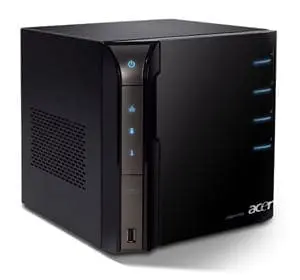
Acer easyStore Home Server European Pricing Revealed

aceraspireeasystore

Terry over at We Got Served has the low down on the European pricing of Acer’s two easyStore Home Servers.

The two models are the TS.R360W.011 and the TS.R360W.012. Both have the Intel Atom 230 processor and 1Gb of ram. The only difference between the two is that the .011 has a single 640Gb hard drive where as the .012 has two.

To read the article click here and to view the complete price list click here.

Building an Astaro Personal Firewall with Spare or Low End Parts

2

My friend, and fellow MVP, Pete Stagman has just published the first in a series of articles on how you can build your own Astaro Personal Firewall with either spare or low end parts, and no other cost.

Running a firewall is very important, in fact critical, just see my post here, although you wouldn’t run this on your laptop and take it with you (the requirement for three network cards might be a problem on your laptop).

Part one includes hardware requirements, registering, downloading and installing the software, and some basic configuration.

Additional parts will include advanced configurations and much more.

To read the part one, click here.

I will be trying this myself, so I will report back on how I get on.

Installing the Grid Junction Add-In to Windows Home Server on a Friday night

Equipment required:

1 Universal Power Supply (a UPS supported by Grid Junction)

1 USB cable

2 Beers (optional)

Anders Holst playing on iTunes (again optional)

I have been using the Grid Junction add-in since last year with excellent results. A new version was released Tuesday, and since I must uninstall the old version first, I thought I would walk you through the easy setup before I retire to the couch and the three episodes of Stargate Atlantis awaiting me on my DVR.

I was fortunate enough to have purchased a UPS from a national US retailer (RIP CC) that Grid Junction supported for only $29.99 on sale. If you look around at the discount websites (Techbargains, FatWallet etc.) you can find these good deals every few months. Honestly, I never thought I would use a UPS communications interface, but since USB is now the standard, it connects quite easily. This Add-In is very user-friendly.

The graphic below shows a partial list of supported UPS models:

http://www.gridjunction.com/gridjunction-supported-uninterruptible-power-supply

Supported UPS Models for Grid Junction

The wife just hopped in the shower so I have about 20 minutes for this article. Crap. I tend to be longwinded.

My UPS unit is the pretty much the lowest model you can get with a USB interface. It can still run my WHS long enough to withstand temporary power outages and brownouts.

The coolness factor weighs in heavily for this purchase as does the manufacturer. Choose your model wisely Luke.

I bought the APC 550 (coolness factor –2.783) as shown below:

http://www.apc.com/resource/include/techspec_index.cfm?base_sku=BE550R&tab=features

Mental Note: Next time buy a larger UPS that looks like the Death Star or at least a small RV (caravan).

APC 500

I wish I could say mine looks like that, but somehow I misread the APC installation directions and ended up with this:

APC Mess of Wires

Ok, so regardless of whatever supported UPS you have in the box next to you, it is time to start the installation. Grab that beverage.

You should have a UPS sitting on the floor awaiting installation, a cold beverage, a USB cable (probably in the UPS box) and a WHS humming in the background.

Shut your server down. Yeah, I hate those words too. Seriously you have to turn it off. Seriously. Follow the manufacturer guidelines. Do not shut down if data is copying or your backup is running. Do I really need to say that? Lather. Rinse. Repeat. Not for internal use. Seriously don’t do it.

Has the humming stopped?

I will be gentle. Trust me. Once you have the UPS installed and installed turning the system off again will not be necessary. Trust me. I promise. This will be like Prom Night. Of course I love you. The hook in the back is stuck. Does it open from the front?

Once you have everything powered off spend a few minutes and route your wiring logically so you do not end up with a mess like I have above.

Once all of your power connections has been re-established, reboot your WHS system and wait for the little green house.

I just heard the hot water turn off so I have about 15 minutes left. Crap.

Download the add-in from the website listed below:

http://www.gridjunction.com/

You will probably have to set up an account (or enter your existing login information) for the website that controls the download so be prepared to enter your login data as necessary.

Download Grid Junction

Save the file to the Software>Add-Ins folder on your server.

Add-Ins Folder in WHS

Open the WHS console and click on settings. Choose Add-Ins on the left hand column and you will see the Grid Junction Add-In. Click on “Install”. If you do not see the Add-In then you probably saved the file to the wrong folder or did not unzip the folder correctly. Spend a few minutes and reflect on the above steps.

Available Add-Ins in Windows Home Server

Once installed, the Add-In should pick up the UPS manufacturer data and list your “Battery name” correctly. You can now switch tabs between Events, Actions, Hardware, Settings and About.

Image 7

My wife is done drying her hair and this is the last Ander Holst song. I have to finish quickly.

I would suggest (without any liability) changing the Shutdown to 50%. Depending on your load and the battery size you may not have a lot of run time. My unit gives me about 3 minutes at full load.

Image 8

You are done with the Add-In. Check the About tab to ensure you have the current version of 1.4.0.0 RC

Image 9

You have now completed the installation. Go and get that second beverage (I wish I had the small fridge) and marvel at your power.

If you need real installation instructions you can find them at http://www.gridjunction.com/

See you next Friday.