VidaBox Launch New Windows Media Server

products_roommate_moreimages_01Today VidaBox announced the launch of their new entry level Windows Media Center device, called the RoomClient SE.

The RoomClient SE is an ultra compact machine – it’s basically the size of a small shoebox, but it comes with full 1080p upscaling, Dolby Digital and DTS audio playback support, a variety of connectors for connection to different TV’s and even a 7 in 1 card reader. It’s actual dimensions are: 7 7/8” (W) x 4 3/16” (H) x 12 9/16” (D).

Because of it’s size it also makes the idea choice as a Media Center Extender, and with it’s advanced cooling technology it provides near-silent operation.

Prices start at $2248 and they should be available in the US and Europe and comes in either Black or White. To view the complete specs on the RoomClient SE, click here.

Adding a new drive to Windows Home Server on a Friday night

Equipment required:

1TB SATA Hard Drive

Phillips Screwdriver

SATA Cable,m

Patience

For the short version you can skip to the bold text.

This whole exciting activity started with the fact that the Seagate 500GB primary drive on my WHS has had problems during reboots.

clip_image002

When I entered the serial number on the Seagate website it responded with “Drive not affected”. Well there you go, it must be me. I think it is time for a new drive. Dell had a special on a 1TB Seagate SATA so I bought it to replace the 500GB. The plan was to dump the 500GB for the 1TB and reinstall WHS. After everything was reinstalled I would then erase the 500GB and put it back in the case to be added to the WHS. Subsequent to this plan I realized that I would have to recreate the users, preferences, backup information and reinstall the add-ins. With this plan now being a lot of work I figured I would try SeaTools for DOS, fix the primary and add the 1TB (excuse me, 931.5GB) hard drive to the WHS.

I had to order a 90° SATA cable ahead of time. When I replaced the original 80GB drive with the 500GB last year I thought I would just throw the 80GB back in the case. The SATA cable that came with the Seagate drive had a straight connector and when installed I could not close the case. I left the drive out and ordered the 90° cable. I never got around to adding the drive back in. I will take the drive to my parents and throw it in their HP MSS. They still have an open bay and I can use it to back up their backup database.

Let’s set this pig on fire.

Unplug all cables while following your user’s manual and open the case.

clip_image004

I love Dell manuals. They are comprehensive, easy to find online and simple to read. That being said, why do they show the SC440 on it nose? In addition, they did not label the SATA board connections by number. I have a feeling these missing labels will come back to bite me.

clip_image006

Install the drive following the manufacturer’s instructions and connect the cables.

clip_image008

The drive installation went too easy. No stripped screws and everything fit. Something has to go wrong. You would think for as many times as I have done this that I would not be so superstitious about the install.

Wife just called. She is coming home soon. If I am not done when she gets back she will ask why I added another drive. Crap.

Close the case, plug in everything and press the power switch. It is going to be a few minutes. I have time for a run to the fridge to get a soda.

Mental note: I should get one of those little fridge setups for the office.
Ok, back, and I have a little green house. Everything looks good so far.

clip_image010

Where is the drive? Crap. It is time to use the Advanced Admin Console and the Disk Management utility. I still do not see the drive. What did I forget? Crap. According to the Dell instructions, the ones I only partially read, I forgot to press F2 during boot to access setup and enable the drive. I am so used to plug and play I did not even think about it. SATA-0 was the original drive. SATA-1 must be the new one I just installed. Reboot. Drive not found. Crap. Must be SATA-2. F2. Change setup. Reboot. I see the WHS boot screen. Good to see you again my friend.

Adding a drive was easier on my parents HP MSS. Point for HP. If you have a HP MSS instructions for adding a drive can be found at:

http://h10025.www1.hp.com/ewfrf/wc/document?docname=c01586271&cc=us&lc=en&dlc=en

The little green house is there but is my drive?

clip_image012

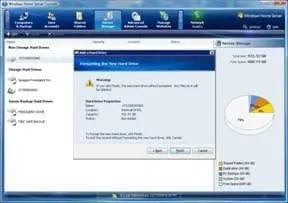
Oh yeah, I rock. It is time to make that little piece of pie even smaller. Open the WHS Console and in the Server Storage Tab click on Add.

clip_image014

Mental note: ALT-Print Screen does not work inside WHS.

I will now follow the prompts.

I hate the fact that the capacity is never what the drive is sold as. I am getting screwed out of 7% each time I buy a drive. I understand the math and reasons why, but come on people, make a drive that nets the 1TB.

clip_image018

From 73% to 86%? I expected more of a delta. It is time to check the math. Ok, 243GB used divided by the original 931GB equals ~26% used leaving 73% of the pie chart before I started. Ok, 243GB divided by the new 1820GB equals ~13% leaving 87% free. Ok, I just scrolled up to the first screen shot and the “available” pie is smaller. I should have just looked at the pie size. All this talk of pie makes me hungry. I wonder if my wife is bringing home dinner.

Mental note: I just noticed that the icons have little USB cords and that the partitioned drive has a little Windows® icon. How many times have I looked at this?
Wife just got home and brought double wrapped tacos. Be back in a bit.

While we had tacos we watched Eagle Eye. Talk about computer integration. Well let’s not talk about that movie. The computer could manipulate and connect to every computer on the planet but could not change the time he left by 3 minutes? And his twin has the same biometrics? Please. I get my finger slightly sideways on my Microsoft fingerprint reader and it denies me. I digress. Back to the job.

Ok, for those of you who actually read this far, I am going to test the drives with Seagate Tools for DOS. I tried installing the SeaTools for Windows executable file last week and I kept getting an Active X error. I contacted Seagate support and they suggested the DOS version. On their website they should add WHS to their list of OS. I downloaded the ISO file and used Roxio to burn the image. Make sure you choose the “Burn Disc Image to Disc” option and not just the copy data and finalize route. I made another drink coaster the first time.

clip_image020

Shut down WHS and reboot to the CD ISO image. I am running SeaTools for DOS right now doing the short test and it said I need to run the long test. First long scan done. A whole bunch of errors. Did it stall out while running the test? It was not very long.

clip_image022

Let me run the long test again. How long can it take?

1% per minute. I am now glad that it is 7% smaller than advertised.

21 minutes and 21%. Wife is going to bed soon. 80 minutes to finish plus reboot and WHS outs me at 10:40 pm. I am so screwed.

I am bored so I ordered the IT Crowd box set from Amazon UK. I also ordered some knives via Techbargains. Wife is going to be pissed. An extra hard drive and an extra knife set. I just Googled Google. It did not break. I should have my IP address revoked.

Mental note: Do not give her the knife set as a gift.
By the way POH is 2098. Cool feature if anything else. 2098 divided by 24 hours means 87 days uptime on this primary hard drive. Why am I having errors with it already?

27% and 27 minutes. Crap.

47% and 47 minutes. I am waiting for 100 minutes to do my thing. I feel like Desmond. You can count on me my brutha.

It is getting late and my wife is pissed. So much for that. Abort the test and reboot. I see the Windows Home Server startup screen. Cool cause I hate missing a day of backups. I will run the tool again tomorrow when she is out playing Mahjong.

It is the morning and I did a reboot to the CD ISO image. I just finished running the test and it seems like all of the errors from the first test have been corrected.

clip_image024

My Dell PowerEdge SC440 is healthy and running smooth. I can now enjoy Windows Home Server and an additional 1TB of storage.

Hello Kitty

DSC00416You may have seen pictures around the web of Hello Kitty wearing a blue Windows Home Server shirt.

Well if you haven’t, just take a look.

As I understand it there were only a small number of these WHS Hello Kitty’s and they were specifically for the Japanese market.

And thanks to my fellow WHS MVP and new friend from Japan, Yoshihiro Okabe, I now I have one. And yes, I will admit it, she is very cool and I am keeping her.

Welcome to Our First New Writer

Recently I put out the call for new writers, asking anyone who might be interested in writing to contact me. Well, I have had a response and we have our first new writer.

His name is Tim Daleo and expect to see some posts from him shortly.

Welcome on board Tim!

If there is anyone else out there who might be interested in writing for the site, whether it is on Windows Home Server, Media Center, well whatever you want really, either leave a comment or email me at andrew @ usingwhs.com (remembering to remove the spaces!).

There must be people out there who would be interested – so don’t be shy, get in touch.

MVP Summit and Windows Home Server Team Meet Up

Well it is that time of the year again when a large number of Microsoft MVPs descend on Seattle for the annual MVP Summit.

As well as getting together with our fellow MVP’s, we all also get to spend a few days with the product team that our MVP award is in, so in my case its the Windows Home Server team.

A lot of what we discuss is under NDA for now, but not everything, so I expect to be able to post something over the next few days!

Also, if you have any questions or anything you would like raised with the team, now is your chance to ask. Just submit a comment here or email me at andrew @ usingwhs.com (not forgetting to remove the spaces!) and I will do my best to get it answered.

The best questions may even win a prize!

New Edition of (IN)Secure Magazine Available

0

issue-main-20

Just a quick post to say that the new edition of (IN)Secure magazine, Issue 20, is now available to download.

(IN)Secure is a great source of security information and best of all it is free!

This issue contains a number of interesting articles, including:

  • Improving network discovery mechanisms
  • What you need to know about tokenization
  • Building a bootable BackTrack 4 thumb drive with persistent changes and Nessus
  • Web 2.0 case studies: challenges, approaches and vulnerabilities
  • To download this issue, click here.

    The Home Server Show Podcast 36 Out Now

    HomeServerShow graphic Dave over at the HomeServerShow.com has released the latest edition of his podcast, The Home Server Show, number 36.

    This weeks show is shorter than usual but is still worth a listen. Dave talks more about the news, updates and also a follow up to last weeks Before You Build feature.

    You can get more information here, and download it from iTunes or your other favourite place.

    February 2009 Update for Windows Home Server

    Yes, it’s that time again for this month’s update for Windows Home Server.

    This one is a very small, but kind of important update. If you have your server set to perform automatic updates then you should get this fix shortly. If you don’t then you can manually update your server, and maybe now would be a good time to set your server to do automatic updates?

    The updates contains the following fixes:

    Windows Home Server Connector Software

    Users who have either modified or deleted the Home Server Connector Software folder in their home server’s Software shared folder may have encountered problems on their home computers after an update was applied to their home server.

    Home Computer Backup and Restore

    Issue 1

    Some users may have encountered issues when restoring files and folders from a Home Computer Backup.  This update provides new functionality to help alleviate the Home Computer Backup process stalling when reaching 79% to 81% complete.

    Issue 2

    Prior to this update, after running the backup database repair process, some users reported being unable to open a home computer backup from the Windows Home Server Console. This issue has been fixed so home computer backups can be opened whether the home computer backup database repair wizard has been run or not.

    The KB article, KB961030 will be available shortly.

    Writers and Contributors Wanted

    Over the next few weeks, connecteddigitalworld.com will be going through a redesign, with lots of new and exciting features being launched.

    I’m putting the call out to anyone who might be interested in writing for the site, whether its a review of some hardware or software, hints and tips, anything really that you think might benefit others or you just want to write about.

    If you are interested, drop me an email to andrew @ usingwhs.com (just remove the spaces) and introduce yourself, and tell me what you would be interested in doing.

    Also, if anyone has any ideas on what they would like to see on the site, whether its Windows Home Server, Media Center, Windows 7, whatever, send me an email or leave a comment.

    Hope to hear from you!

    Upcoming Security Conferences

    For those of you who are interested, there are a number of security conferences coming up over the next few months.

    These include the Infosec World Conference & Expo 2009 run by the MIS Training Institute and held in Orlando, Florida. The conference starts on the 7th March with two MISdays of optional training sessions, followed by 3 days of conference and then another 2 days of optional training.

    InfoSec World 2009 will deliver over 100 sessions, dozens of case studies, multiple tracks (including a brand-new, hands-on hacking techniques track delivered by The SANS Institute), 15 in-depth workshops, 2 co-located summits and over 140 exhibitors! For more information about the conference and to register, click here.

    bh Another interesting conference is Black Hat. Black Hat DC just finished, and Black Hat Europe starts on the 14th April and will held in Amsterdam. Black Hat has 4 separate briefing tracks, which are Hardware and Embedded Devices, Reverse Engineering and Malware, Client Wars and Application Security, Forensics and Network Protection with lots of different sessions in each track delivering up to date and relevant information on the latest security issues.

    For more information about this conference and to register, click here.

    Home Server Show 35 Out Now

    HomeServerShow graphicDavid over at the Home Server Show has just released podcast number 35 – Before you install.

    This week’s show includes what to do when you first get your Windows Home Server, news and other show bits as usual. Our article on backing up your Mac using the new HP MediaSmart Servers also gets a mention (thanks David),

    You can get it through iTunes, or various other methods, for more information click here.

    Western Digital Home Backup and Media Server

    wdfMyBook_World_H1N Yesterday Western Digital announced its newly redesigned My Book World Edition network storage drive. Designed for consumers who have multiple computers on a home network, the new drive will be available in 1 terabyte and 2 terabyte capacities, and is compatible with PC and Mac computers.

    My Book World Edition network drives are designed to automate and simplify the backup chore for the 36 million networked homes in the US according to research firm Parks Associates. Just plug the My Book World Edition drive into a network router, click a few buttons and the My Book World Edition storage device backs up the files from all the PCs and Macs on the network. Any changes to the files on these computers are automatically and continuously backed up to the drive.
    My Book World Edition’s massive capacities are available from any computer in the home. Combined with high performance, this makes it easy to build a shared digital media library. Music, photos and videos can be streamed directly from the My Book World Edition drive to any PC, Mac or connected DLNA media player (such as Microsoft Xbox 360 and Sony PlayStation 3 game consoles, wireless digital pictures frames or TVs) using the integrated UPnP (Universal Plug and Play) media server and iTunes Music server software. Families can also securely access and share their centralized files from anywhere in the world where they have access to the Internet, using the My Book World Edition drive’s Web remote access service.

    The new My Book World Edition network hard drives are available now in the 1 TB capacity and expected later this month in the 2 TB capacity. MSRP for the My Book World Edition storage system with 1 TB is $229.99 USD and 2 TB is $449.99 USD.

    Backing up a Mac with an HP MediaSmart EX485 or EX487

    Now that the new HP MediaSmart Servers are shipping, I thought I would post something on how to configure your Apple Mac to use Time Machine to back up to your Windows Home Server.

    Time Machine is an application that comes preinstalled on a Mac that allows you to backup everything on your computer – a bit like WHS. This includes documents, photos, applications, and more. Time Machine takes hourly backups of your computer and will keep those backups for 24 hours, daily backups for a month and weekly backups until your backup disk becomes full up.

    This is essentially a walk-through from installing the software on the Mac, to performing your first backup.

    There are a few important things to note however before continuing on.

    1 – the Apple Mac needs to be running Mac OS X 10.5 or later.

    2 – you need an HP MediaSmart EX485 or EX487, the for previous versions will not work until HP release the software update and there is currently no dates for this.

    3 – Backing up a Mac doesn’t work in quite the same way as a Windows client, which I will come onto in a moment, and there is no way to do a complete system restore onto a Mac from WHS, again which I will cover in a moment.

    4 – it is assumed that you have already set up your Windows Home Server and configured it just as you would have previously.

    Ok, so here goes….

    The first thing you need to do, is check that you have Administrator rights on the Mac. To do this, click System Preferences, Accounts and ensure that the Allow user to administer this computer is checked.

    Once this is done just pop the Software Installation Disc that came with the MediaSmart into your Mac. Double click on the Install HP MediaSmart Server Software.pkg icon.

    Click Continue on the Welcome Screen, then read the EULA and click Continue again, then assuming that you agree with the EULA (you have to otherwise you cannot continue) click Agree.

    You now have the option to change the install location should you really want to. When you have changed it, should you want to, click Install.

    You will need to enter your Mac account password and then click OK.

    The installation will now commence and should only take a moment or two. When it has completed you will see the Installation completed successfully screen – just click Close to finish.

    This will bring up the Preferences windows. Enter the name of your WHS and also the Server password.

    If it connects successfully you will see the word Authenticated appear above the Apply button. If it fails you will see Validation Error. Just enter the details again. If it still fails, and you are sure that the details are correct, just check that the WHS is online and that your Mac is connected to the network.

    The next step is to configure the amount of space that will be used to backup your Mac.

    Enter the amount of backup disk space you want to use in GB and click the Apply button. This will then prepare your WHS. Depending on the size you selected this might take a few moments.

    Picture 14

    You will the be asked if you want to use “Backup to HP MediaSmart Server” to back up using Time Machine. Click Use as Backup Disk to continue.

    Picture 15

    And that is is – Time Machine will now be used to backup your Mac to your WHS.

    There is nothing else you need to do, the first backup will start within an hour. When your Mac is backing up, you will be able to see the progress.

    Picture 26

    Just as you had with backing up your Windows clients, the first time you backup your Mac it could take a long time, so be patient.

    If you want to see information about your backups, for example, when the last backup took place, or when the next backup is due, just open Time Machine.

    Picture 28

    Time Machine will just continue to run in the background for you.

    When you want to restore from Time Machine, you get a cool looking view which allows you to switch between backups and select the files you want to restore.

    Picture 29

    As I mentioned earlier, you cannot restore the entire computer in the same way as you can with Windows clients and WHS. If you want or need to restore your Mac, you must first install the Mac OS, then the HP MediaSmart Server Client software, select the disk called Backup to the HP MediaSmart Server in the Preference window and then run Time Machine, selecting the backup you want to restore.

    It is important to note as well that the backups are stored on your WHS in a shared folder called Mac, your Mac doesn’t show up on the Computers and Backups tab. It is also important to note that by default, the Mac shared folder has duplication turned off, so if your backups are important to you, you should consider switching on folder duplication for the folder.

    If you open the folder, you will see a file the size that you created earlier.

    mac folder

    And that is pretty much
    it. It is simple to install, configure and use to make sure that your Mac clients are backed up, and the restore process is straightforward as well. It is a shame that it doesn’t work in quite the same way for the Mac as it does for Windows, but at least you have everything you need to get your Mac back up and running in the event of a major problem.

    The Home Server Show 34 – Interview with Via on the A1000, A2000 and NSD-7800

    David over at the Home Server Show has just released podcast number 34.

    This week’s show includes and interview with Via on their new hardware releases, news and other show bits.

    You can get it through iTunes, or various other methods, including clicking here.