
Anatomy of a Kindle WiFi
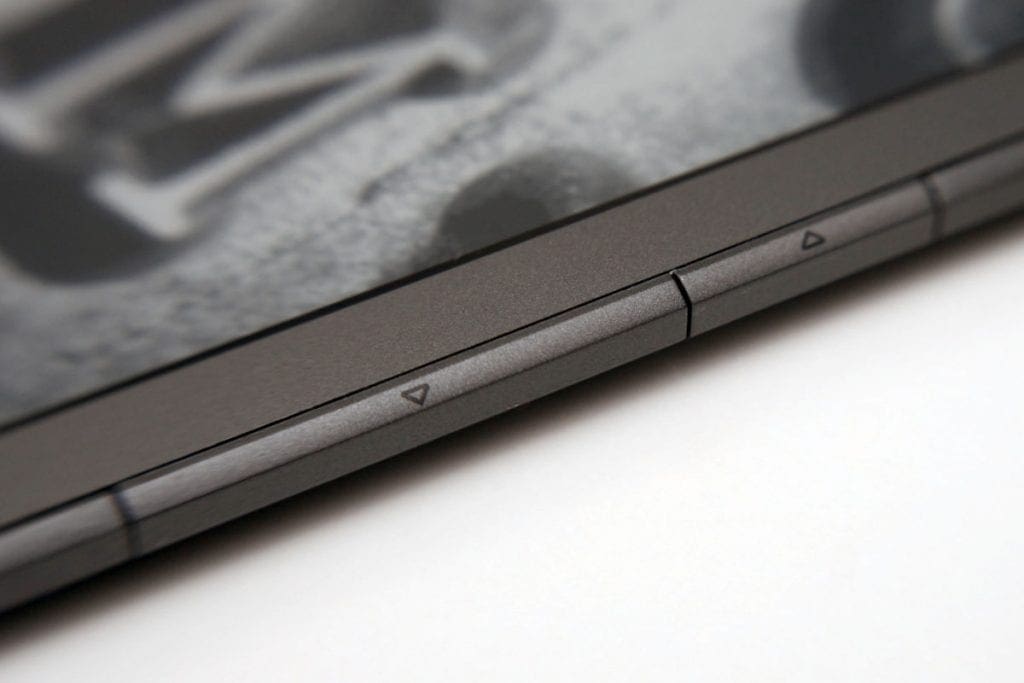
Let’s take a closer look at how the Kindle is put together. This version has no keyboard, don’t forget. Instead, the screen covers the majority of the front surface, giving it a sleeker look than the 3G. The device has only ten buttons in total, plus a four-direction pad. There are a pair of page-back and page-forward buttons on each side. This frustrated me at first because I expected there to be one button on each side, left for back, right for forwards, so I kept pressing the left forwards button to go backwards. Instead, the lower button on each side is forwards, and the upper button moves back a page. I’ve since realised there is a good reason for this: If you’re holding the Kindle with one hand, you’d have to raise your other hand (which might be occupied holding a cup of tea, or holding onto the train you’re being tossed around inside at the time) to go in the other direction page-wise. with a pair of buttons on each side, you can easily hold the device and move forward and backward with the same hand. Once you get used to it, it makes perfect sense, and I feel guilty for ever doubting the design!
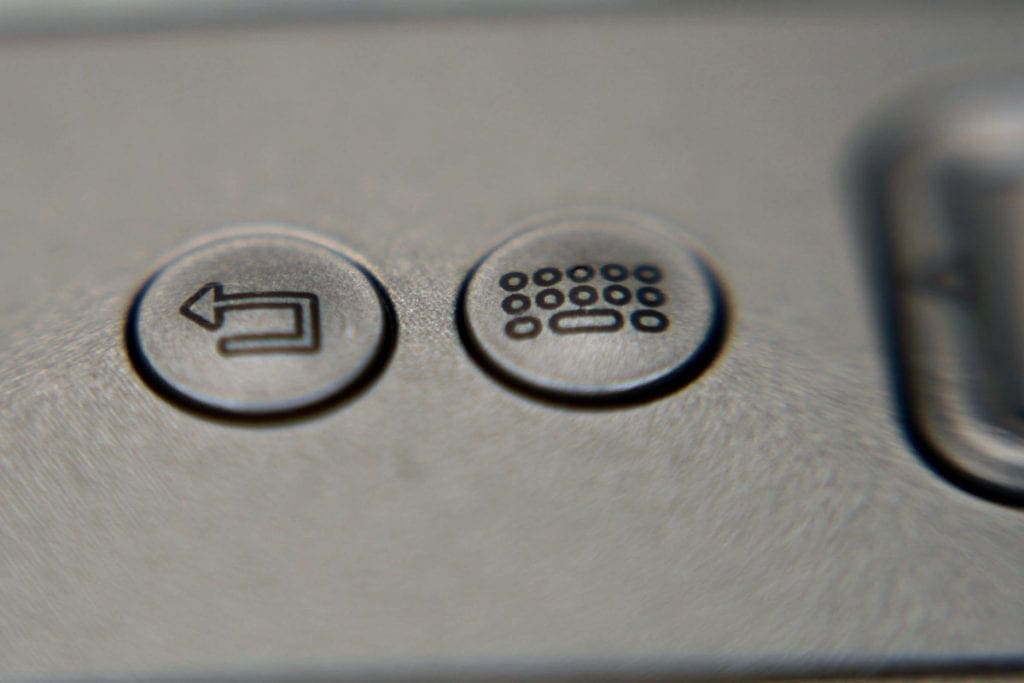
Below the screen are several buttons. The leftmost is a “back” button used for going back a step in menus; most often used by me for going back to a document after going into a dictionary definition (more on that later). Next is the “keyboard” button, used in all interfaces for bringing up the onscreen keyboard for typing in search boxes, and for configuration. The keyboard is used with the directional pad and central button, one letter at a time. Yes, it’s nowhere near as fast as having the physical keyboard on the other Kindle, but I’ve been using my Kindle a lot, and I’ve barely used the keyboard – why would you? It’s for reading, after all. On the right is the “menu” button that brings up a menu allowing you to perform various actions and configure the device and the appearance of text. Finally on the far right is the “home” button, used to go back to the library of documents.
Sleep and Power
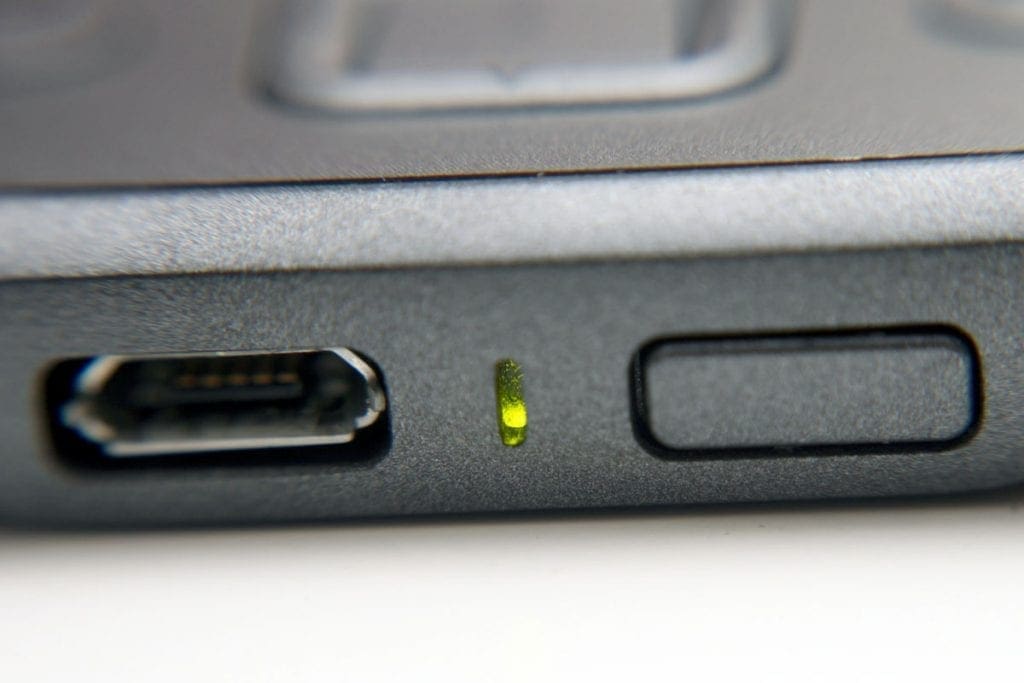
The last button is on the bottom edge of the Kindle, and is the power/sleep button. A quick press puts the Kindle in sleep mode, or wakes it from sleep. While sleeping, a static image is shown on the monochrome screen. The selection of images with this version of the Kindle is more abstract than the previous version, so it won’t look out of place on your desk, whether you are a rocket scientist, artist, or accountant. A long press turns the device off, needing another long press to turn it back on – useful for long journeys where the Kindle might be knocking around in a bag. Normally though, sleep is fine – the device uses no power whilst sleeping, so the battery life is excellent. I’ve charged mine once in two months (of near-daily use), and the battery is currently still at 75%. Certainly better than a tablet! It charges with a micro-USB connector, which is the same as many smartphone chargers now (certainly is the same as my Samsung phone), and you can always charge it from any USB port on a computer/laptop with the right cable (included). It doesn’t come with a mains charger, but most people have a micro-USB phone charger now, and almost everyone has a laptop or desktop to charge from with the supplied cable, so it’s not going to be an issue for the vast majority of people. Environmental kudos to Amazon for excluding unnecessary electronics.



Nice review! I like the Kindle, too.
I had no idea what a Kindle is, but thanks to this review U got full info about what it is and what to do with it! Thanks for the review!
I love kindles and will use them forever. And I love paper books too.