New HP MediaSmart Server EX485 and EX487 Software Update

HP MediaSmart Server_Server Console_Welcome screen after update

Today HP announced the forthcoming release of a software update for the HP MediaSmart EX485 and EX487 Servers, known as the 2.5 Update.

The 2.5 Update brings remote video streaming and automatic video conversion to unprotected content. What this means is that your EX485 or EX487 will be able to automatically convert videos and unprotected DVDs into two different resolutions.

HP MediaSmart Server_Server Console_Video converter setting page    HP MediaSmart Server_Server Console_Video converter status page

These include a high resolution file that you can steam to PCs, Macs and even your Xbox 360 or PS3. The other resolution is aimed at mobile devices, such as the iPhone and iPod Touch.

HP MediaSmart Server_Media Streamer_Photo tab     HP MediaSmart Server_Media Streamer_Video Tab

For those who are interested, the conversions will be MPEG-4 (H.264).

The supported video types are AVI (DivX, Xvid, MJPEG), MOV (MJEG), DVR-MS (MPEG2), MP4 (MPEG4), WMV and unprotected DVD VOB.

Unprotected DVD VOB files are automatically stitched together resulting in a smooth stream.

All of your original files are left intact, so you don’t have to worry about anything happening to them during the conversion process.

There is also an HP MediaSmart Server iStream application for the iPhone which enables iPhone owners to easily access their digital content that is stored and streamed from their MediaSmart Server. This application will be available from the Apple App Store soon and will put a little MediaSmart icon on your iPhone.

HP MediaSmart Server_iPhone Landing Page image     HP MediaSmart Server_iPhone Music viewer      HP MediaSmart Server_iPhone photo viewer image 1  HP MediaSmart Server_iPhone video viewer

But wait, that’s not all! There are also some updates to the mobile streaming user experience, updates to the HP Media Collector, improved configuration for Apple Time Machine and the ability to create public and private albums in the photo viewer.

So, excited? I think this update is very cool, and will probably generate a lot more interest than the recent Windows Home Server Power Pack 2 launch, which saw most people a little disappointed. The release date is later this month so keep checking your MediaSmart to see if you have the update.

Unfortunately for those who have the EX470 or EX475, this update will not work 🙁

HP say this is because of the hardware and processing power that is required to run the new software. And currently there is no news about any future updates for the EX470 and EX475.

Look out for a full in-depth review of the new features soon.

Logitech WiLife Video Security System Review

Logitech Cameras

Do you have a need for a low cost, simple to setup security system for your home or office? Do you want, or need to monitor a particular area for a reason?

If the answer to any of those questions is yes, or you have another need for a security system, then Logitech may have the solution for you.

Logitech, who most people probably associate with keyboards and mice and even webcams, have a series of devices that are designed to provide a low cost security system for the home and office. These devices are network based, provide high quality images, are easy to install and use and are reasonably priced.

There are three main products – the Indoor Digital Video Security System, the Outdoor System and also the spy camera designed to look like a digital clock. Logitech refer to these products as the WiLife Video Security System, and they can be used individually or combined to provide a more complete security system.

So let’s take a look at the Spy Camera first shall we?

The Clock Add On Security Camera from Logitech is the first networked spy camera that delivers professional-grade video monitoring in a single affordable system. What I will stress here is that whilst Logitech state “professional-grade” there are a number of factors that actually affect the picture quality, for example light, other traffic on your network, your electrical supply (because the camera itself talks to your computer via your electrical supply – more on that in a moment).

The spy camera itself is disguised as a digital clock in order to hide it, although the clock itself is quite big and so may look a little out of place in some homes, but don’t let that put you off, but it certainly wouldn’t look out of place in an office.

The clock can be small because you use your PC to actually record the video from the camera, which does obviously mean that the PC needs to be switched on and the USB receiver connected to both the PC and the electrical supply. What this means is that the clock can be placed anywhere there is an electrical outlet, and if anyone were to look at the clock, it would look just like a clock, and not something with “extra” wires coming out of it.

And as for the recording, you are only limited to the amount of available hard drive space on your computer – but again, don’t worry as you can set a maximum amount of space that the camera, or cameras can record to.

The camera itself provides a full colour image (VGA or QVGA) and the lens itself contains a glare shield to ensure clearer images and it also adjusts to changes in various light conditions, which is a very nice feature. The is also built-in video compression which basically means that you can store more video in less space. Windows Media Encoder 9 is used to perform the video encoding, and works very well. If you don’t already have Windows Media Encoder 9 installed, don’t worry as this is all taken care of for you.

You can also even view the camera remotely via the Internet and even receive SMS text alerts on your mobile phone.

So, to the camera….

Logitech Spy Camera Box

The components you get in the box are:

· the clock camera

· a power cable

· USB receiver

· USB cable

· the software

Logitech Spy Camera Contents

so as you can see, there isn’t a lot to connect and configure, which means that the average person should be able to get it going without issues.

It is very simple to setup and use – and in fact, barring any problems, you should be able to have it up and running in no time at all.

INSTALLING THE SOFTWARE

Before you start there is two very important things to note – the software that comes in the box currently only supports 32 bit operating systems. If you, like me, are running a 64 bit operating system, then you will need to download the 64 bit software instead of using the software on the CD. The 64 bit software can be found here along with the latest version of the 32 bit software.

The other is that you must make sure that you plug in both the clock and the USB Receiver directly into an electrical outlet and not into a UPS or surge protector as it won’t work correctly. I tried plugging them into a power strip and it couldn’t locate the camera.

System Requirements

§ Recommended CPU speed:
1.4 GHz (1 camera)

§ Recommended PC memory:
384 MB(1 camera)

§ PC Video card memory:
32 MB (1-2 cameras)
Recommended DirectX 9 compatible

§ Display resolution: 1024 x 768 pixels or higher, 32-bit colour

§ Hard drive: 100 MB for program and a minimum of 500+ MB for video storage

§ Operating system: Microsoft® Windows Vista, Microsoft Windows XP Home Edition, XP Professional or XP Media Center Edition

§ Internet access required

§ Logitech Master System required

So, either put the CD in the drive of the computer you want to use as the recorder, or run the software you downloaded. Either way, you will be presented with the following screen.

Logitech Software Installation

Click on the Install Command Center button to begin.

The Command Center software is used to not only control the camera or cameras and view a live feed, but also to play back any stored videos using a time line approach, or you can just open up the folder on your computer to view the individual media files. But however you want to play back the videos, the Command Center software is needed to configure and control the camera.

Choose the Language you want to use and then click Next.

Logitech Software Installation

What follows are the usual screens when installing any piece of software, the Welcome screen, the Licence, the destination location of the software, etc. Just work your way through those screens as normal.

You are also asked if you want the Command Center to run automatically when Windows starts.

Logitech Software Installation

Now this is completely up to you – each has its merits. If you don’t want to miss any recording, have it run automatically. If you only intend to record occasionally then it’s probably worth starting the software manually as and when you need it. You can of course change this setting later anyway. After that it’s just a case of rebooting the computer.

CONFIGURING THE SOFTWARE AND CONNECTING THE CAMERA

The next stage is actually configuring the Command Center software and connecting up the camera.

Logitech Software Installation

The first thing you need to do is decide how much storage you want to allocate for the recordings and where that location is.

Logitech Video Storage Setup

It’s very easy to change – you can either use the slide bar (less or more) or enter a number in the allocation box.

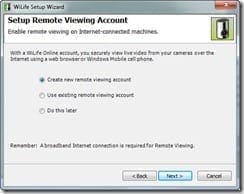
You are then asked if you want to setup a Remote Viewing Account. This is for allowing access to the live feed from outside the home. You can also set this up later, which is what I chose to do – more on that in a bit.
Logitech Remote Setup

The next bit is all about how many cameras you are connecting and the connection method. As this is the first and only camera I am connecting at this stage, I accepted the defaults (note here the USB Powerline Adaptor).

Logitech Tell Us About Your System

The next step involves you plugging in the USB Receiver (or USB Powerline Adaptor as was just referred to) into a wall socket and the connecting it up to your computer, as shown on the pretty diagram provided.

Plug in your powerline adaptor

If the drivers don’t install correctly or the USB device is not recognised, you will see an error.

USB not found error

In my case, the error was because I was trying to use the 32 bit drivers on my 64 bit machine – remember the warning I gave earlier!

The next bit sees you connecting the camera to its power supply and then plugging it into an electrical outlet.

Plug in your camera

Then follows a series of configurations and tests to make sure everything is working and can talk to each other.

Configure and test your camera

If that all passes, all that is left to do is name your camera – unless of course you like the name Camera 1.

Name your camera

And that is it – you will then be shown confirmation of your settings.

Setup completed

Just click Finish and you are done!

You may be advised that the camera’s firmware is out of date and needs updating. At the time of writing, version 2.72 was available and the camera came with 2.62.

Firmware update

Updating the firmware is simple, and only takes a few moments – just click Update Cameras.

USING THE COMMAND CENTER SOFTWARE

Ok, so the software is installed, the camera is plugged in, and everything is working. The next step is to configure any settings you might want to change.

By default, the settings for recording are quite low, to ensure maximum recording time.

Recording settings

You can change the resolution, the frame rate and also the bit rate. Just remember the high the quality recording, the more disk space you use.

You can also have a look at information for each camera – including its IP address and statistics.

Camera Information

You can also choose whether to start recording whenever there is movement anywhere in the camera field of vision, or you can actually set a motion zone.

Settings

This is a very cool setting that enables you to drag a box around part of the image and set the system to only record when there is movement in that zone. For example, movement through a door, or when a till drawer opens and closes.

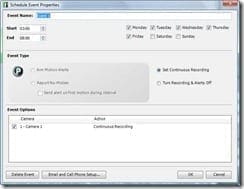
You can even schedule in events and enable continuous recording.
Settings

By default, the camera doesn’t record continuously – it waits until there is some movement which then starts of the recording on the PC. When the movement ends the recording stops a few seconds later (it’s about 5 seconds to be precise). This also ensures that you can get the maximum amount of recording available depending on your disk space. After all, you don’t want to record 8 hours of nothing, and just when something happens that you want to record your hard drive space is all used up!

You can even set up alerts that can enable you to receive email messages cell phone messages whenever something happens. For example, you get a message telling you a recording has started and you know that no one is in the house, so you could call the police (this is also where remote viewing comes in very handy – more on that in a moment).

Settings

It is also very easy to check how much disk space has been used and how many files you have made. You can even change the video path if you want.

Settings

One of the very nice features is the ability to remotely view your camera or cameras. In order to do this you need to first create a WiLife Online Account.

Remote Settings

Just follow through the steps to do this – it’s very simple.

Remote Settings

Remote Settings

One VERY important to thing to note here, make sure the password you set here is not easily guessable – if someone can guess it then they can access your cameras remotely, and the last thing you want is someone else having access!

Remote Settings

And that is it – your account is created.

Remote Settings

The software will even test your router for you, and if its UPnP enabled it can configure it for you. You also have the option to change the ports it uses from here as well.

Remote Settings

When you want to access your account, or view any of your cameras online, you just open a browser and go to http://online.wilife.com, enter your email address and password and click Log In.

Online Access

You can then choose which of your cameras (if you have more than one) you want to view.

Online Access

And hey presto, you are viewing your camera live!

Online Access Live Playback

When you want to play back any files you have a couple of choices available to you. You can either choose a recording from the Camera timeline (the green boxes indicate a recording) or you can just open the folder that you chose as your recording destination and just open a file in Media Player.

Playback timeline

There are simply lots of other features and settings available to tweak and play with – far too many to go into in this review, but have a look at each of them, they are very interesting.

ADDING OTHER CAMERAS

Well, that is the hard bit over, and yes, it wasn’t really that hard was it?

If you want to add another camera it is very simple and just involves you adding a camera from within the Command Center software are performing the camera connection steps again as before.

You can add another spy camera, or you can add either an internal or external camera. You can actually add up to an additional five cameras, which should satisfy most requirements.

The Indoor Camera is packaged very similar to that of the spy camera.

Indoor Camera box

Obviously this one actually looks like a camera! It even comes with little window suckers so that you can mount the camera on a window facing out. And unlike the spy camera, you can tell when it is operational as there is a light on the front panel.

Indoor Camera

Just to show the sizes of these cameras, here is the Internal camera sitting next to the Spy Clock camera.

Logitech Cameras

PLATINUM SERVICE

You can upgrade the software and service that you get “out of the box” with something Logitech are calling the Platinum Service. Platinum gives you more control and flexibility to protect your property, family, and employees, while providing you the ultimate in video security – more notification options, powerful alert options, and increased accessibility to your cameras and recorded video files from a remote location anywhere in the world, at any time. Being better informed about what is happening at home or your business is your new reality.

Upgrade to the Platinum service and enjoy the features that increase the monitoring power of your WiLife System Command Center at a specific site.

· Scheduled Alerts

· No-Motion Detected Alerts

· Desktop Notifications

· Password System Lock

· Digital Pan-Tilt-Zoom

· Online Connection Monitoring

· Online Video Storage for your select important video

· Online Camera Management

· Online Search and Playback

· Online Video Sharing

The cost of the Platinum Service is £49.00 per year. I didn’t try it out as part of this review, but if the features sound appealing to you, then it could be well worth the £49.00 each year.

COSTS

Released in August 2008, the current UK price for the Spy Clock Camera is £229 and the US price is $249.99 and is currently available from Amazon. The Indoor Camera is £230 in the UK and the US price is $230. As you can see, once again, we in the UK are subjected to significantly higher prices!

IN CONCLUSION

So, to conclude, I have to say that these cameras are very easy to setup and configure and performed really well. That coupled with the possibilities provided by the remote access, and if you need a low cost PC based security system then you are on to a winner.

Windows Home Server Book Giveaway

WHSBook

To coincide with the new look of the Using Windows Home Server website, I have decided to give away 2 copies of my book, The Windows Home Server User’s Guide published by Apress.

The book has been out now since October 2007 and to read more about it click here.

If you want to win a copy, all you have to do is send an email to giveaways @ usingwhs.com (remembering to remove the spaces) with the title WHS Book Giveaway, your name and where you are in the world, and also a suggestion for an article you would like to see on the site.

The closing date for this giveaway is midnight on Saturday 18th April 2009, and I will announce the winners on the site on Sunday 19th April. Good luck!

Apologies for the Strange Site Behaviour

0

I just wanted to apologise for any strange behaviour on the site today, with themes changing and other strange goings on.

Rest assured this is being worked on as we speak and normal service should resume shortly.

Are You Having Trouble Getting Windows Home Server Power Pack 2?

Windows Home Server Power Pack 2 has been out for a few weeks now and if you have automatic updates enabled on your WHS, then you should be enjoying the new features.

If you have automatic updates enabled but you don’t have Power Pack 2 then obviously there is a problem.

There have been some reports of people unable to get Power Pack 2 and being told that no updates are available, even though you know that there are.

Brendan Grant has published something on his blog that may help.

What Brendan is suggesting is that is you are having this problem then you might be running a pre-release version of either Power Pack 1 or 2.

Ask yourself this question – where did you get Power Pack 1 from? Where you a beta tester? Did you download it via Windows Update or did you get it from somewhere else?

It might be worth uninstalling Power Pack 1 and then trying to check for updates then. If you are unsure on how to do this, Brendan’s article has a great walkthrough for you.

Using Windows Home Server Has Moved

Using Windows Home Server.com has now successfully moved servers to its new home.

The new address is: https://moviesgamesandtech.com

You may need to update your RSS feed as well to https://moviesgamesandtech.com/feed/
Sorry for any inconvenience this may cause you.

10 things I learned about Windows Home Server the hard way (on a Friday night)

  1. If you really want to learn about Windows Home Server build your own
  2. It was about the same cost to build my own WHS as it would have been to just buy one (but not anywhere as fun)
  3. Advanced Admin Console should be your first Add-In
  4. Disk Management should be your second Add-In
  5. Gigabit, gigabit, gigabit
  6. Get a Router with UPnP
  7. Get the RSS feeds from the five blogs listed at Microsoft WHS (at least these five)
  8. You cannot use Restore to a change to a different size hard drive
  9. Backup WHS regularly
  10. Backup WHS regularly, again

Blogs listed at:

http://www.microsoft.com/windows/products/winfamily/windowshomeserver/community.mspx

See you next Friday night

Timothy Daleo

Using Windows Home Server Site Move

I figured that it was about time to move the Using Windows Home Server site to a new server, which I plan to do this weekend.

When this happens you will also see a new look and feel to the site, with lots of new content coming up along with loads of competitions and giveaways.

Hopefully the move will go smoothly, but I apologise in advance if there are any problems.

Any of you who are reading this using RSS will have to update your feeds. I will post an additional message with the new link once the move happens.

If anyone would like to write any articles, or even if there is something you would like to see on the site, please email me at andrew @ usingwhs.com (remembering to remove the spaces!)

Thank you for your continued support and see you on the flip side 🙂

Black Hat Europe 2009 Next Week

bh-thumb Black Hat Europe starts next week and will held in Amsterdam. Black Hat has 4 separate briefing tracks, which are Hardware and Embedded Devices, Reverse Engineering and Malware, Client Wars and Application Security, Forensics and Network Protection with lots of different sessions in each track delivering up to date and relevant information on the latest security issues.

For more information about this conference and to register, click here. But hurry, the conference is next week. I will be there and will report back!

Adding eSATA hard drives to Windows Home Server on a Friday night

Equipment required:

eSATA external hard drive(s)

eSATA cable – Not SATA

eSATA connection or Add-On PC card (the HP MSS has this connector already)

2 Beers (not shown)

Windows Media Center streaming your favorite 365 station

Friday Night Kit

Background

I have a Dell SC440 PowerEdge running WHS that I built last year. The server came with 6 USB ports to which I immediately connected three external drives (only one is part of the storage), one UPS, a mouse and keyboard. I have often wondered where I would plug in my next drive when the time comes. The release of Power Pack 2 now offers Windows Media Center support and I have decided I am going put the rest of my 120 DVDs on the server. I am going to need more space eventually and Seagate was having an outlet sale so here is the article. My wife wants to know what is in the boxes that keep showing up at our doorstep. I hope she does not look in the server closet any time soon.

I currently have 1.5 TB in the case and a 500GB Free Agent Triple connected via USB. I purchased a second 500GB Triple from the Seagate outlet store this week and for the new eSATA card, the drive and the two new cables, I spent $115. I know I could spend $150 on just one 1 TB eSATA drive but I like to buy drives in stages and replace the older ones. You probably have your own logic on how you like your drives. I am also wondering if I will get any increase in file transfer speeds since I am moving to a faster interface on the duplicated drives. I am going to run some times before and after to see if files transfer faster. It currently takes 1:17 to upload the Voyager 952 MB file.

I thought you might find some of the speed standards interesting shown in the table below:

Device Speed (bit/s) Speed (bytes/s)
USB 2.0 480 Mbit/s 60 MB/s
FireWire 400 393.216 Mbit/s 49.152 MB/s
eSATA (SATA 300) 2,400 Mbit/s 300 MB/s

All external Seagate drives that offer FireWire connectors use the FW400 standard. Over the years I was always led to believe that FireWire 400 was really fast. Who really checked? I guess if you want to be able to daisy chain then you can use FireWire. USB 2.0 is still preferred for most of my applications.

Enough of the specs. Lets touch some hardware. Let the good times roll.  Viva WHS.

Installation

The Dell Server was made for easy access and card installation. You can do pretty much everything you want inside the system without tools. I removed the cover and pushed two plastic pins to get the card bay open. As you can see I can also get to everything else in the same fashion.

Inside Dell Server

I bought the PCIx1 slot card since it had two eSATA connections and the 3.0 Gbps speed. Your hardware will be different of course. I added the card I bought from Newegg and it went in without any issues.

Adding the card to the Dell Server

Mental Note: I recently read about how much work is required to change the RAM on a HP MSS and I just about hit the floor. I hope my parents never decide to start streaming media with their MSS!

I put everything back together (without tools) and put the server back in closet. I connected all of the cables, including the two new eSATA cables on the card side and pressed the power button. Come on baby. Do your thing.

Ok, so my WHS booted back up and I am waiting for the CTL-ALT-DEL screen. For those of you with HP MSS you should have skipped all of these steps. You also skip the “normal” log in screen like those of us with the OEM version and a monitor. Personally I have a hard time trusting a system without a monitor. I need to see the boot process and log in. Yes, I know I am strange.

Great, my WHS actually found the new hardware without my help and is downloading the driver. Is this really going as smoothly as it seems? It is all done. Seriously?

I am now connecting the new drive. Sweet. WHS sees the new drive. Notice that it shows 76% free before I add the drive.

Windows Home Server Console

I select the new drive and click on Add. Here we go again…

Adding the new drive

I expect you and I appreciate the warning but just flippin add the drive already.

More adding the drive

Drive added. Thank you. 80% free? I totally expected more of a delta. We covered the math a few articles ago so I will now console myself with another beer.

Hey did you notice that my first Free Agent drive is now listed as Internal (SATA) also? Before the screen shot I just unplugged the USB and reconnected it with the new eSATA cable and the drive was recognized and the location was relabelled. How cool is that?

It is now time copy some files and check that everything is working on the client side. It is getting late and the wife will be asking questions soon so I better hurry.

I just copied my 952MB Voyager test file and there was no difference in the time from before I changed to eSATA. I am kind of bummed about not seeing any change but I guess the WHS balances the loads before it copies to external drives. I am ok with everything else. You can see my two eSATA drives below and my other USB Free Agent that I use for backup.

Tim's Hard Drives

You could also see in the Console shots earlier above that I also have a second backup drive that I keep in a small USB safe. I rotate this smaller drive off site by backing up the database and all folders BUT the videos folder due to space limitations. You can never back up too much. Seriously.

I have the extra space I need so it is time to start backing up my DVDs.

See you next Friday night.

Timothy Daleo

A good website that has all of the speed standards is at http://en.wikipedia.org/wiki/List_of_device_bandwidths

If you go to the link above you can see that the new USB 3.0 is going to kick ass in the next few years. Seriously.

The Home Server Show 39 Out Now

HomeServerShow graphic Dave over at the HomeServerShow.com has released the latest edition of his podcast, The Home Server Show, number 39.

This weeks show is all about OS System Drive Failure Options for Windows Home Server and is worth a listen – as usual.

Dave also announces the winners of the my book giveaway he announced last week.

You can get more information here, and download it from iTunes or your other favourite place.

HP MediaSmart Server EX487 Wins Engadget Award

small_hp-mediasmart-server_ Well the voting is complete and the results are in . The HP MediaSmart Server EX487 has won the Engadget Editors Choice Award 2008 for Storage Device or Technology of the Year. Interestingly, the Readers Choice Award 2008 for Storage Device of Technology of the Year went to the Apple Time Capsule!

Anyway, well done to HP – it is certainly nice to see a Home Server winning some awards.

To see all the winners, click here.

PerfectDisk 10 for Windows Home Server Giveaway – The Winners

Last week we reviewed PerfectDisk 10 for Windows Home Server and our friends at Raxco gave us three fully licensed copies of PerfectDisk 10 for Windows Home Server to giveaway to our readers.

I am pleased to announce the winners of the giveaway are:

Brian Schmitz from Oakdale, MN, USA

Phil Bevan from Australia

Jonas Winther from Denmark

Congratulations guys, expect an email from Raxco shortly.

For all those that didn’t win this time, don’t worry, there are plenty of giveaways coming up on the site, so stay tuned.

Installing the Remote Notification Add-In to Windows Home Server on a Friday night

Background

According to the Add-In creator Alex Kuretz and his website, Remote Notification is “designed to forward the System Health Notifications from the Home Server to an email address. This can be particularly useful when configured to send to an email address that forwards an SMS (text message) to the user’s mobile phone.” This sounds really cool. I have a WHS and a cell phone. I have some extra SMS text time left on my cell phone bill at the end of each month so I am going to install the Add-In. Hopefully it will notify me any time there is a status change to my Windows Home Server. I will do the installation on my home-built WHS and my parents HP MSS. A real SA needs multiple clients, right?

Note: I already have this Add-In installed and working properly so I am going to uninstall it and go through the process again for this Friday night article.

Equipment Needed:

Remote Notification Add-In available at http://www.mediasmartserver.net/add-ins/#RemoteNotification

A cell phone and plan that allows text messages (you probably should check for text charges first)

An email account through a major service provider

One beer (optional, but you could need up to three depending on your router and ISP)

Serenity playing on Hulu (you pick the episode)

Installation of the Add-In

  1. Download the RemoteNotification.msi file to your server Add-In folder. You will probably have to unzip it and then move it to the folder.
  2. Open the WHS Console and click on settings.
  3. Click on Add-Ins on the left and select the Available Tab on the right
  4. Click on Install and wait for the WHS Console to restart

Pic1

The WHS Console will restart automatically.

Pic2

Settings for the Remote Notification Add-In in Windows Home Server

Click on the Remote Notification Add-In. For the Message Settings I am going to enter the data from an email I set up especially for my WHS. Check with your ISP. Most of the time they allow you extra email names.

I am starting with ISP information from a website that has most of the United States email providers. The website is http://snappermail.com/support/isp.cfm . Check with your ISP if it is not listed.

I have entered all of my information (not real data shown below of course) in the Add-In and sent the Test Notification.

Pic3

My silver cell phone just beeped like a little bell. I love WHS.

Pic4

That was too easy. My router is UPnP so I did not have to do any backend changes. I am not even done with my first beer. Something should have went wrong. It always does. Seriously.

Settings for the HP MediaSmart Server on a 2Wire Router

Time to remote in to my parents HP MSS. I have installed the Add-In and am waiting for the Console to reconnect. I have a few minutes. Do I open a second beer? Of course but I have to walk to the garage.

Mental Note: I should have got that damn mini fridge back.

I have entered all of my data in the Add-In settings on the HP MSS and sent the Test Notification.

Pic5

Error message and it is big one. Crap. My phone is just sitting there like a little silver turd.

Pic6

I verified that I have set up the same exact settings on my parents HP MSS as I did on my WHS and just sent the Test Notification again. Same error. Crap. Still a silver turd.

So it is really not working. What is going on? The same exact settings. Is the HP MSS WHS software different? It works on mine but not theirs. Same version of the Add-In. Crap³. Time to look around the forums and see what I did wrong.

Nothing I can find on the forums that match my error. Time for a new post and a new beer.

Sweet, I got a response from the author of the Add-In. Based on the information I provided, Alex said that I need to check that port 25 is available. I remember enabling ports on their 2Wire router when I first installed the MSS. Dumb router. I hate the 2Wire interface because it is not UPnP. Dumb. I could do a router behind the router but it seems like such a pain in the butt. Maybe for another Friday night…

Mental Note: What should I write about next Friday?

Ok, I have added port 25 to the 2Wire router, saved the new settings and clicked on Test Notification. Still a quiet turd. What is going on here? Time to check with the forum again.

Another response. Coolio. Alex said that my ISP only allows access from their customers, so they will not allow me to send email from my parents AT&T IP. Either I need to configure Remote Notification to use their AT&T mail server settings or use Gmail or some other web mail provider. I say F AT&T so Gmail here I come…

Ok, created a Gmail account for the server and the Gmail settings are entered (I am pretty sure that yourmamasWHS @ gmail was taken) and I am clicking on the Test Notification.

Pic7

Flipper. What is going on now? I knew my WHS install went too easily. Beer and posting number three I guess.

Alex just responded back again via the forum (he is never going talk to me again after this) and said that Gmail doesn’t accept connections on port 25 (I never changed it from when I switched from my ISP to Gmail) so I should try port 587. Back to stupid 2Wire.

Pic8

I get it now. The port number 587 for Gmail was also listed on the web site I referenced above but I must have missed it. I am dumb. Not as dumb as 2Wire though.

I will check all of the settings one more time.

Pic9

Here we go again with the Test Notification. Please work. Seriously.

Pic10

It worked! I hear silver bells, silver bells. It is like beeping Christmas here.

Conclusion

The Remote Notification Add-In works great and all of the issues I had were just incorrect settings on my part. This Add-In is really cool because it allows you to turn it on and off without affecting the settings. It also allows you to choose which messages you receive. I feel like an SA now with Remote Notification.

A special thank you to Alex for the Add-In and the help with the installation. Oh, and one more thank you to the 2Wire developers for making such a POS interface and router without UPnP.

See you next Friday.

Timothy Daleo

Parts of this article restate the actual issues I had back in December when I initially installed this Add-In. That original posting can be found at:  http://www.mediasmartserver.net/forums/viewtopic.php?f=5&t=2995 however the beers were consumed tonight in real-time. The email settings were changed to protect the innocent.